
Most people have a lot of personal information–like texts, contacts, pictures, and emails—on their iPhones. But what happens if someone gets ahold of your iPhone? They will have access to all of your personal/private information.
However, there is a simple way to protect all of your private information—set a passcode for your iPhone.
This tutorial will explain (1) how to set a passcode to protect your iPhone, and (2) how to adjust the passcode protection settings to fit your needs.
Ordinarily, your iPhone operates as shown in the following pictures. Once someone slides the toggle to unlock your iPhone, they have access to everything–your emails, texts, contacts, and any social networks (like Facebook and Twitter) that you are signed into. This leaves a lot of potentially very personal information exposed.
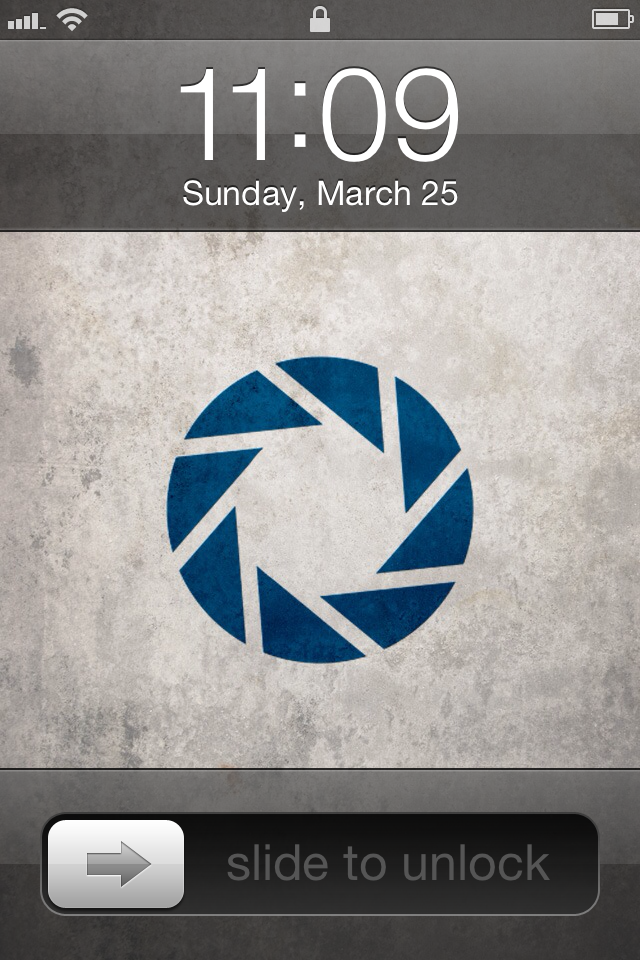
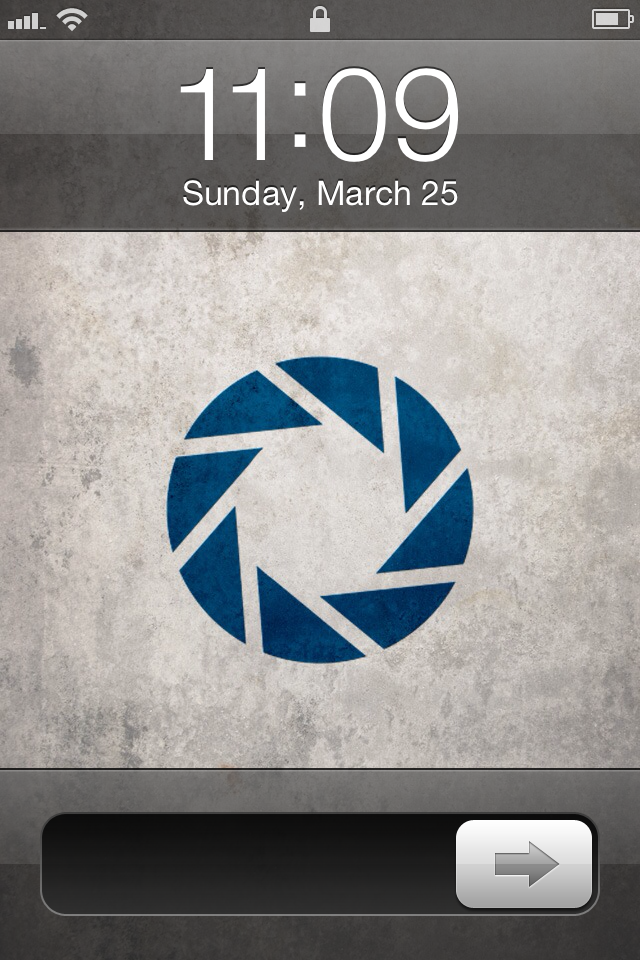
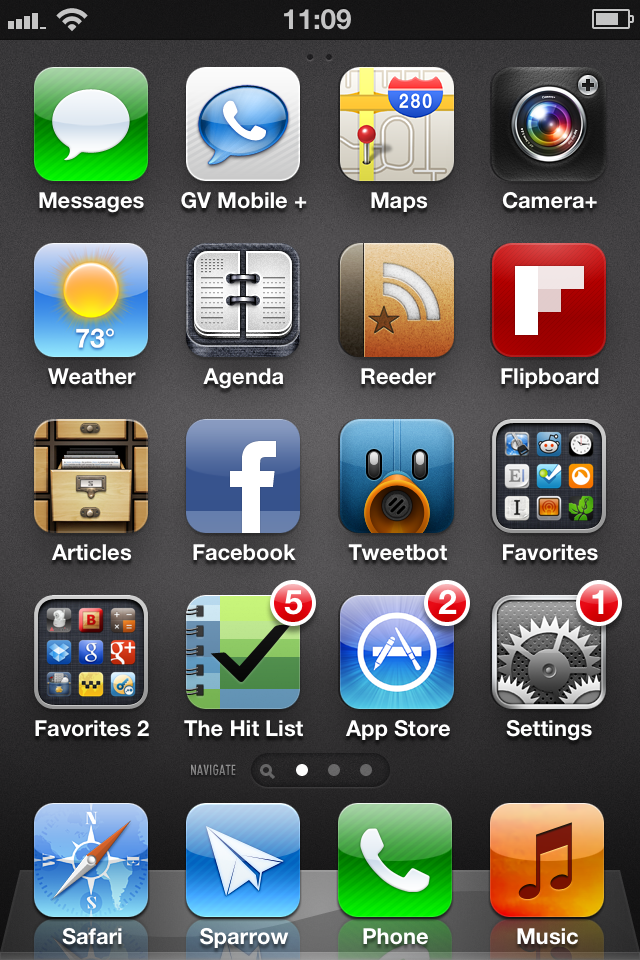
By setting a simple passcode, you can provide much greater protection to everything on your iPhone.
Let’s begin.
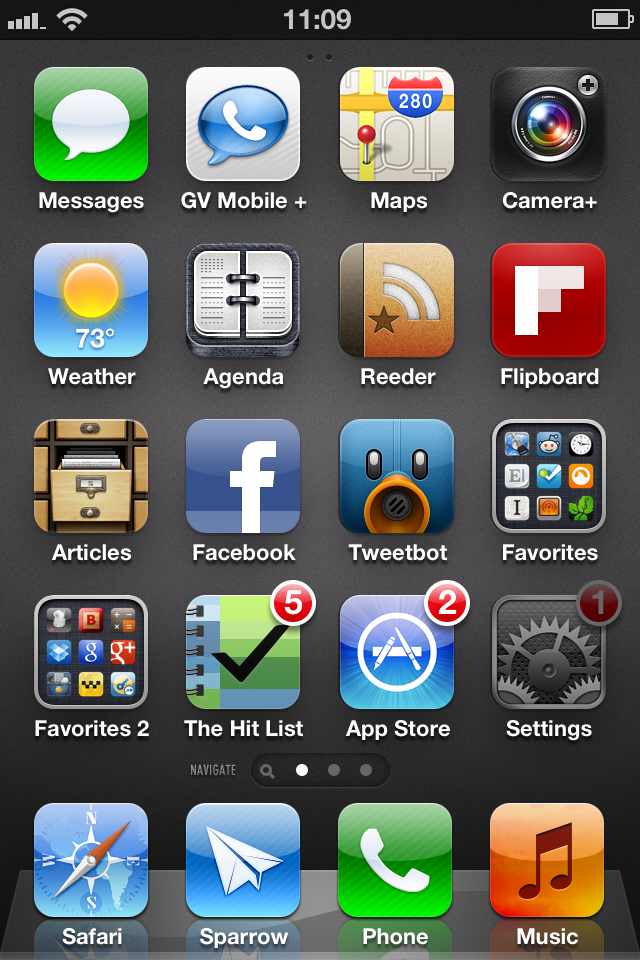
First go to your “Settings” app.
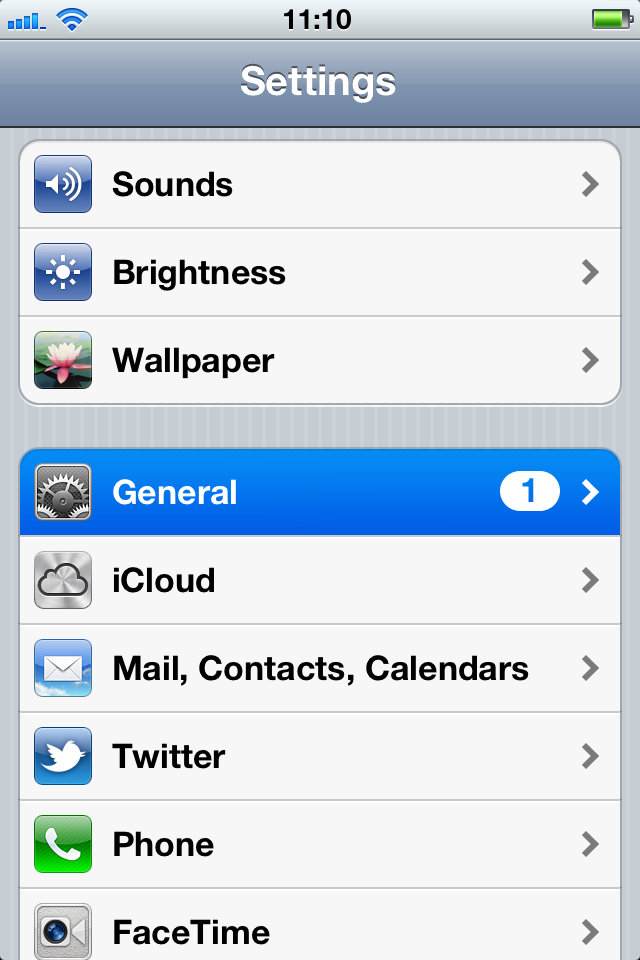
Scroll down until you find “General”. Tap it.
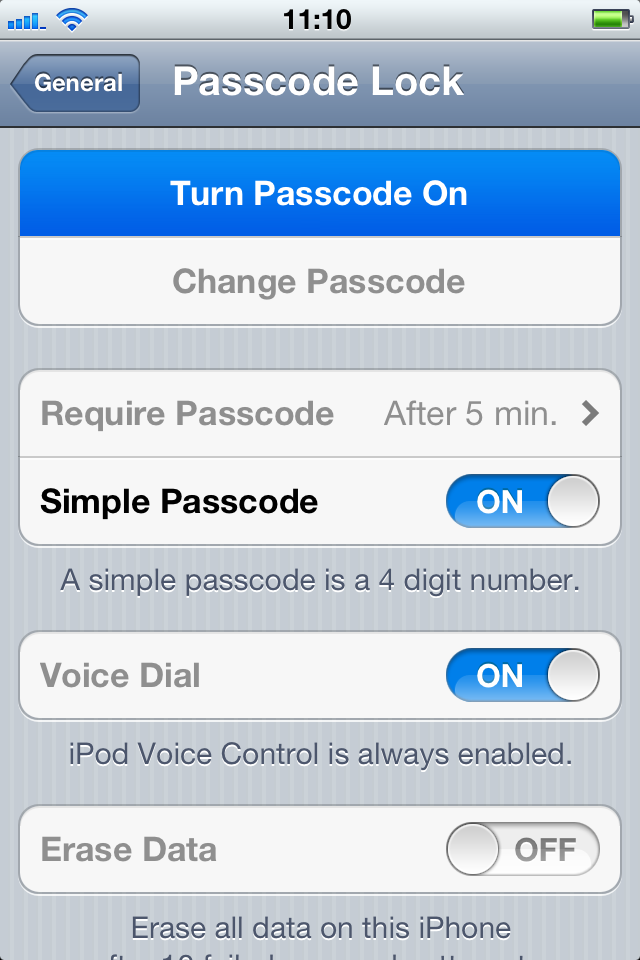
Scroll down to “Passcode Lock” and then tap it.

To turn on password protection, tap “Turn Passcode On.”
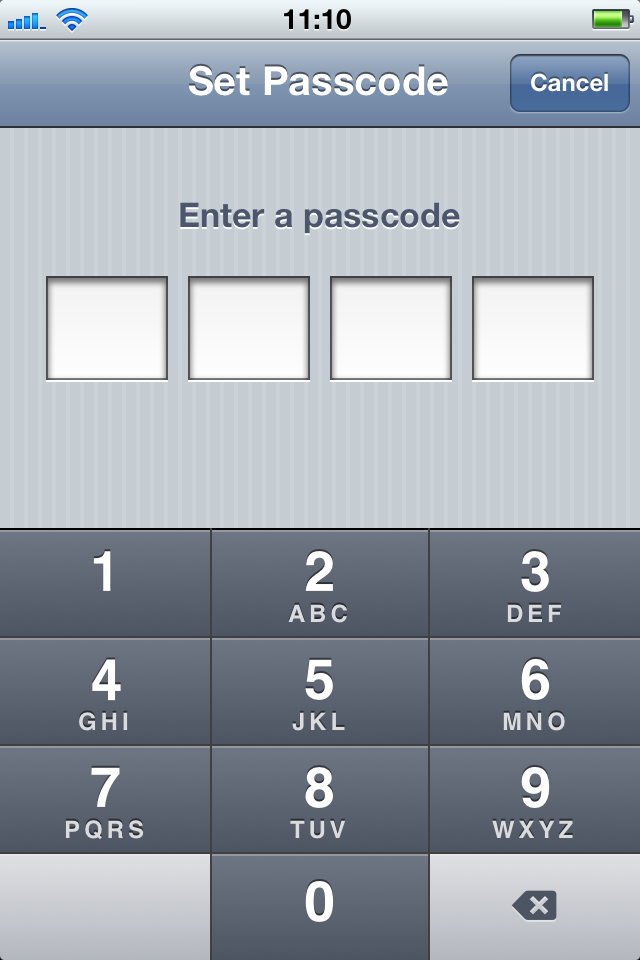
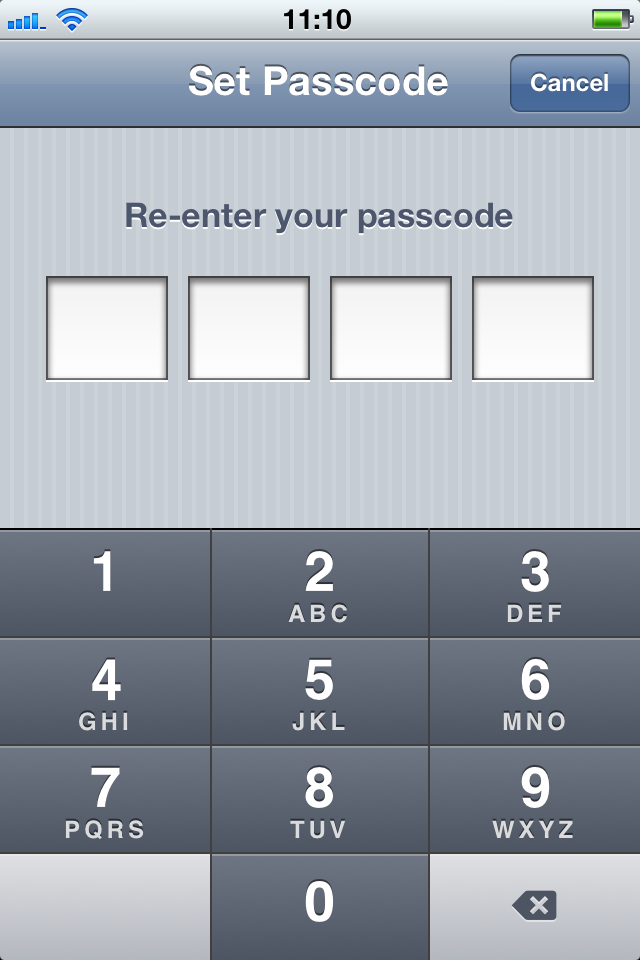
Enter a four digit number that you want to serve as your passcode. Next, re-enter the same four digit number.
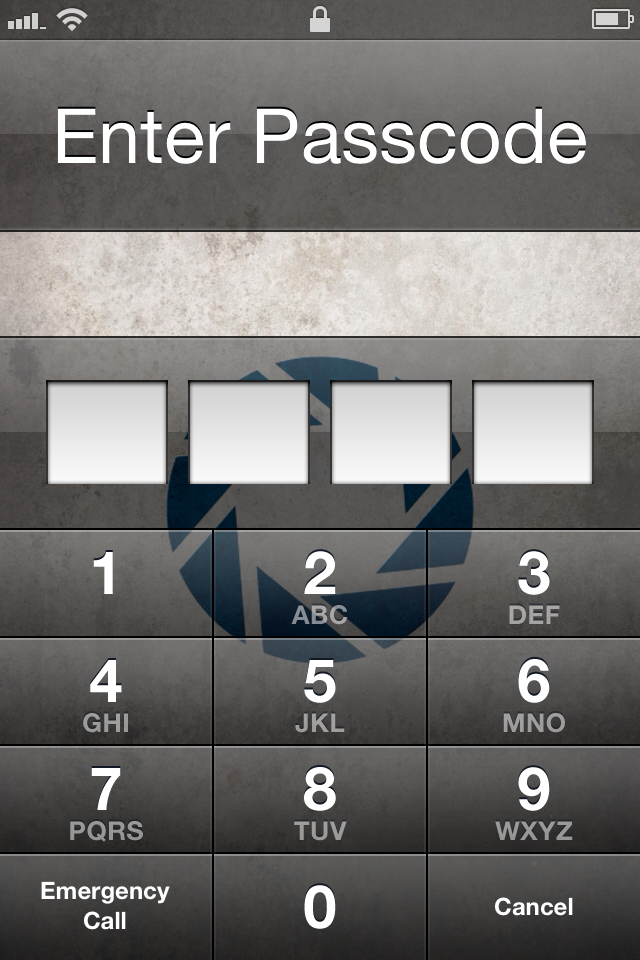
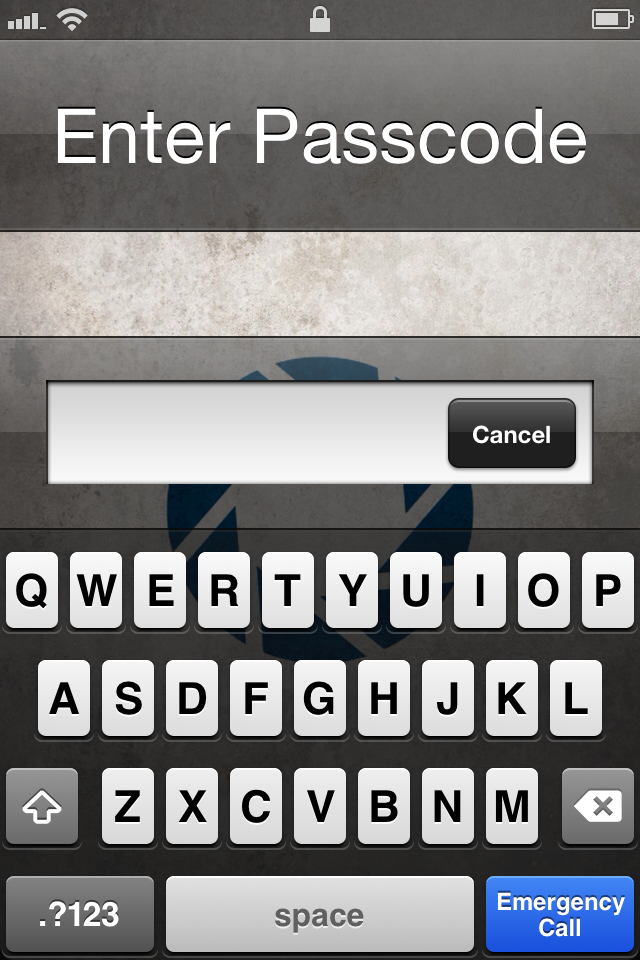
Your passcode is set! Now, after your iPhone locks (and depending on the time settings—which we will discuss shortly), anyone trying to access your iPhone will be presented with a request to enter in the passcode to unlock the iPhone. If the correct passcode is not used, the iPhone remains locked—keeping all of your information secure. It’s important to note that emergency calls are still possible when your iPhone is protected by a passcode. An emergency call can be placed by tapping on “Emergency Call” on the bottom left of your screen.
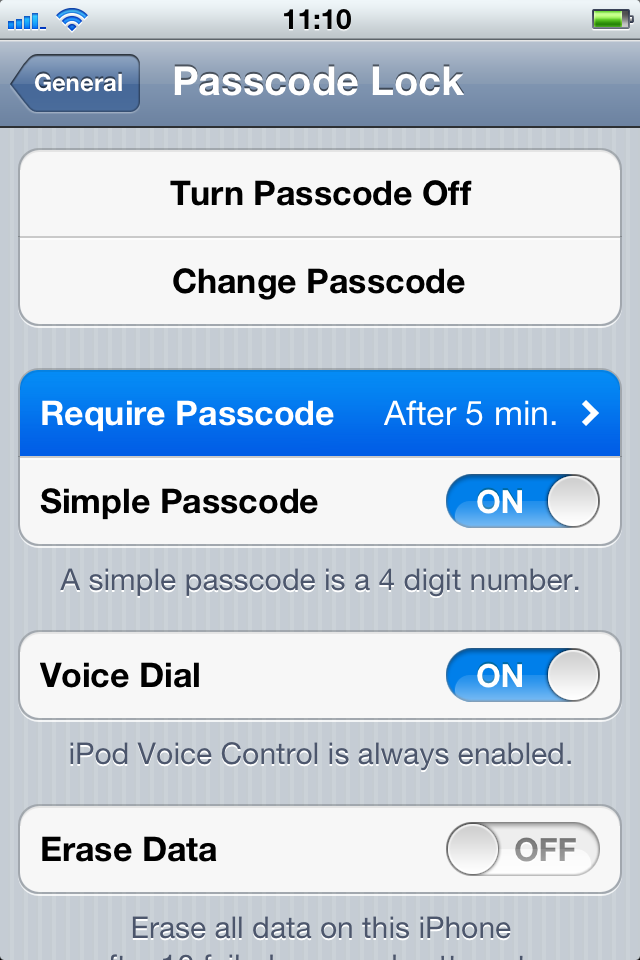
Now that your passcode is set, you can set when your iPhone will require the passcode to be entered. Tap on “Require Passcode.”
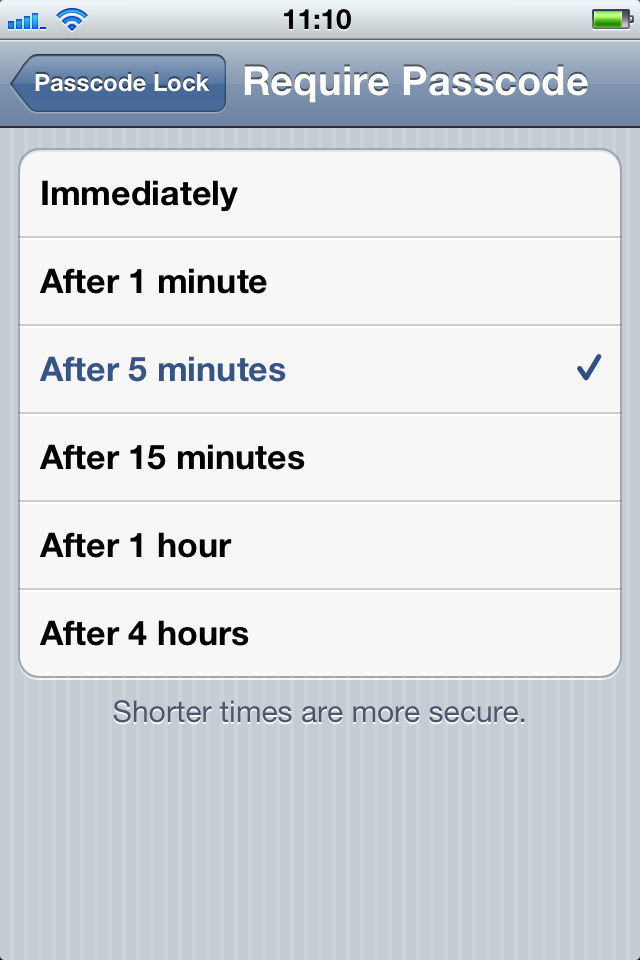
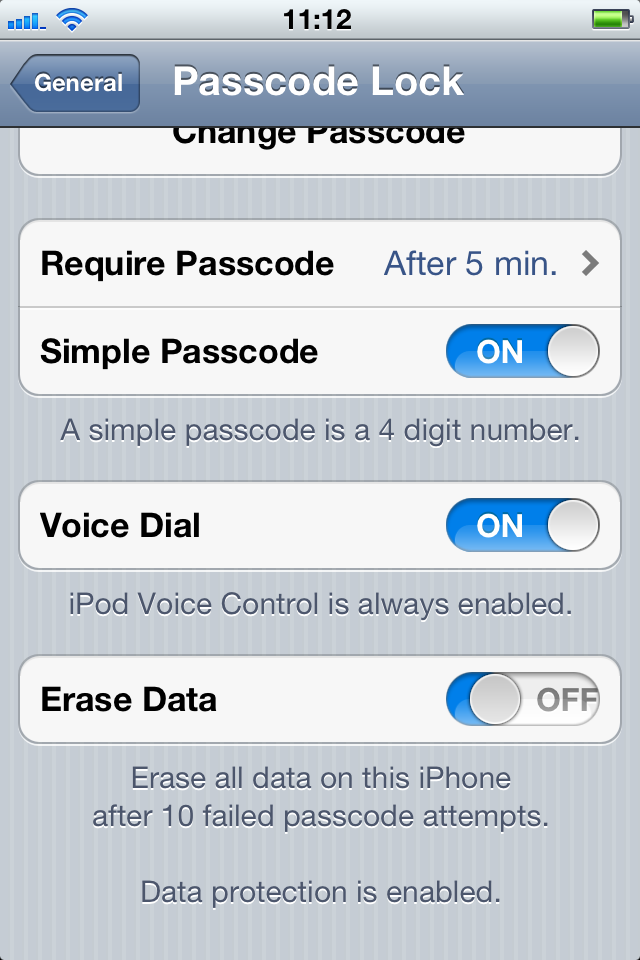
Here you will be able to set the time when the passcode will be required after the screen goes off. For example, I have selected “After 5 minutes.” This means that, once the screen turns off, I will be able to access my iPhone without a passcode for the next five minutes. After five minutes passes, my iPhone will require a passcode to be unlocked. As noted in the picture below, shorter times are more secure. However, setting the passcode to something like “Immediately” can get pretty annoying—as every time your screen turns off, you will be required to re-enter your passcode to unlock your iPhone.
If you don’t like number passcodes and would rather have a more complicated password that uses letters and/or symbols, you are in luck. A simple toggle button will allow you to use these more complicated passwords.
To use these complicated passwords, switch the toggle next to “Simple Passcode” to “OFF”.
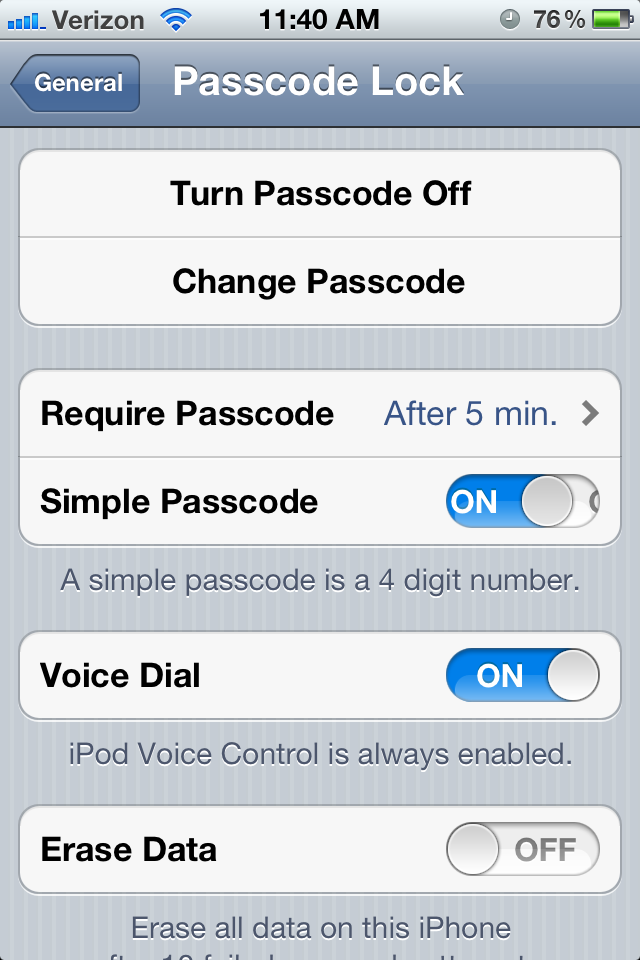

If you have been following these steps in order (or if you already have a passcode set), you will be prompted to enter in your current passcode.
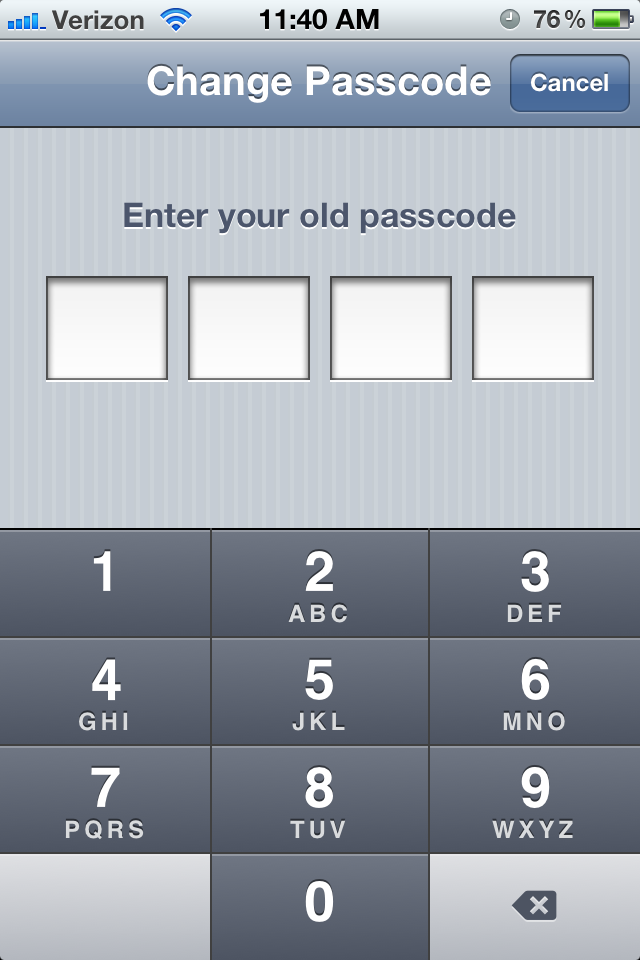
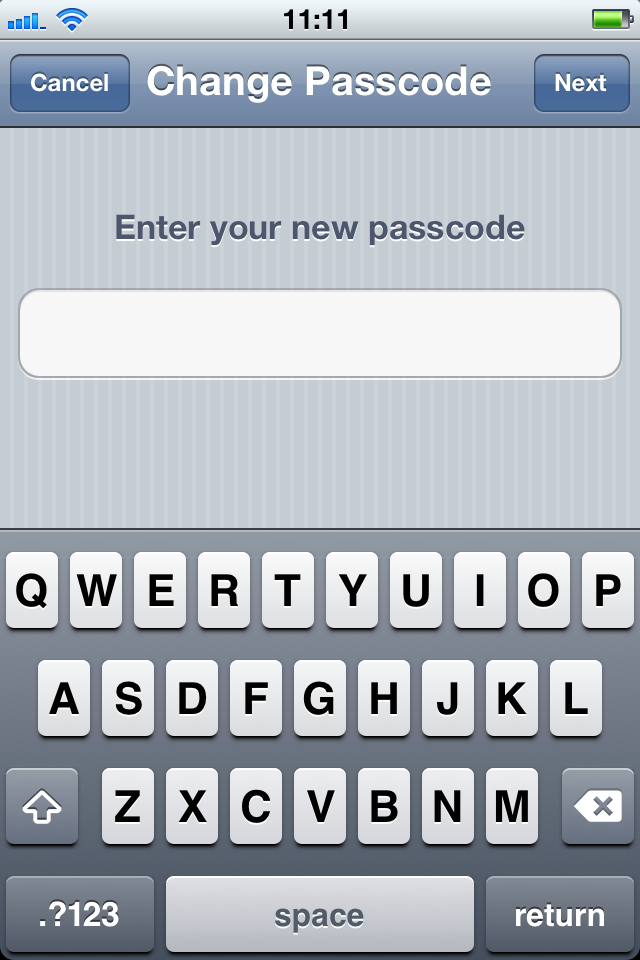
Next, you will be prompted to enter in your new, more complicated passcode. After that, you will have to re-enter that passcode.

That’s it! Now, after your iPhone locks, anyone trying to access your iPhone will be presented with the following screen:
There are additional settings that allow you to make the information on your iPhone even more secure. However, these additional settings may also have some downsides that I will flag for you as we discuss the other settings.
Some people may worry that, even though his or her iPhone is protected by a passcode, someone may try to access the information on the iPhone by continually guessing different passcodes until one of them works. Your iPhone has a setting that can protect your information from situations such as these. When the setting is enabled, you (or anyone who has the iPhone) will be allowed ten attempts to unlock the iPhone. However, if the tenth attempt to unlock the iPhone fails, everything on the iPhone will automatically be erased. Before I explain how to turn it on, I must issue this warning. WARNING: if this setting is turned on and there are 10 failed attempts to unlock your iPhone, everything on your iPhone will be erased. Use this setting with caution. If everything is backed up on your computer or through iCloud, then you may not have too much to worry about. However, this setting is probably overkill for most people.
To turn this setting on, tap the toggle next to “Erase Data”. If the toggle says “ON”, then the setting is activated.
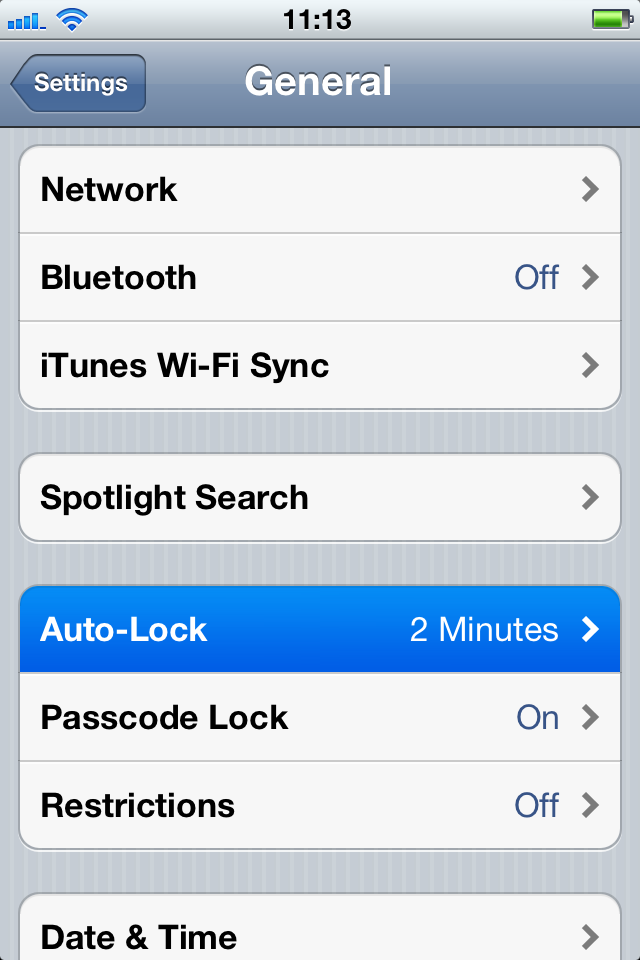
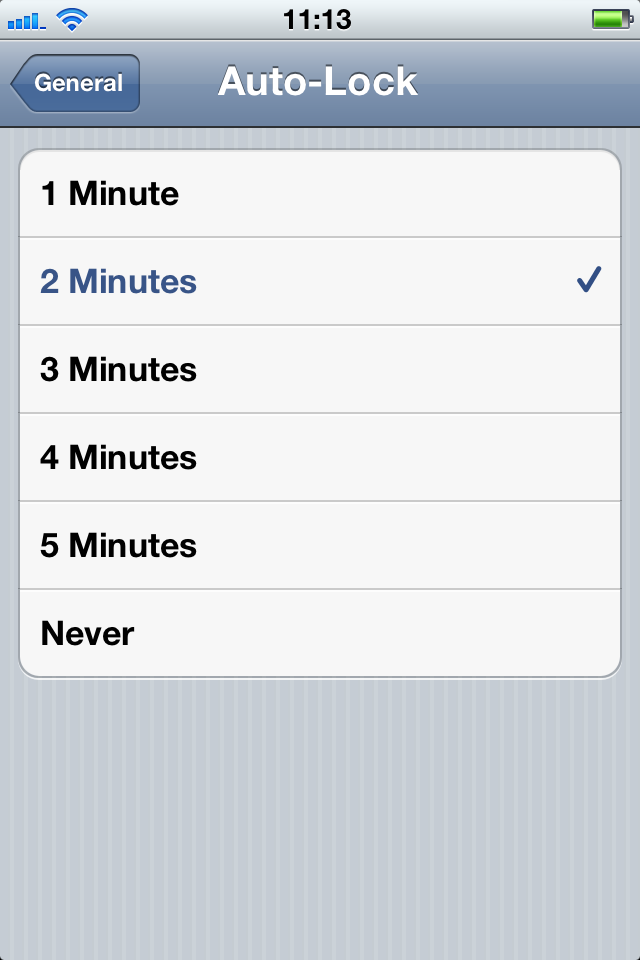
You may also see the setting for “Auto-Lock.” The Auto-Lock setting is essentially a “sleep” setting. It allows you to set the length of time that will pass before your iPhone locks (goes to sleep). This is different from your passcode lock. For example, if you set your passcode lock to “after 5 minutes” and Auto-Lock to “1 Minute”, then, after one minute, your iPhone’s screen will turn off and “lock” (requiring you to swipe across the screen to unlock). However, if you were accessing your iPhone before the five minute time period expired, you would not have to enter in your passcode to unlock the iPhone.
To set the Auto-Lock time tap “Auto-Lock”.
Select the amount of time you want to pass before the iPhone will automatically lock (sleep).
You are done! You now know how to protect the information on your iPhone with a passcode. Now follow these steps and password protect your iPhone!

 SimpleiPhone
Comments