

Have you ever tried to type an email or text message to someone, and even though you know you spelled a word correctly, your iPhone automatically “corrects” the word to something that you had no intention of writing? That’s your iPhone’s auto-correction feature hard at work.
In this tutorial you will learn: (1) how to selectively enable and disable your iPhone’s auto-correction feature, and (2) the effect disabling auto-correction has on misspelled words.
As its name implies, auto-correction was created to automatically correct misspellings in your typing. This should allow you to type messages faster–as you wouldn’t need to keep tapping the backspace button and correcting your misspellings. However, as many people have experienced, sometimes your iPhone “corrects” to the wrong word or “corrects” a word that you actually already spelled correctly. If your iPhone auto-correction feature is bugging you, a setting on your iPhone will allow you to disable auto-correction. But don’t worry! As I will explain later in this post, even if you disable auto-correction, you can still quickly fix misspelled words.
Enabling and Disabling Auto-Correction
To enable or disable auto-correction on your iPhone, first go into your “Settings” app.
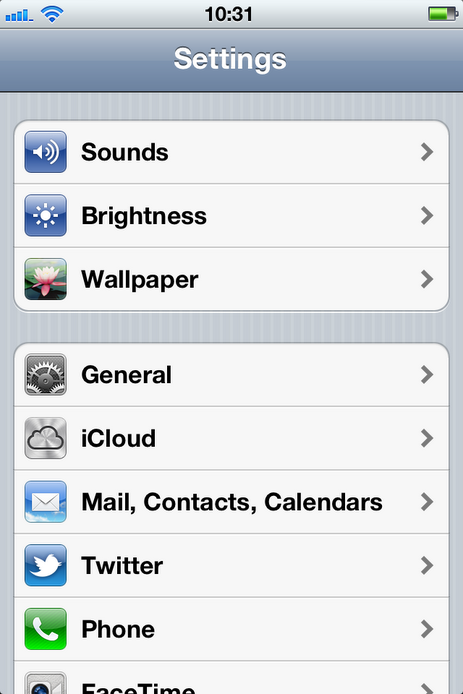
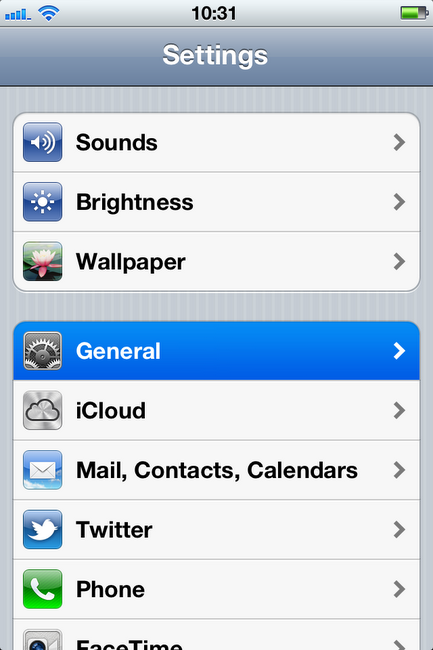
Find and tap “General”.
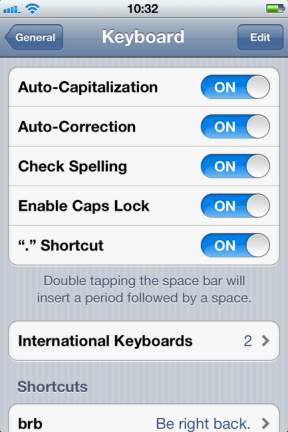
Scroll down until you find “Keyboard”. Tap it.

Here you will see several options relating to how your iPhone keyboard will behave. Auto-correction is automatically enabled by default. To disable it, simple tap the toggle to the right of the word “Auto-Correction”.

Auto-correction is now disabled.

To re-enable auto-correction, simply tap the toggle to the right of the word “Auto-Correction” again.
The Effect of Disabling Auto-Correction
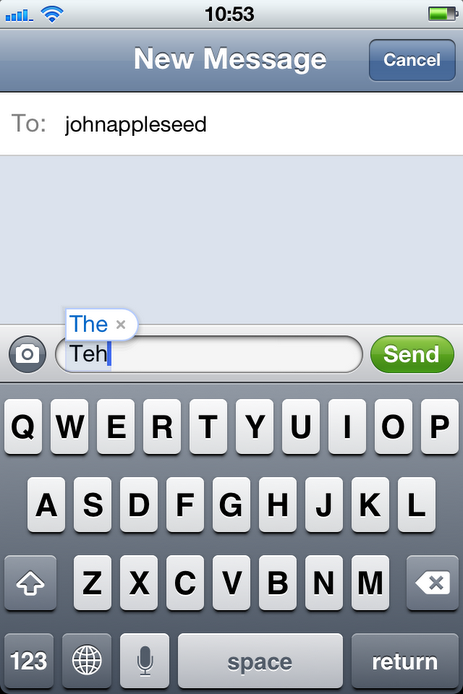
Disabling auto-correction means that when you misspell a word, you will still see a red dotted underline beneath the misspelled word, but your iPhone will not automatically correct the spelling. Here are two examples to show what I mean.
In this first example, auto-correction was enabled. I misspelled the word “the”. A pop-up indicates that I misspelled a word. The word located inside the pop-up is the word auto-correction will use to replace my misspelled word. If I disagree with auto-correction’s word choice, I can tap the “x” in the pop-up and the word will stay as I originally spelled it. However, if I simply hit the space button, auto-correction will automatically insert the “corrected” word into the message.

In this second example auto-correction was disabled. I misspelled the word “the” again. No pop-up appears to tell me I misspelled a word. However, once I hit the space button, the misspelled word has a red dotted underline. If I want to leave the word the way I spelled it, I simply continue typing my message.

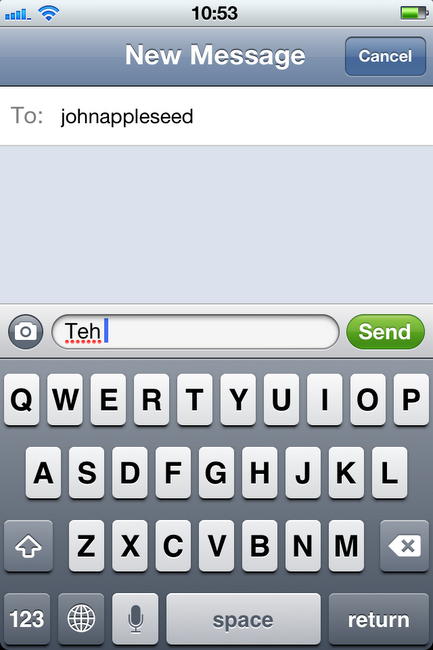
However, when a word has a red dotted underline (indicating that your iPhone thinks you misspelled a word), you can tap on that underlined word, and a pop-up will appear with words that you may have been trying to spell. If you tap one of the words in the pop-up, your underlined word will be replaced by the word you tapped.

That’s all there is to it! Now you know how to enable and disable auto-correction on your iPhone.
Pro Tip: If there are words that you spell correctly, but your iPhone tries to “correct” those words, you can get around the corrections (even with auto-correction enabled) by adding the word to your keyboard word “shortcuts”. (You can learn more about how to set up keyboard word shortcuts here: [Link].) Just add the problem word to both the “phrase” and the “shortcut” fields. Now when you type in the word, even though the word will still be underlined in red, auto-correction will not automatically try to correct the word.
Share this:

Tagged: auto-correction, autocorrect, easy, iPhone, setting, spelling, type, typing
 SimpleiPhone
Thanks Sam! I have a droid and jim has an iphone but I still was able to find where mine was located by just kind of following your steps, thanks. Maybe I wont ask jim to pick me up rum anymore when Im needing tums haha ;0)