

Have you ever been listening to music on your iPhone while jogging and a song that you didn’t like came on? You want to skip to the next track, but you don’t want to have to fiddle with your iPhone—having to unlock it, then having to navigate to the “Music” app, and then having to tap the “next track” button. If only there was a way to quickly skip to the next track!
Alternatively, have you ever seen something amazing happen and you wanted to take a quick snapshot of it, but the moment was gone by the time you got your iPhone out, unlocked it, opened the “Camera” app, and snapped the picture. If you could have just taken the picture a second earlier, you would have been able to capture an amazing picture. If only you could quickly access your iPhone’s “Camera” app without having to go through all of those steps.
You’re in luck! Both of these situations have a quick and easy remedy.
This brief tutorial will teach you how to quickly access (1) music controls and (2) your iPhone’s “Camera” app, all without having to unlock your iPhone and navigate to the respective app.
Let’s begin:
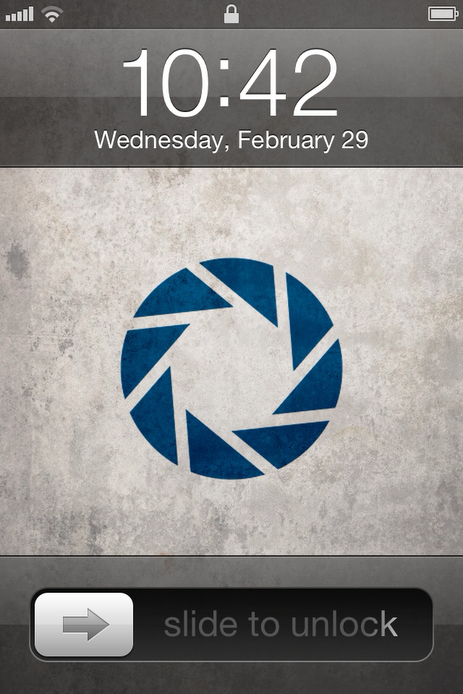
Gaining quick access to music controls and your iPhone’s camera button from the lock screen (or from the screen being off) is easy. All it takes is two rapid presses of your iPhone’s home button (the single button on the bottom of your iPhone beneath the screen).
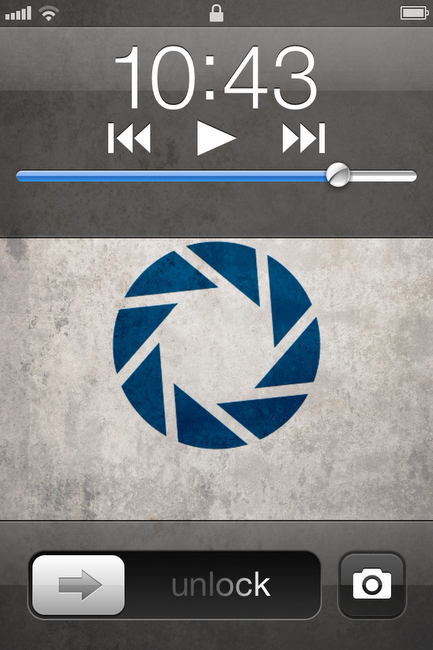
After double-pressing the home button, you will see music controls appear below the digital clock. These music controls will let you play a song, pause the song, skip a track forward, or skip a track backwards. In the picture below, you can see what it looks like if you tap the play button. Cover art for the song that is playing will appear, along with the artist, album, and song title.
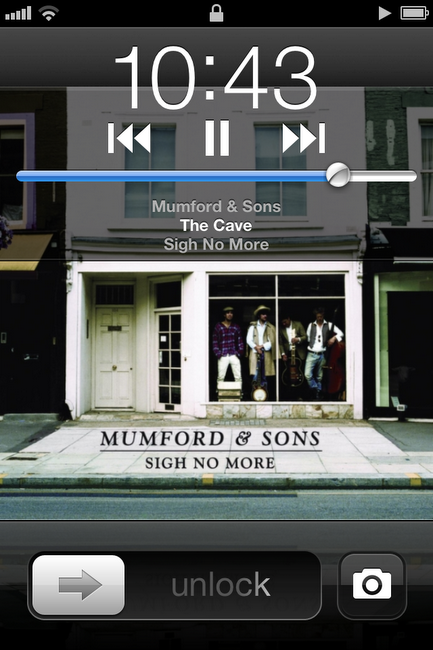
But, as mentioned earlier, this trick also gives you quick access to your iPhone’s “Camera” app. On the bottom right of the screen, you will see a button with a picture of a camera on it. If you tap this button, you will open your iPhone’s “Camera” app. Then, you can take pictures and video–all without having to unlock your iPhone.
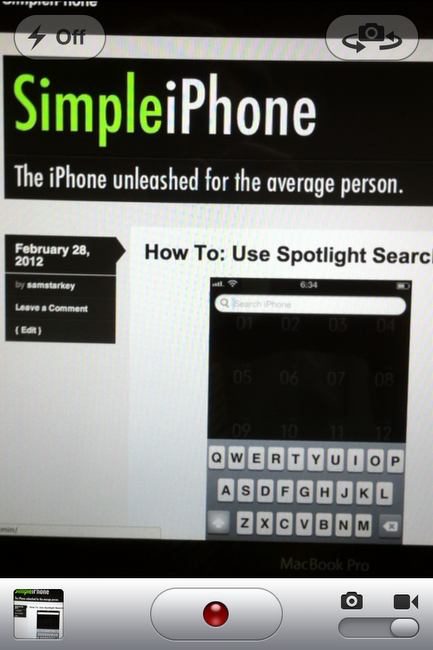
Apple has implemented a bit of a privacy feature with regards to the “Camera” app when accessed using this trick. If you click on the button in the bottom left of your screen (your camera roll–which allows you to view the pictures you took), you will be able to view the pictures and videos that you just took. However, you will not be able to view any other pictures or videos on your iPhone until you “unlock” your iPhone. (If you don’t have a password set, then unlocking is as simple as pressing your home button. If you do have a password set, then you will need to enter that password before your iPhone will unlock.)
That’s it! Now you know how to get quick access to your music controls and how to take a quick snapshot–all without having to unlock your iPhone!

 SimpleiPhone
Comments