

The first thing many people do when they get a new phone is customize the ringtone. Having that perfect ringtone to represent them when others hear their phone ring is a great feeling. But how do you do this on the iPhone? Many people have asked this question and we are hear to provide the answer.
We will give you a simple 5-step process on how to finally make that perfect ringtone for your new iPhone. Read on!
Step 1: Download the app Ringtone Designer from the App Store by clicking here.
There are other apps out there that promise the same features but we at SimpleiPhone recommend Ringtone Designer because of it’s nice intuitive interface and simplistic function, but most of all, it’s FREE.
Step 2: Open the app and select a song you wish to create a ringtone with.
Your music on your iPhone will be displayed in a long list. You can view your music by Playlist, Artist, Songs, Albums, or others. After you find your song on the list, select it. You’ll see something like this:
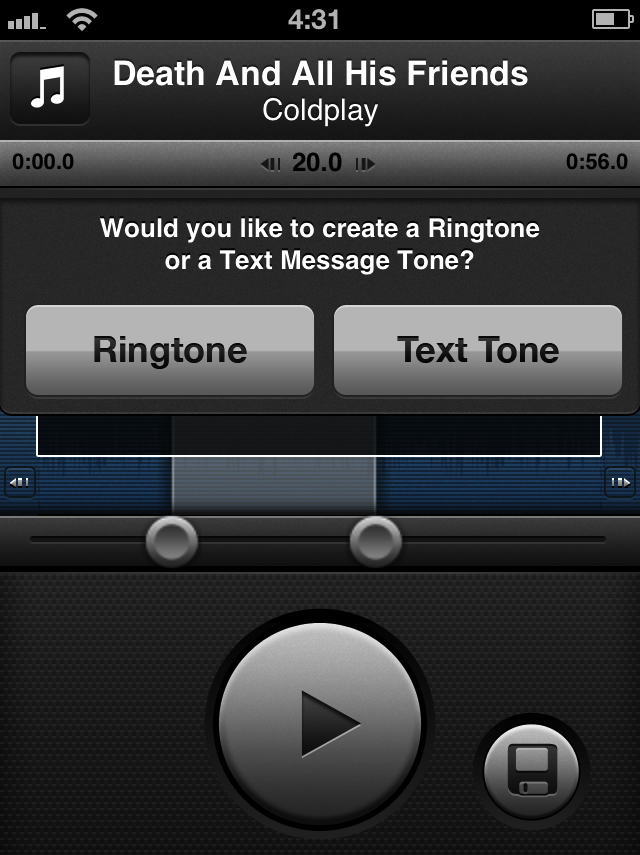
Here we can choose to either create a Ringtone or a Text Tone. The difference? A Ringtone is for when your iPhone receives a phone call while Text Tone is when your iPhone receives a message. For this demo, we will select Ringtone. Next you will see this:
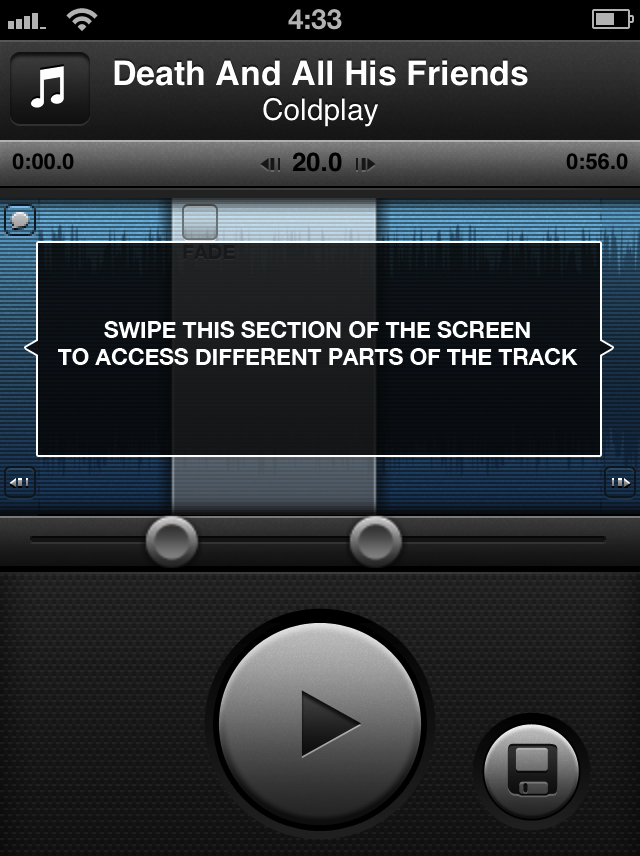
Step 3: Choose a 20-second segment and hit save.
You are able to select a 20-second segment of your song to make into a ringtone. You are able to swipe left and right as the above image suggests to get different portions of the song in that 20 second segment. You can hear what is highlighted by clicking the Play Button. Once you are settled on a good 20-second segment you want as a ringtone, hit the Save Button at the bottom right corner. This will save your selection as a ringtone.
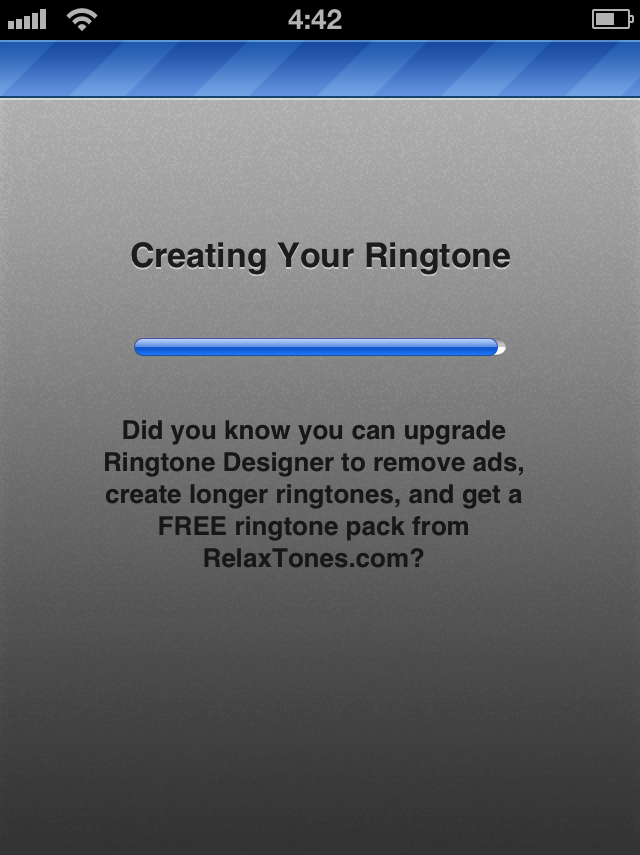
Step 4: Connect your iPhone to iTunes and sync.
After you save your new ringtone, you will need to connect your iPhone to your computer. This step understandably is what makes most people never finish this process, but unfortunately there is no other way to get customized ringtones on your iPhone at this time. To make this next step easy, located below is the instructional video created by the makers of Ringtone Designer.
Step 5: Set your new ringtone as your iPhone’s ringtone.
Go into your Settings app and then select Sounds.
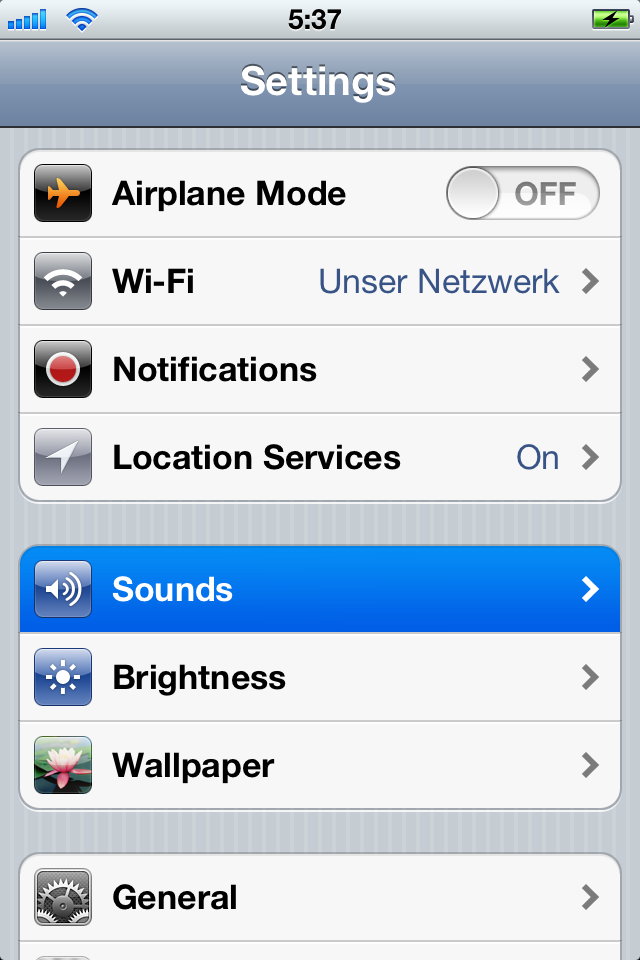
Here you can edit your iPhone’s ringtone and other alert sounds. Let’s change our ringtone:
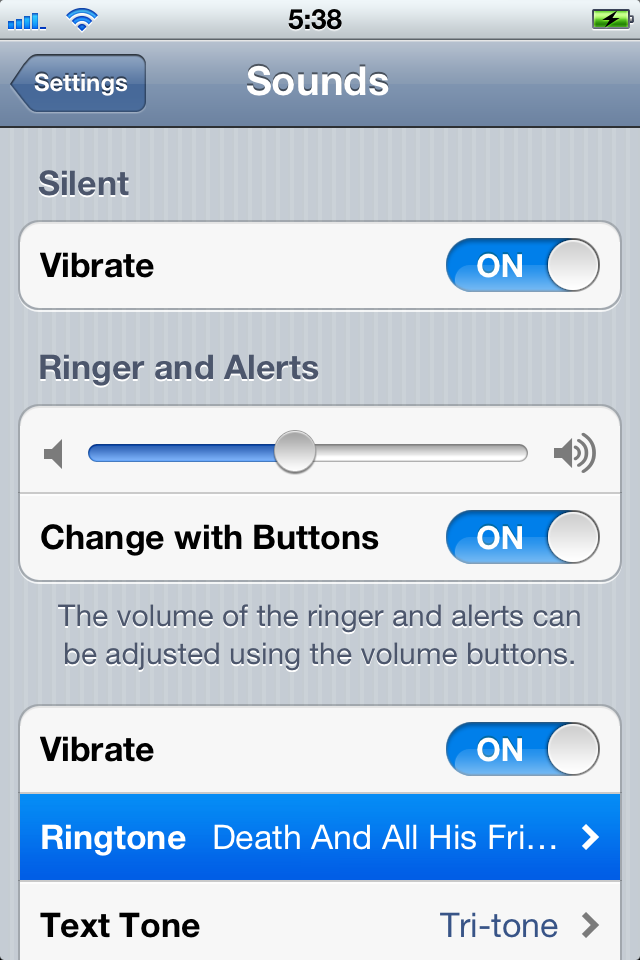
Now you will see the list of ringtones available on your iPhone. Your customized ringtones will appear at the top of the list. Go ahead and find the ringtone you just made and select it. Now you’re done!
You just created a customized ringtone for your iPhone for free! Due to the step involving the syncing with iTunes, I recommend creating multiple ringtones and putting all of them on your iPhone with one single sync.
Now go try it! Sound off in the comments section below on how it goes for you.

 SimpleiPhone
Comments
Trackbacks & Pingbacks