
 You probably have some photos from the holidays on your iPhone. Some of your family and friends may also have some holiday photos on their iPhones. Wouldn’t it be great if there was a way to share your photos with your friends and family? Well, with shared photo streams, there is a way to share those photos. But that isn’t all. In addition to sharing the photos, you and your family and friends can also comment on the photos and “like” the photos–almost like it’s your own private social network.
In an earlier post we covered the basics of Photo Stream–like turning Photo Stream on, viewing photos in your photo stream, deleting photos in your photo stream, and saving and sharing photos in your photo stream. (You can get to the post covering the basics of Photo Stream by clicking here.) Now that you have Photo Stream all set up and you know a bit about how to use it, let’s get into shared photo streams.
Sharing a photo stream with somebody is like allowing them to view your photo album on their own device. And, when someone shares a photo stream with you, you are able to view their photo album on your own device.
Table of Contents
As this is a longer article with multiple parts, we have included a brief table of contents for this article. The table of contents will allow you to quickly jump to any part of the article you want to read.
- Enabling Shared Photo Streams
- Sharing Photos on Photo Stream
- Receiving Comments and “Likes” on Photos in Shared Photo Streams
- Commenting and “Liking” Photos in Shared Photo Streams
Enabling Shared Photo Streams (Click here to go back to the Table of Contents)
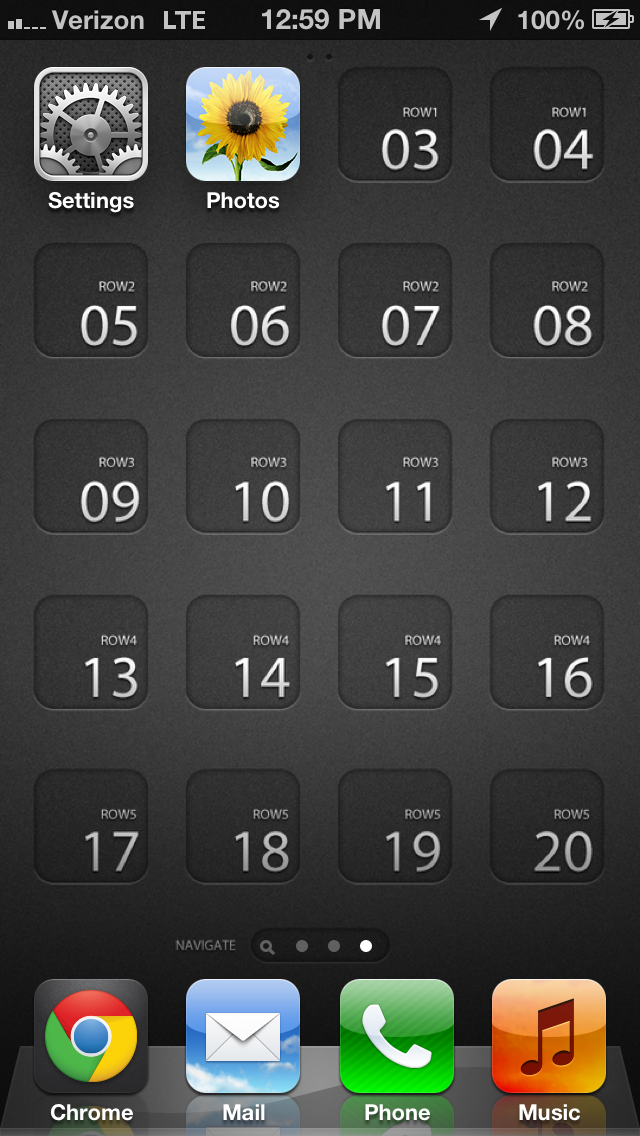
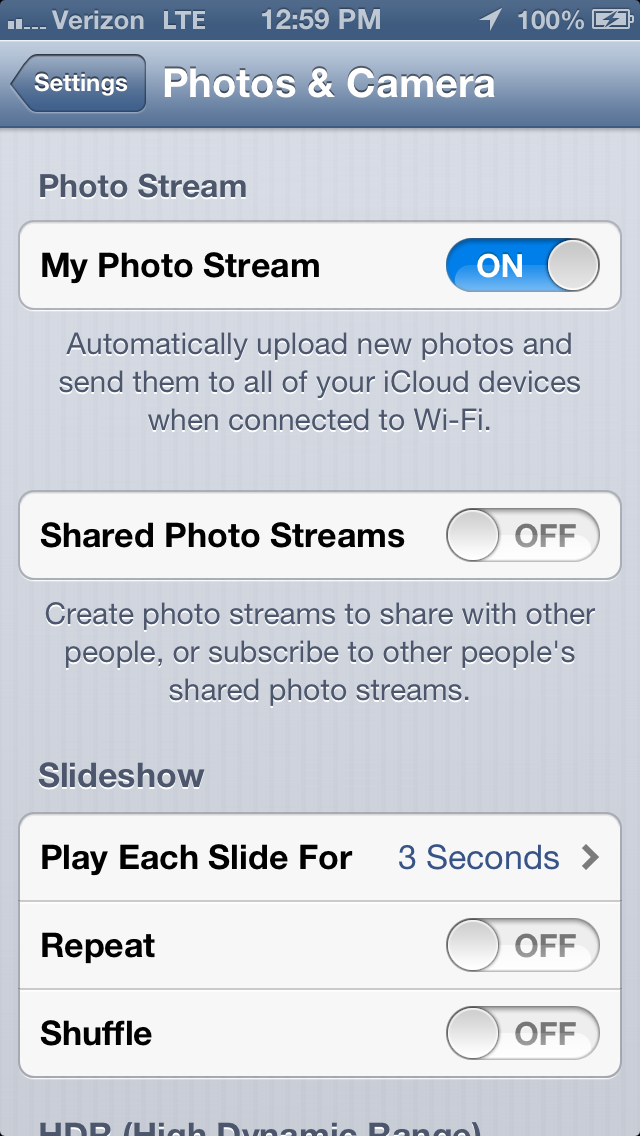
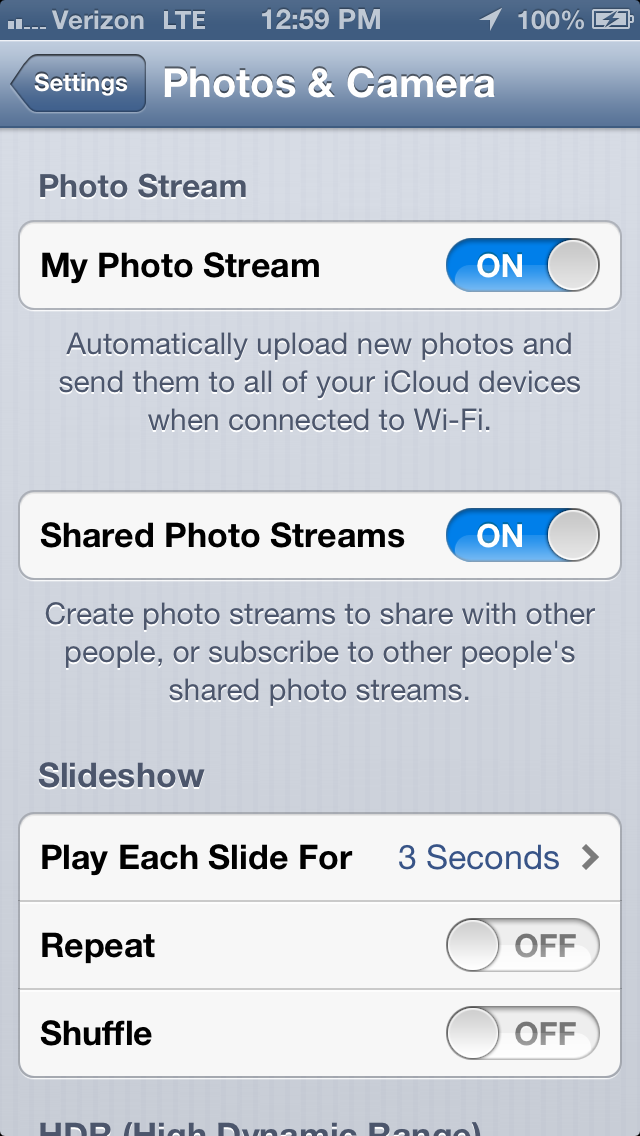
To use shared photo streams, you must first enable it on your device. To enable shared photo streams, go into your “Settings” app.
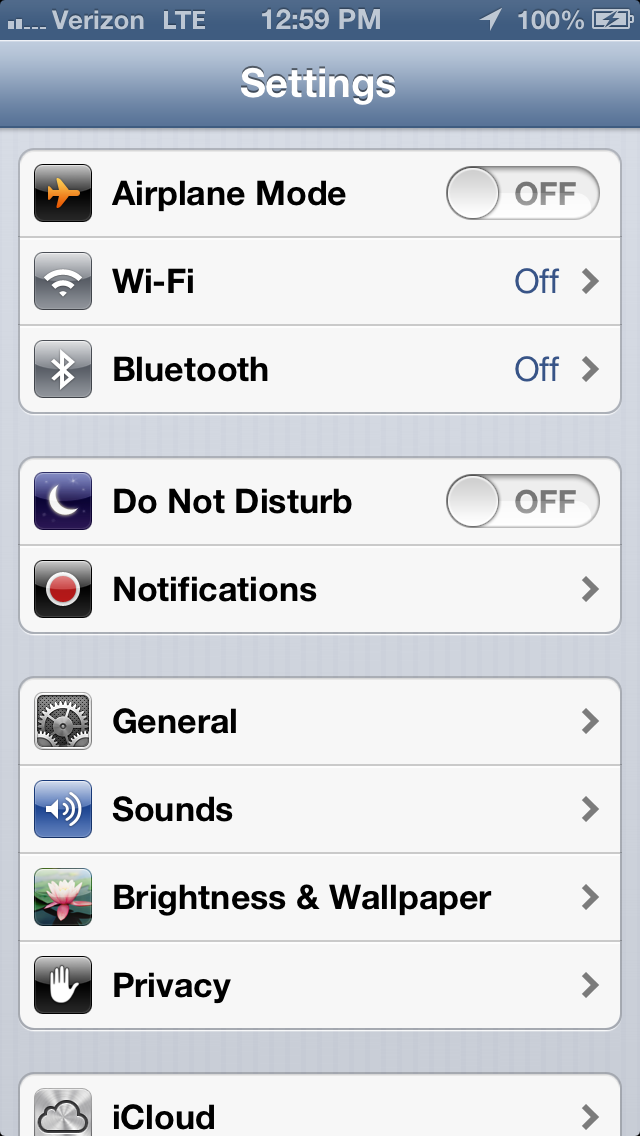
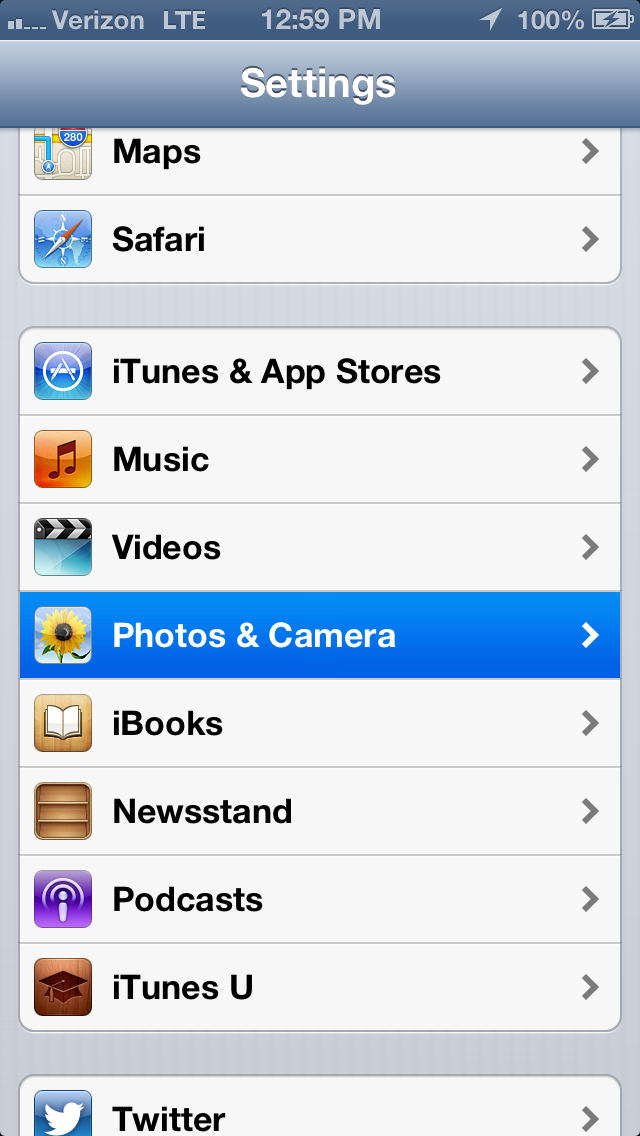
Scroll down and tap on “Photos & Camera”.
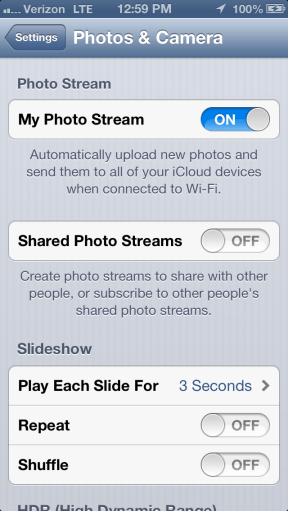
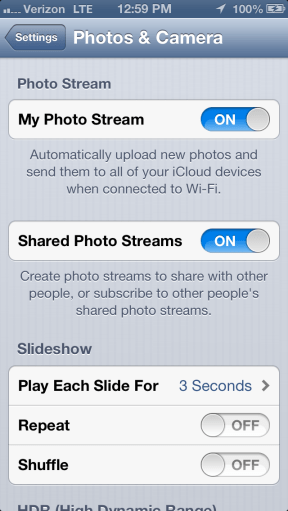
In the middle, to the right of “Shared Photo Streams”, tap the toggle to switch shared photo streams on. (If you ever wanted to turn off shared photo stream, you would simply tap the toggle to off.)
 Sharing Photos on Photo Stream (Click here to go back to the Table of Contents)
For your photos to receive comments and “likes” on photo stream, you will first have to share those photos on photo stream with someone else. Here is how to do just that.
While in your camera roll, tap on “Edit” in the upper right corner of the screen.
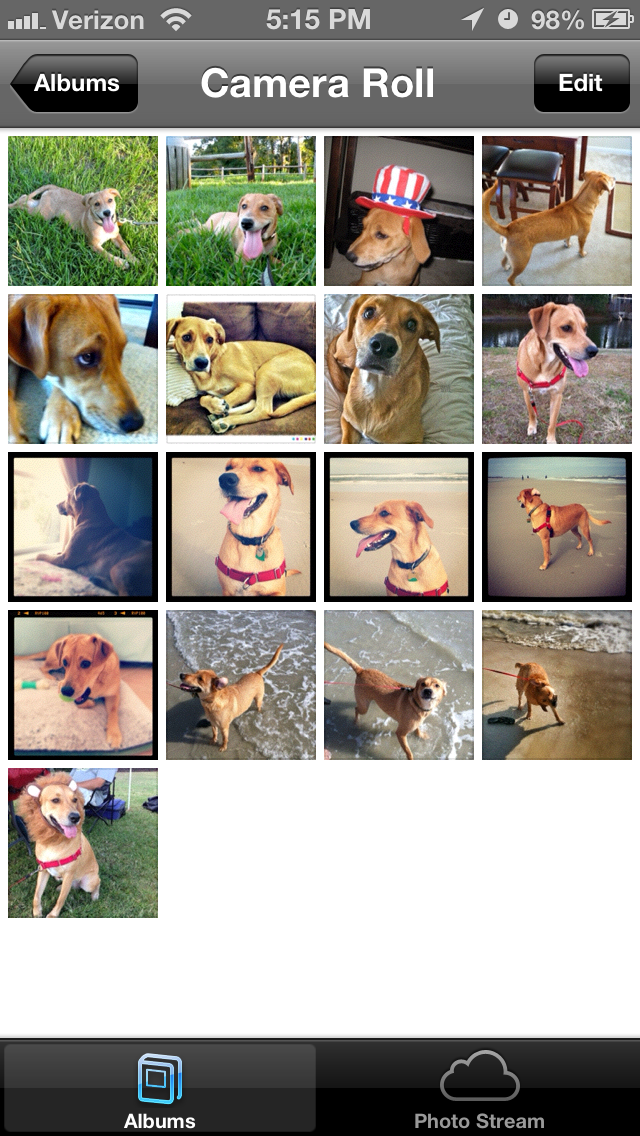
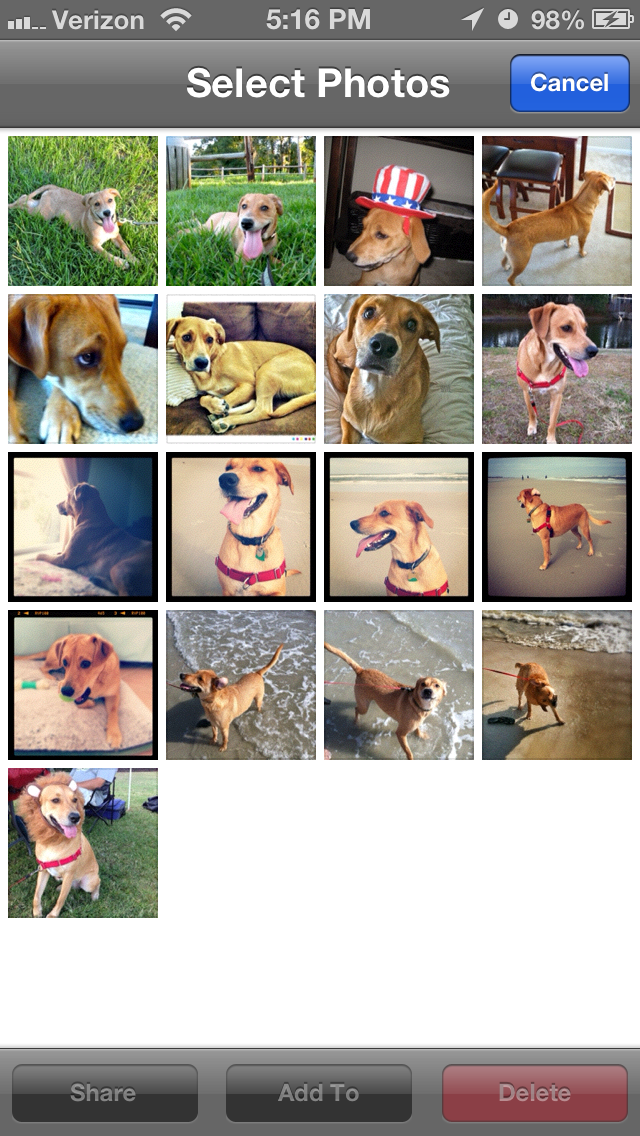
Select the pictures you want to share on your photo stream, and then tap the “Share” button on the bottom left of your screen.

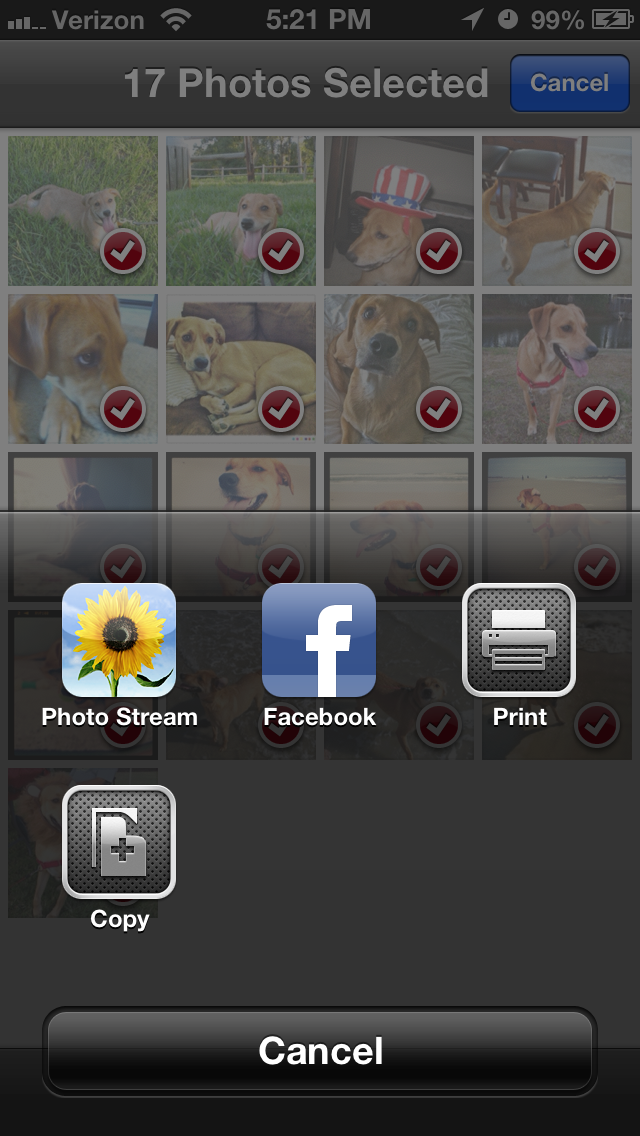
Next, tap “Photo Stream.”
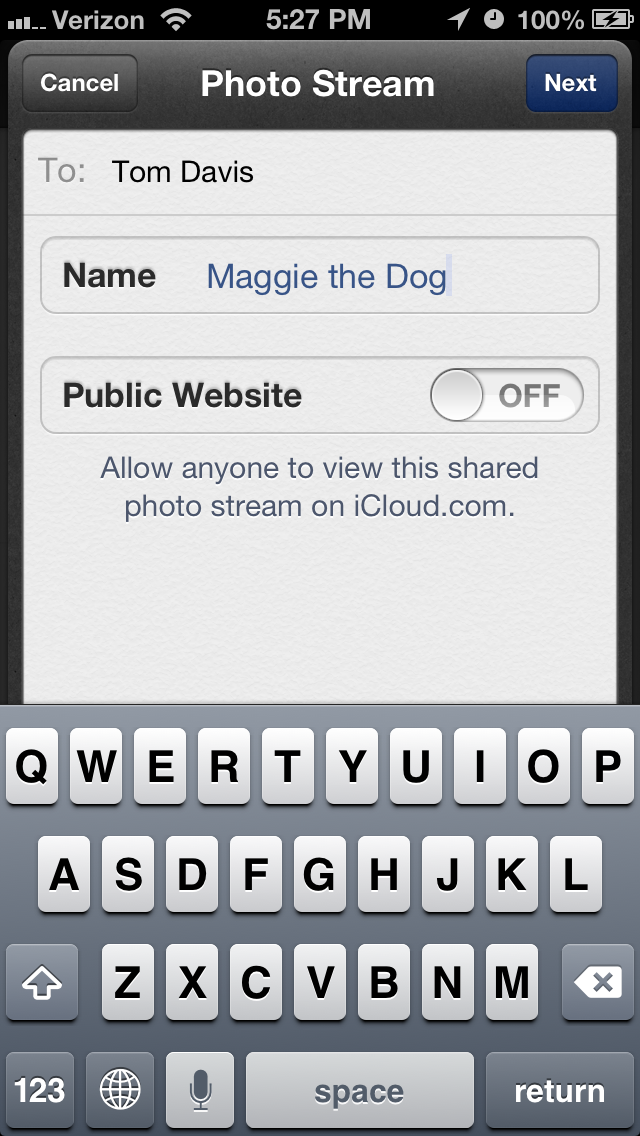
After tapping “Photo Stream” a dialog box will pop up. This dialog box requires you to specify to whom you will be sharing the photos. After filing the “To:” field in, you can provide a name for your shared photo stream. The last toggle, the one that says “Public Website,” will allow you to make your pictures publicly available on iCloud.com if you choose to enable it. If you prefer to keep your photos private and only share them with people you choose, leave this toggle in the off position.
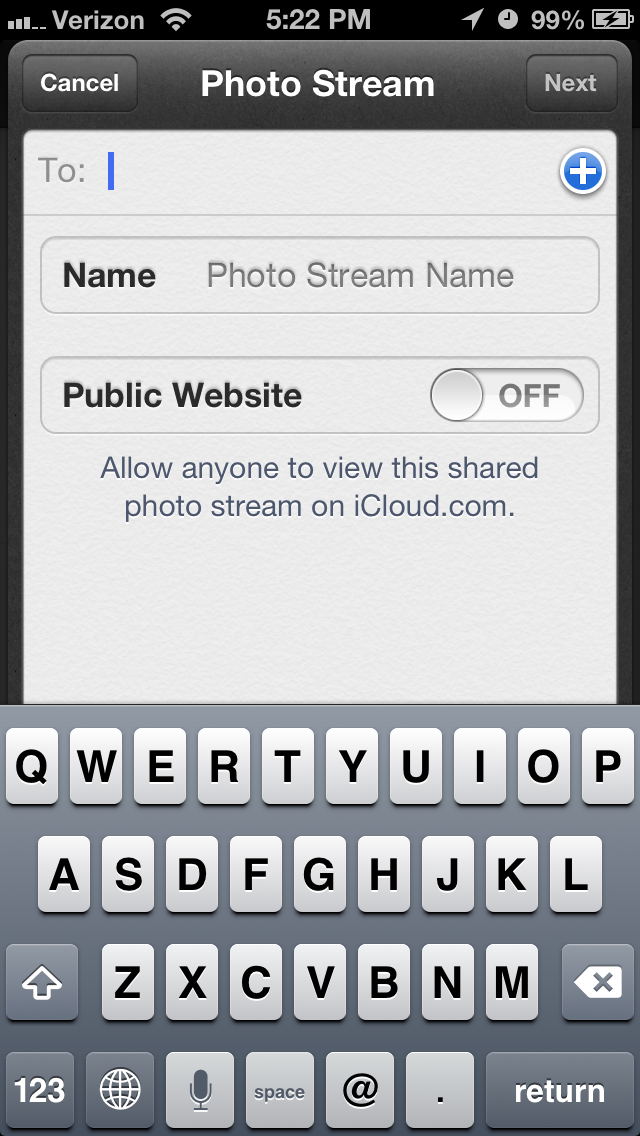
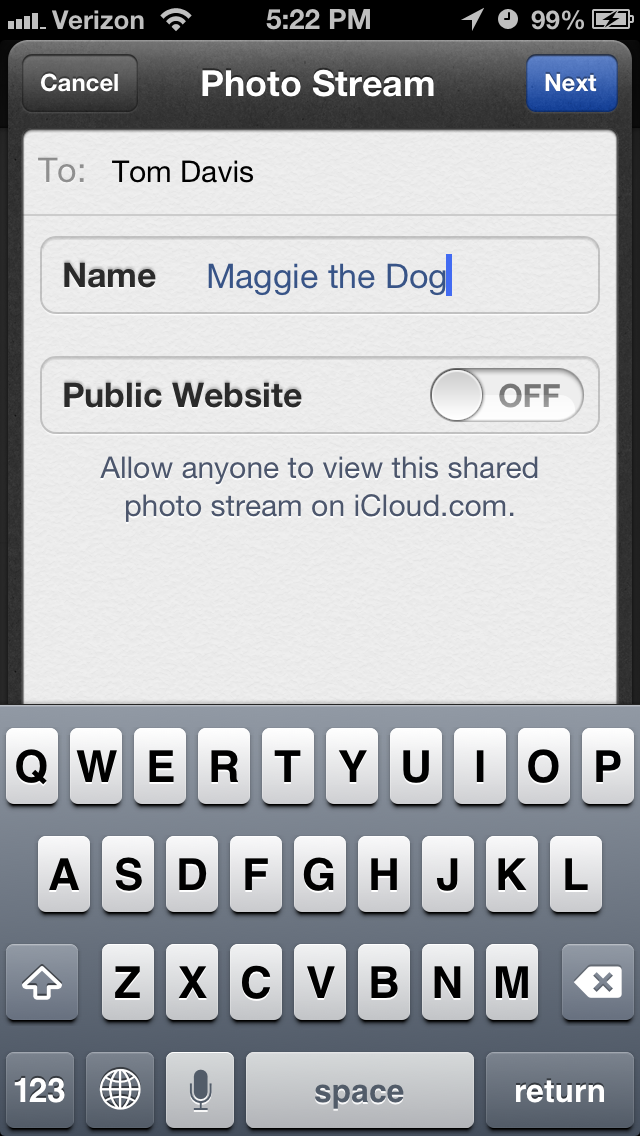
Once you have filled out the fields, tap “Next” in the upper right corner of the screen.
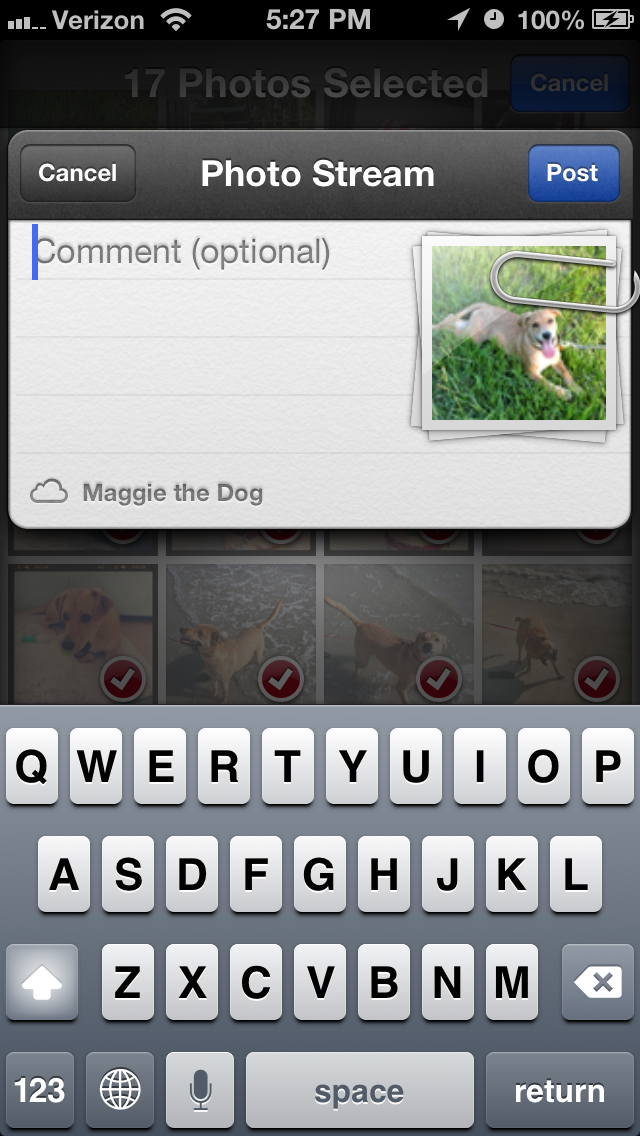
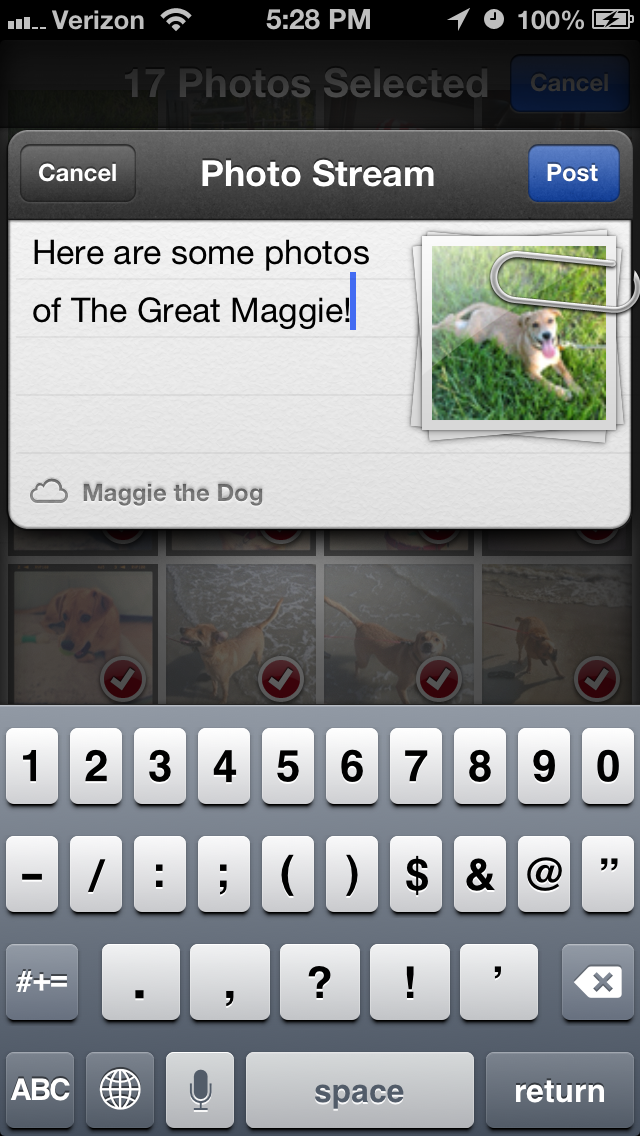
Another dialog box will pop up. In this box, you have the option of writing a comment or description of the photos you are about to share. Go ahead and write a message if you so choose. When you are done, tap the “Post” button on the upper right corner of the dialog box.
At this point the photos will then be shared with the recipient(s) you named earlier. Additionally, the shared photo stream will show up in your “Photo Stream” tab of your Photo app.
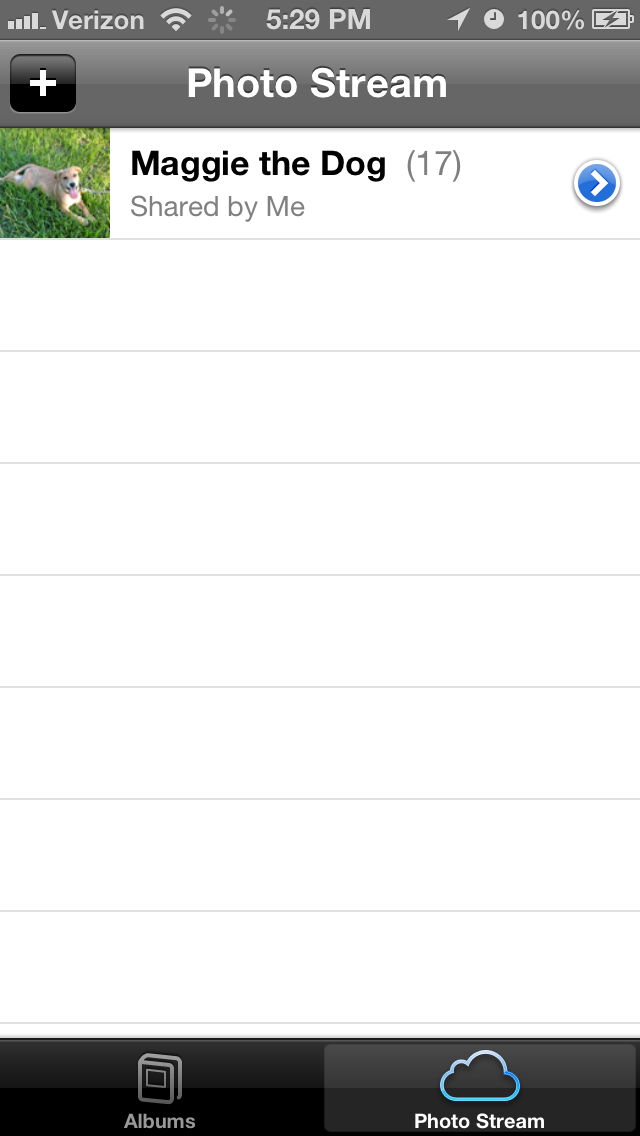
When someone you have shared the photo stream with accepts the invitation to see the photo stream, you will get a notification.
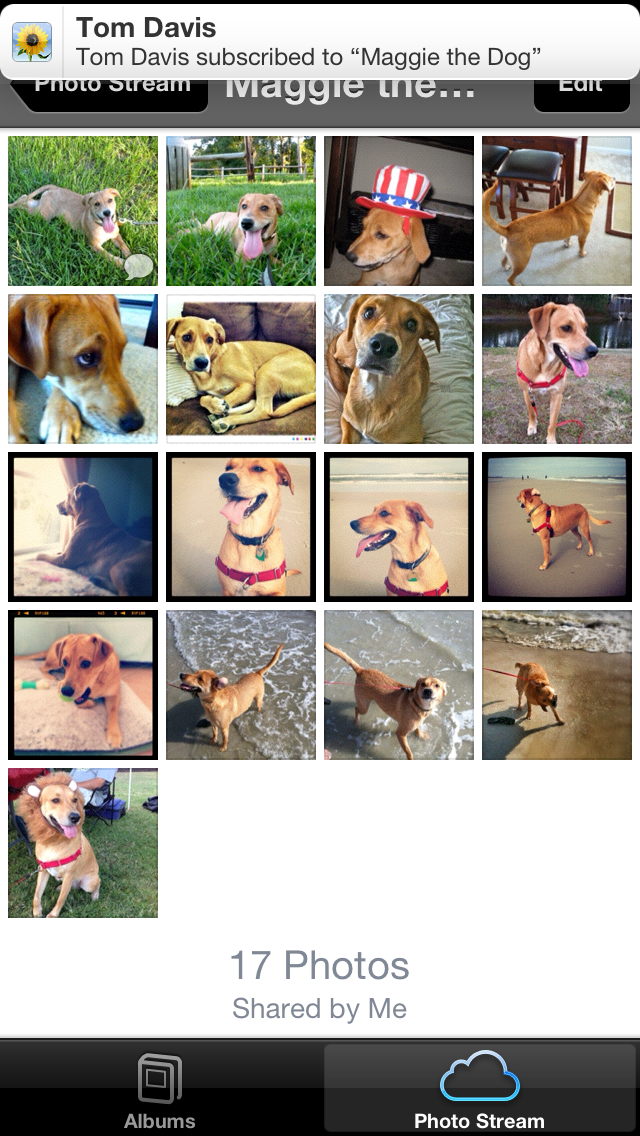
Receiving Comments and “Likes” on Photos in Shared Photo Streams (Click here to go back to the Table of Contents)
Once you have shared photos in a photo stream (or you have been invited to another’s photo stream), all the parties with access to the photo stream can leave comments or “like” individual photos in the shared photo stream. Additionally, just as you are notified when someone accepts your invitation to join your photo stream, you will also receive a notification when someone comments on one of the photos in the shared photo stream.
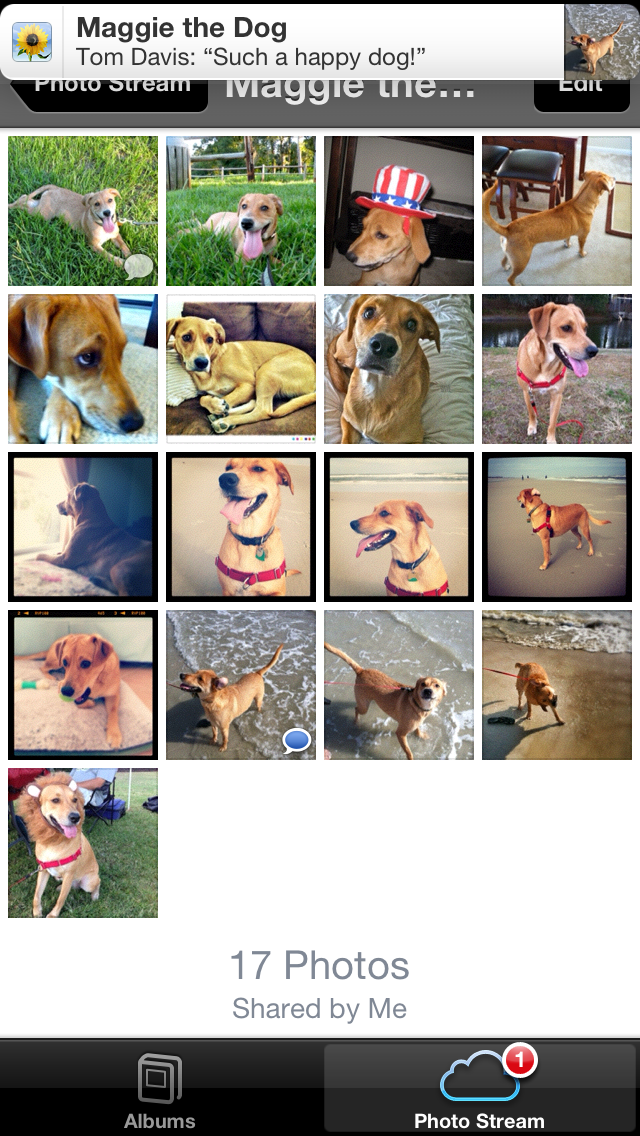
When a comment or “like” is added to a photo, a little speech bubble will appear in the bottom right of the photo. If you have not yet viewed the comment or “like,” the speech bubble will be blue to alert you to an unseen comment or “like.” Once a comment or “like” is viewed, the speech bubble will turn gray–this way you can still see which photos have received attention, even though you have already seen the “like” or comment.
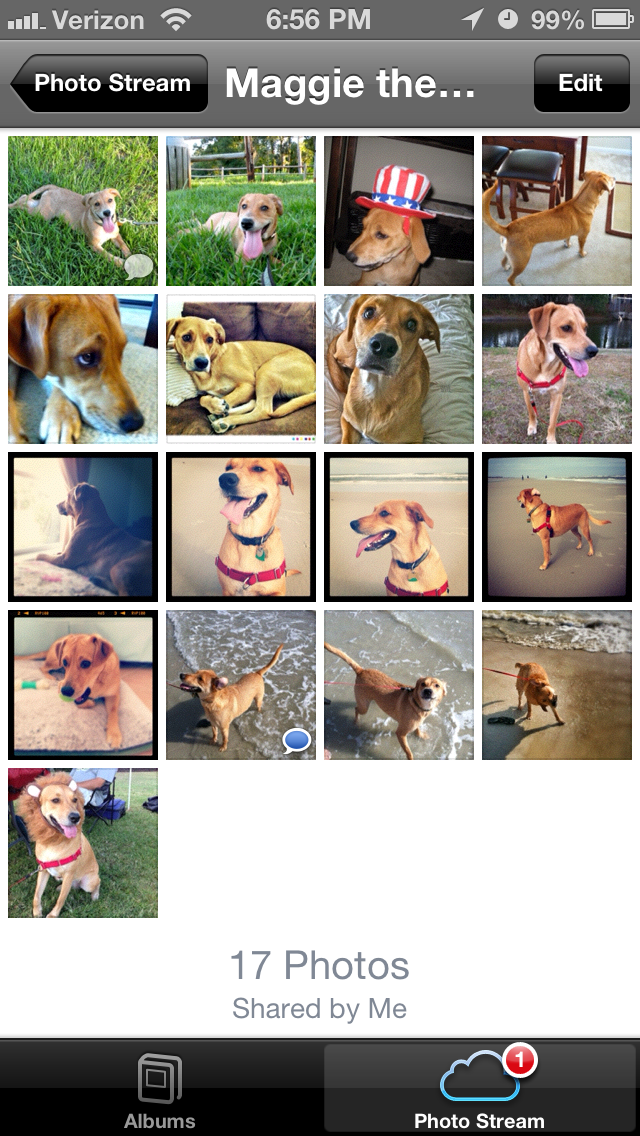
To view the new comment, tap on the photo with the blue speech bubble. You can see the comment displayed, and the blue bubble in the bottom right corner lets you know how many comments on the photo have not yet been viewed.
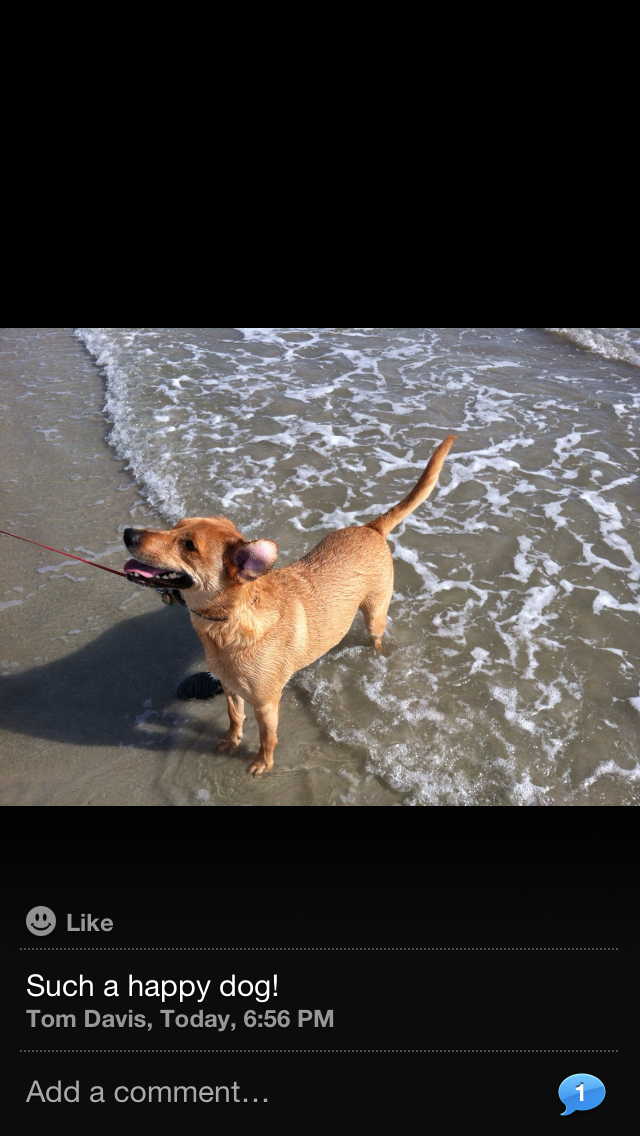
The notifications are identical when one of your pictures in your shared photo stream is “liked.”
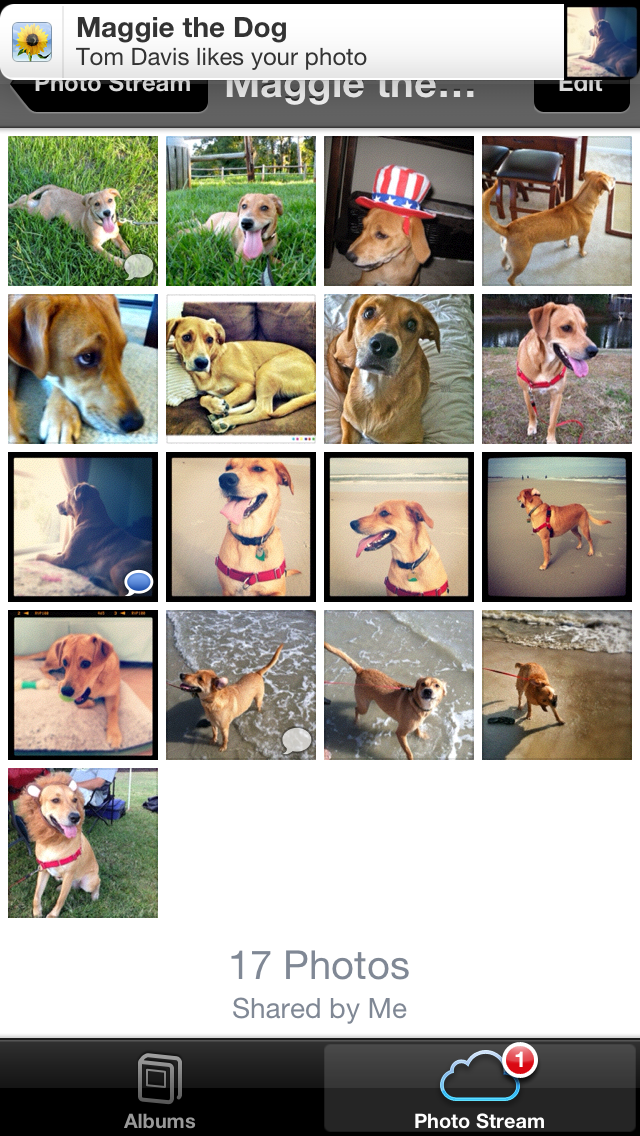
Once again, the blue speech bubble in the bottom right corner lets you know how many “likes” the photo has received since you last viewed the photo.

If you tap on the photo, the information at the bottom is hidden except for the speech bubble and a number inside of it letting you know the total number of comments and “likes” for the photo.

Commenting and “Liking” Photos in Shared Photo Streams (Click here to go back to the Table of Contents)
Just as you can receive notifications of and view comments and “likes” on photos in shared photo streams, you can also make your own comments and “like” photos.
First, simply tap on a photo in the shared photo stream. Next, tap on the white speech bubble with the plus sign inside of it on the bottom right of your screen.

A dialog box will appear. If you want to comment on the photo, simply type your comment and hit the blue “Post” button.


To “like” a photo, you follow a process very similar to commenting on a photo. When viewing a photo in the shared photo stream, tap on the white speech bubble with the plus sign inside of it on the bottom right of your screen.

Now, instead of typing a comment, tap on the screen where you see a smiley face and the word “Like.”


Tapping on the photo itself will hide the keyboard and just show whether you have “liked” the photo as well as the speech bubble with the total number of “likes” and comments.

Conclusion (Click here to go back to the Table of Contents)
Now you know how to enable shared photo streams, share photos on photo streams, receive comments and likes on photos in shared photo streams, and create your own comments and likes on photos in shared photo streams. Shared photo streams let you share your photos with all of the people you care about without having to worry about the privacy of your photos. Additionally, with the added ability to “like” and comment on the shared photos, shared photo streams are a great way to keep in touch with friends and family.
The features in shared photo streams are especially useful when sharing holiday photos with friends and family. I bet now that the holiday and New Year’s celebrations are over you have plenty of photos to share with your family. Make sharing those photos easy for your family and yourself by using shared photo streams!

 SimpleiPhone
Comments