
• Home
  • Blog
  • Ask
  • About
    • Looking For Writer

SimpleiPhone

Menu

  • Apps
  • Feature
  • How To
    • Intermediate
    • Novice
  • Misc
  • News
  • Quick Tip
Previous Next

How To: Create Custom Alert Vibration Patterns for Your iPhone

January 28, 2013 · by Tom

::buzz buzz buzzzzzz:: “Was that me or you?” Hard to tell if you both are using the default vibration alert pattern. Why not create your own customized vibration pattern so you’ll know right away if it’s your iPhone and not somebody else’s?

I have a couple customized vibration patterns set in place so whenever I hear that special pattern of buzzing, I know it’s my iPhone. No need to freak out and then realize it wasn’t me. Sound interesting? Thought so. So let’s dive into how to set this up.

First off, go into your Settings.
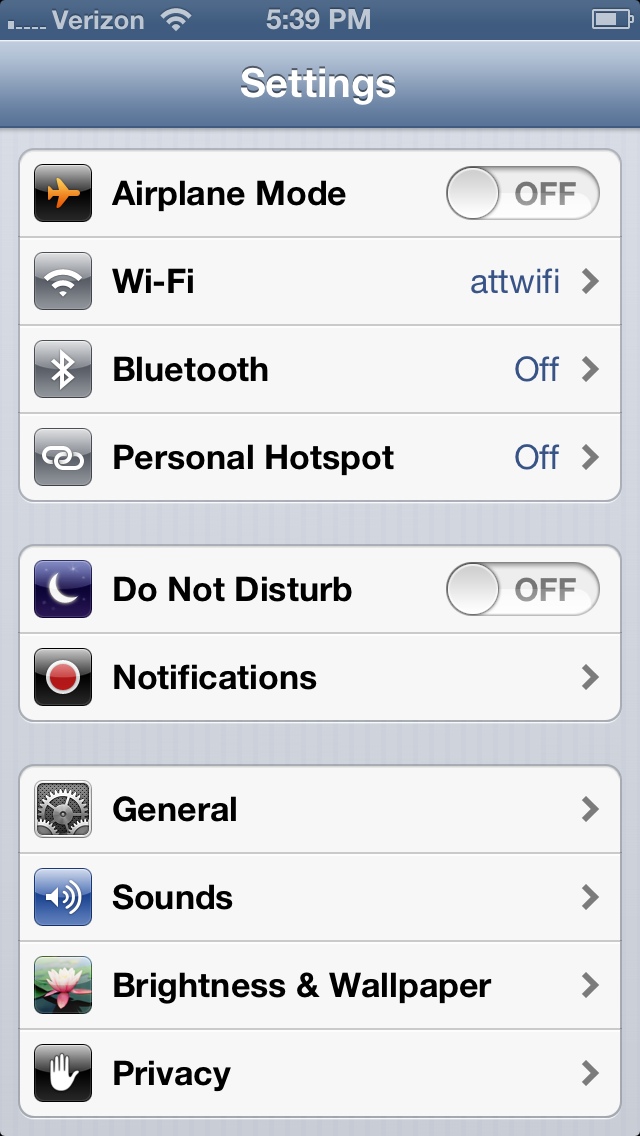
Next, go into Sounds.
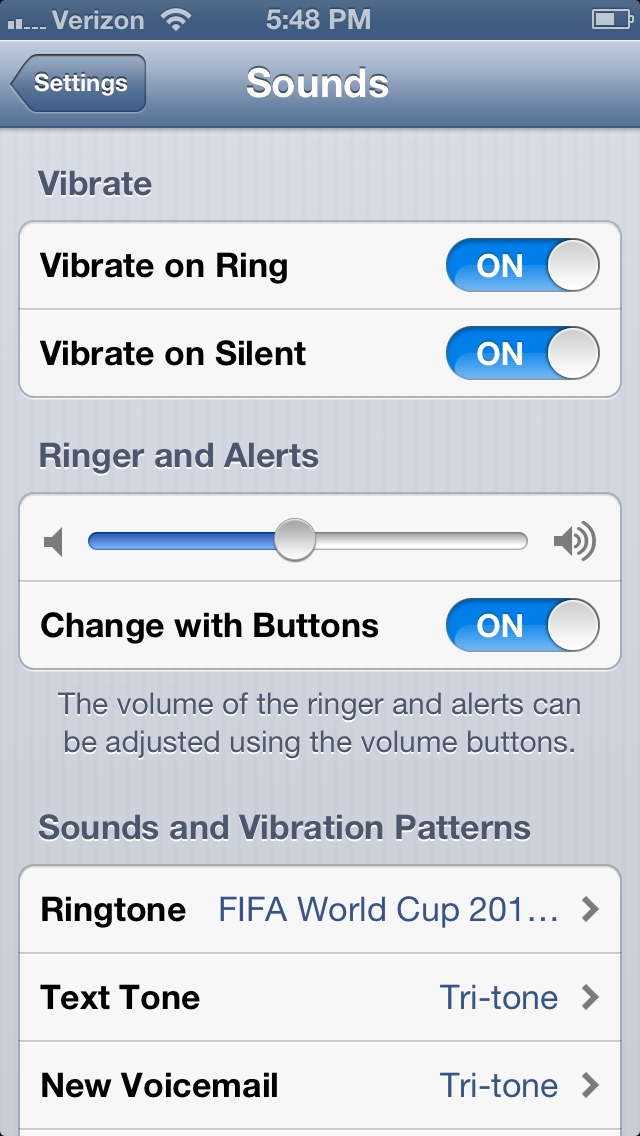
Here you can adjust several things related to how your iPhone alerts you. If you scroll down a bit, you’ll see the whole list of possible events that makes your iPhone produce a sound or vibration.

You can pick any one of these to make a custom vibration pattern. For this exercise, I’m picking my main Ringtone. This will bring up all your different ringtones available to assign to this event.
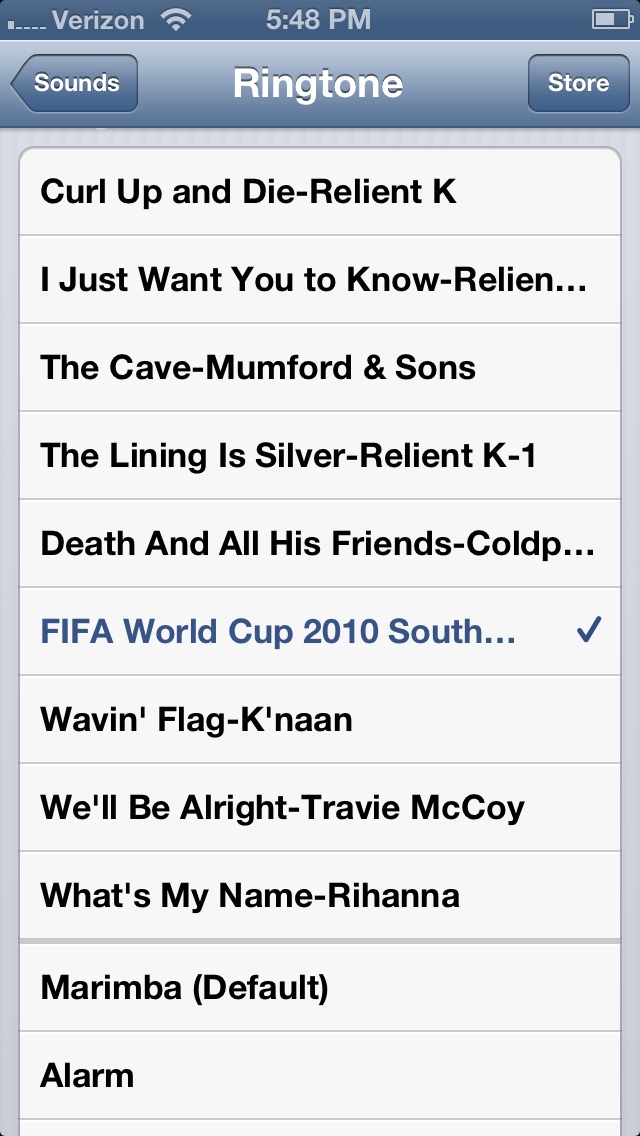
If you have created custom ringtones in the past, they will show up in this list similar to how mine looks in the image above. If you’re interested in creating your own ringtone for free, check out our post on how to do it here: How To: Create Free Customized Ringtones for Your iPhone.

Now, if you scroll up, you’ll see a somewhat-hidden feature called Vibration.
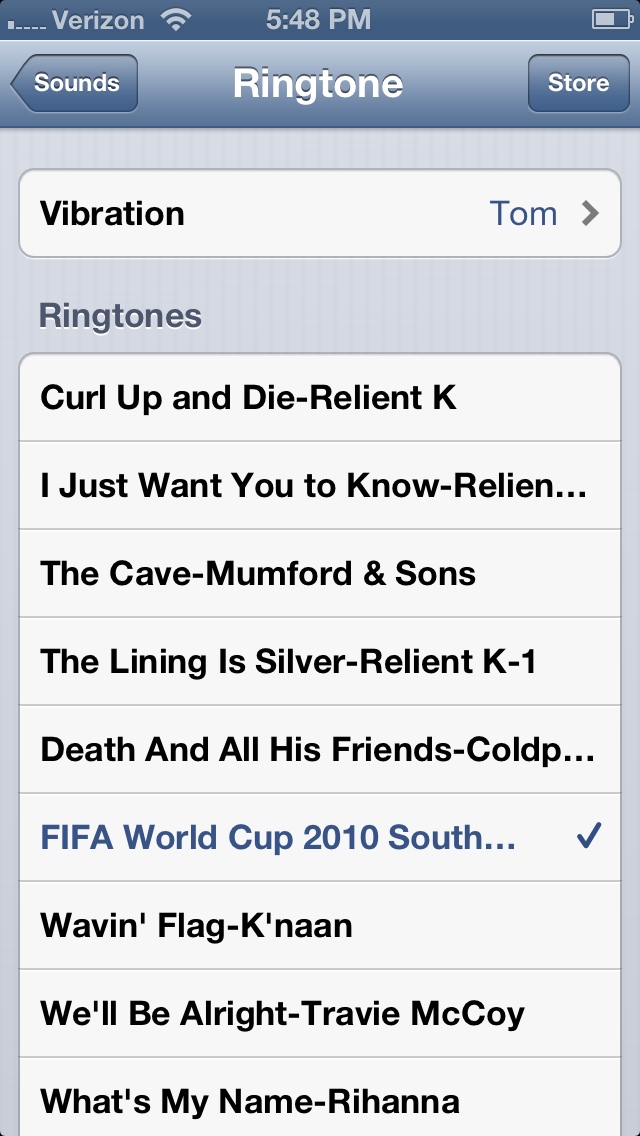
Let’s click on Vibration.
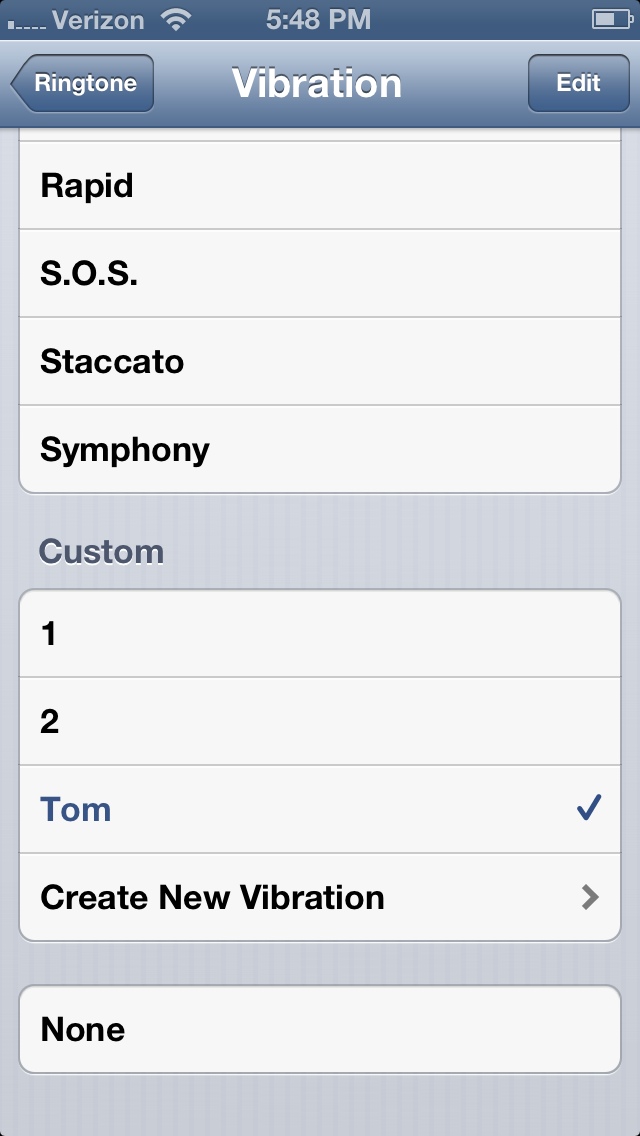
Here you’ll see other preloaded default vibration patterns, but picking one of these is no fun! Let’s scroll down a little and see where we can select Create New Vibration.
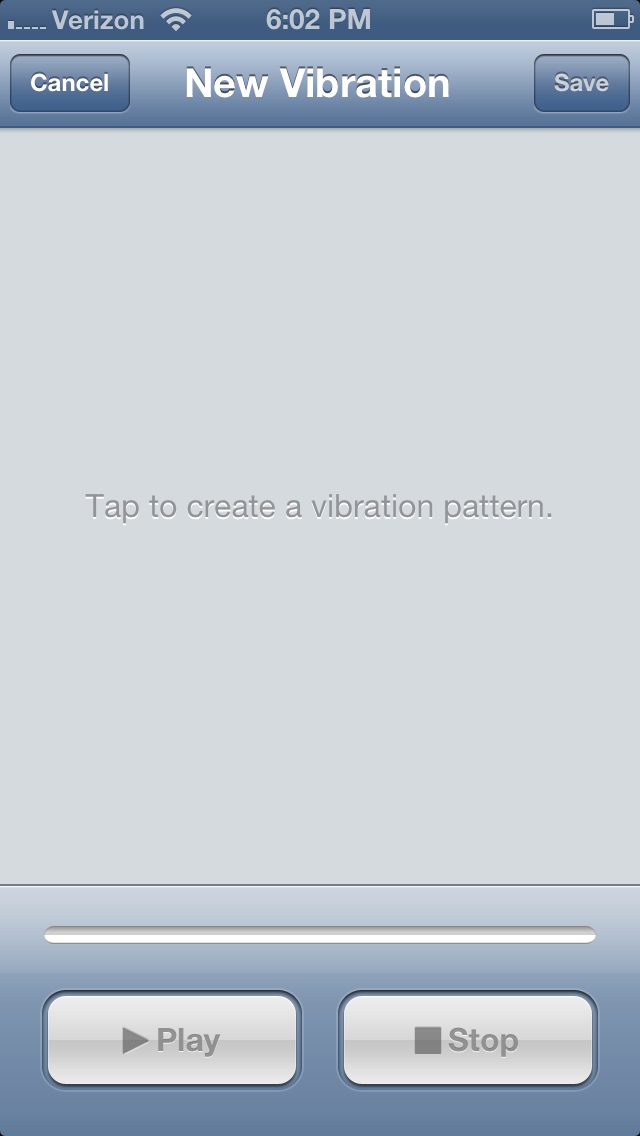
This is where you record your masterpiece. 🙂

To get started (and don’t worry, you can start over many times if you’d like) just start tapping the big empty space. It will start recording once you start tapping.
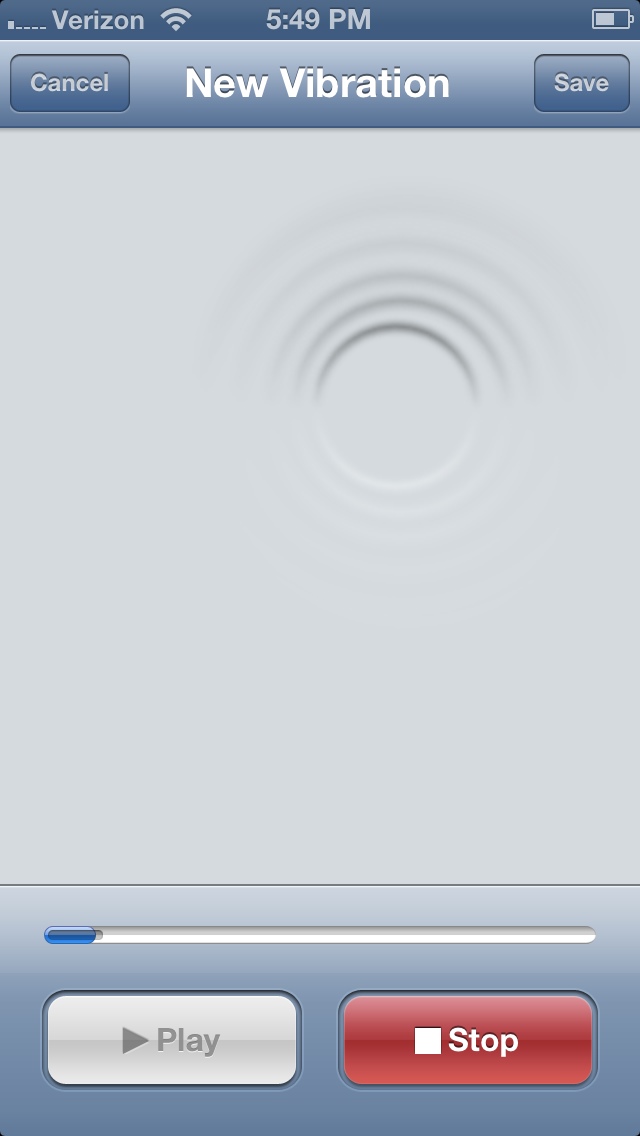
Once you’re satisfied, hit Stop. Note: the pattern you create will repeat automatically as it’s being used as an alert.
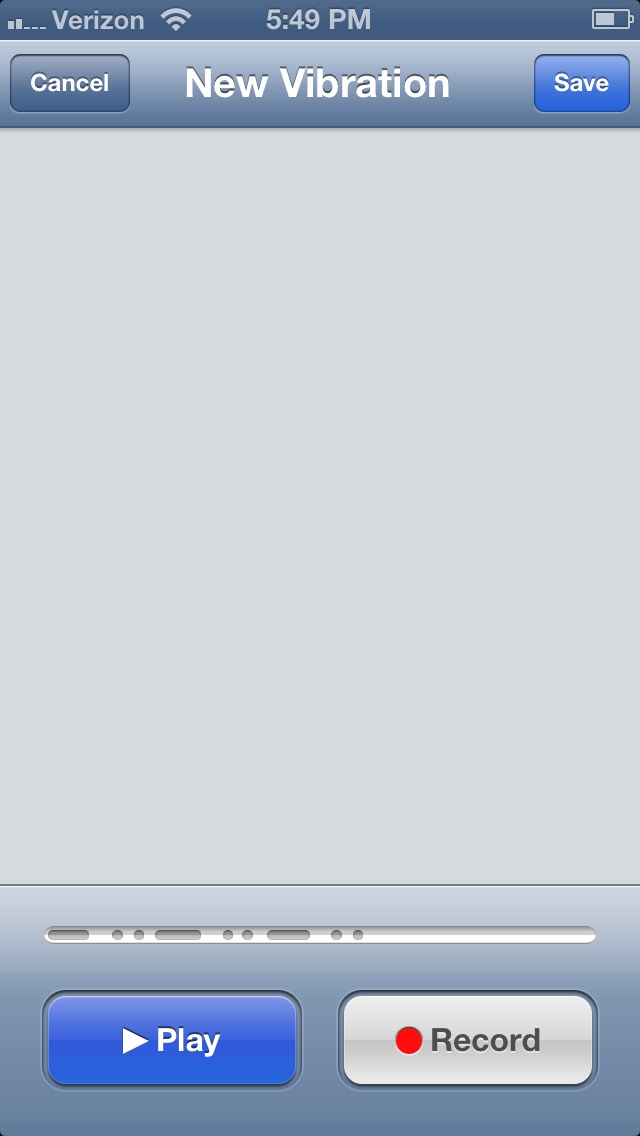
You can Play what you’ve just recorded to make sure you like it enough or you can hit Record to overwrite it with a new pattern. If you’re anything like me you’ll probably do that 5 or 6 times.

If you like what you see (and feel), hit Save at the top-right of your screen.
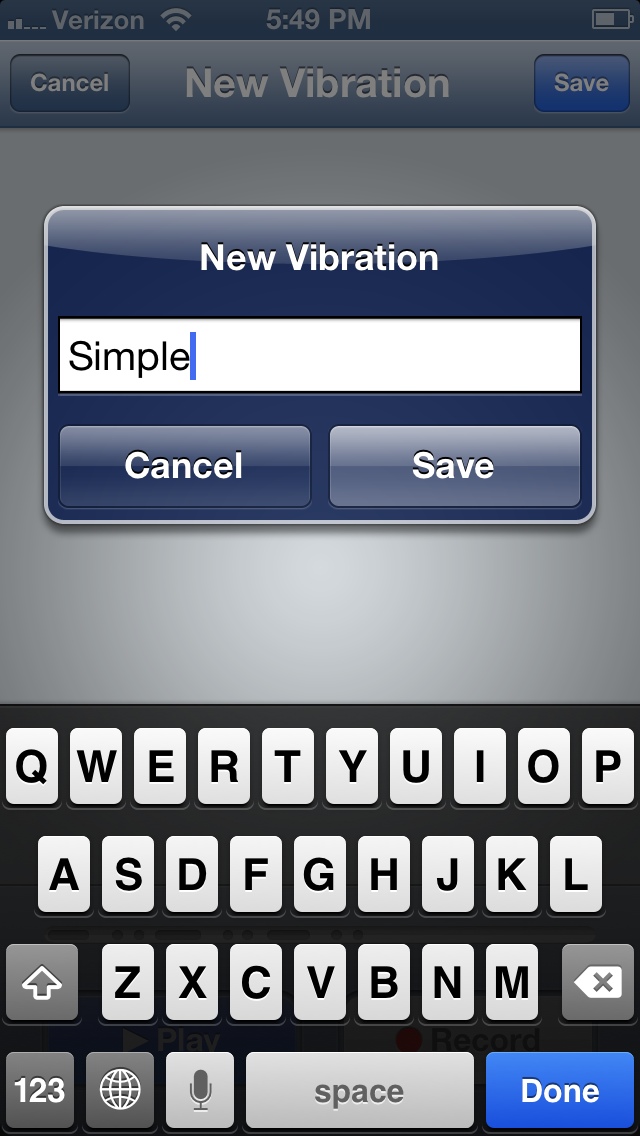
Give this custom pattern a name to distinguish it from the others and then hit Save again.
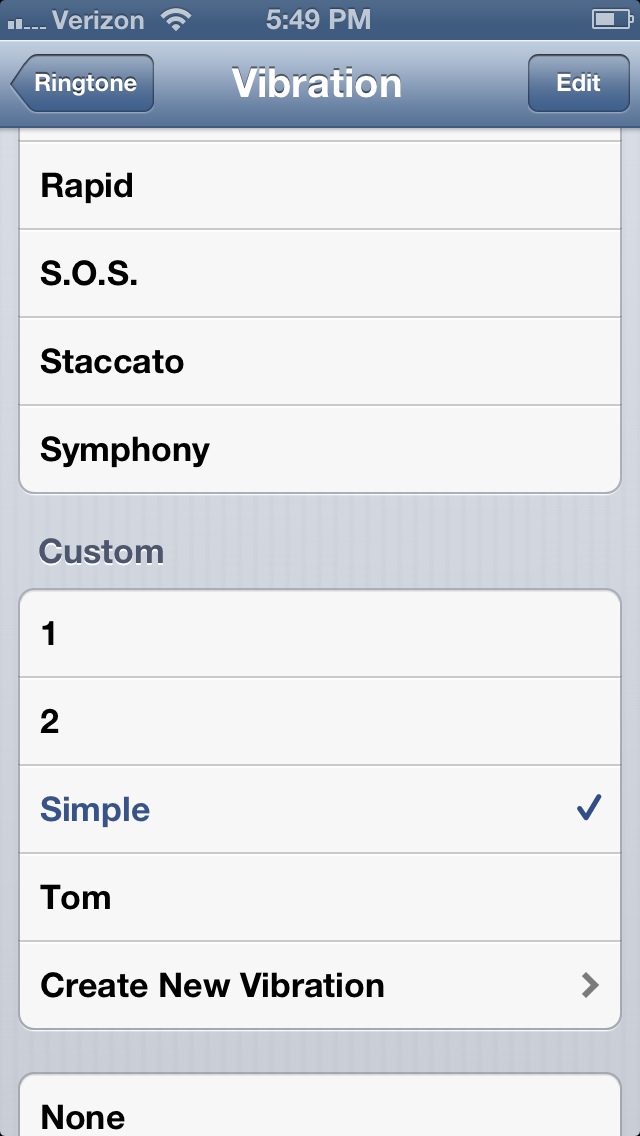
Now you’ll see your new creation as an option to set as the event’s new alert vibration style. You can set a different customized pattern for different events.

Next time you’re around other people with iPhones, be sure to brag about your custom vibration patterns to distinguish yourself from all other iPhones of the world.

Posted with BlogsyPosted with Blogsy

Rate this:

Share this:

  • Tweet
  • Click to email a link to a friend (Opens in new window) Email
Like Loading...
Posted In: How To, Novice
Tagged: alerts, custom, notifications, ringtone, sounds, vibrations

Comments

Leave A Comment →

Leave a comment Cancel reply

  • Like us on Facebook!

    Like us on Facebook!
  • Enter your email address to follow this blog and receive notifications of new posts by email.

    Join 93 other subscribers
  • Writers

    • Tom's avatar Tom
      • How To: Speed Dial using Workflow on Your iPhone
      • How To: Quickly Free Up Space on Your iPhone
      • How To: Use Widgets In iOS 8
    • Sam's avatar Sam
      • How To: Turn on Auto-Update for Apps
      • Quick Tip: Turning Rotation Lock (Orientation Lock) On and Off
      • How To: Change the Wallpaper on Your iPhone’s Home Screen and/or Lock Screen
  • alert alerts App Apple apps App Store autocorrect battery life bookmarks Call Camera cloud comment Contacts create customize delete download easy emoji emoticons folders free friends gadgets homescreen how to icloud iOS iOS 6 iOS 11 iPhone iphone 4 iPhone 4S iPhone 5 keyboard location lock Lock Screen lost maps messages music organization Phone photo photos photostream picture remove rename save screen screenshot search setting Settings share shortcuts simple snapshot Speed Dial spotlight Starbucks stream technology text Texting timesaver tutorial typing Update upload useful webapp
  • Recent Posts

    • How To: Turn on Auto-Update for Apps
    • Quick Tip: Turning Rotation Lock (Orientation Lock) On and Off
    • How To: Speed Dial using Workflow on Your iPhone
    • How To: Change the Wallpaper on Your iPhone’s Home Screen and/or Lock Screen
    • How To: Quickly Free Up Space on Your iPhone
  • Like us on Facebook!

    Like us on Facebook!
  • Blog at WordPress.com.
  • Connect with us:
  • Twitter
  • Facebook
  • YouTube
  • RSS
Privacy & Cookies: This site uses cookies. By continuing to use this website, you agree to their use.
To find out more, including how to control cookies, see here: Cookie Policy
  • Comment
  • Reblog
  • Subscribe Subscribed
    • SimpleiPhone
    • Already have a WordPress.com account? Log in now.
    • SimpleiPhone
    • Subscribe Subscribed
    • Sign up
    • Log in
    • Copy shortlink
    • Report this content
    • View post in Reader
    • Manage subscriptions
    • Collapse this bar
%d