

With iOS 8 comes a whole new way to use your apps. Some third party apps (apps made by people other than Apple) now work with your notifications center, which means, you can quickly access more content from a wide variety of apps just by swiping down from the top-most part of your screen.
Some of your favorite apps that you have already downloaded may already be compatible to add to your notifications center. So let’s go see what’s already there.
From anywhere on your iPhone, preferebly on the Home Screen, swipe down onto your screen from the top of your iPhone’s face. This should display the notifications center.
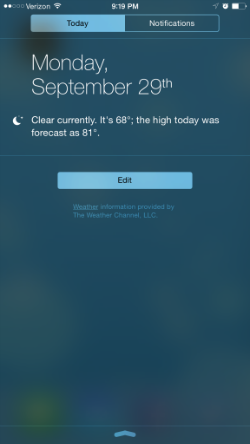 You’ll probably see some stock widgets (loaded by default) in your notifcations center, but we can tweak it to be just how you like it. See the Edit button? Let’s touch that.
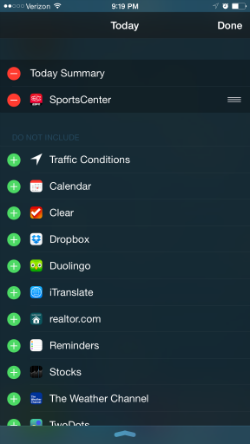 Now you will see the apps that are currently included in your notifications center (with the red circles) and the ones that you can add if you’d like to (with the green circles).
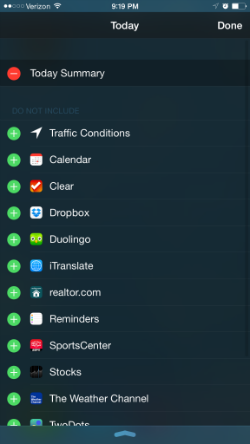 These can include apps from Apple or apps from other people. You just might see an app that you didn’t know would work with the notifications app. Go ahead and toggle a few; add/remove a couple. In this example, I’m going to add the SportsCenter app to quickly see my favorite teams’ scores.
After toggling some, touch Done at the top right corner.
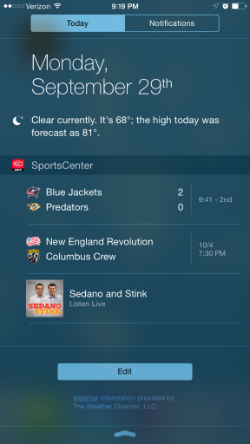 And that’s it! Now you see how in my example, I can quickly see my favorite teams’ scores just by swiping down from the top of the screen from anywhere on my iPhone. How cool is that?
Update:
We’ll be posting an article soon about which apps work well with your notifications center. It’d be a good way for you to learn and try out some neat new apps!

 SimpleiPhone
Comments