
One of the ways you can personalize your iPhone is by changing the background wallpaper of your home screen and/or your lock screen to display the wallpaper that you choose (such as a photo of your family, your favorite sports team logo, etc.).
This post explains what your iPhone’s home screen and lock screen are and how you can change the background wallpaper on one or both of them.
Simple Quick Instructions: [Settings –> Wallpaper –> Choose a New Wallpaper –> (Select Wallpaper Picture) –> (Select Still or Perspective) –> Set –> (Select Lock Screen, Home Screen, or Both)]
Simple Step-by-Step Instructions:
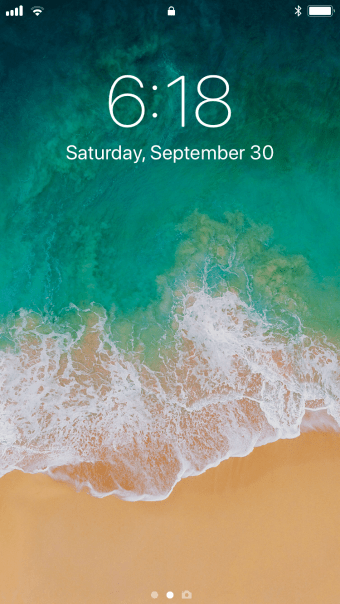
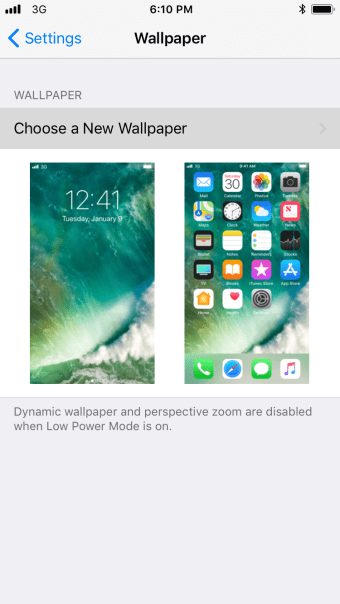
Your iPhone’s lock screen is the screen that shows up when your iPhone is locked or when you first turn on your iPhone. This is an iPhone lock screen:
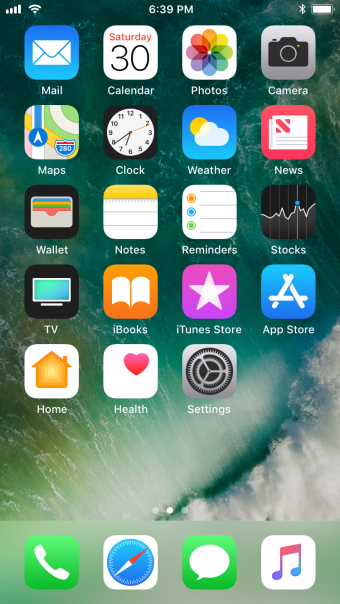
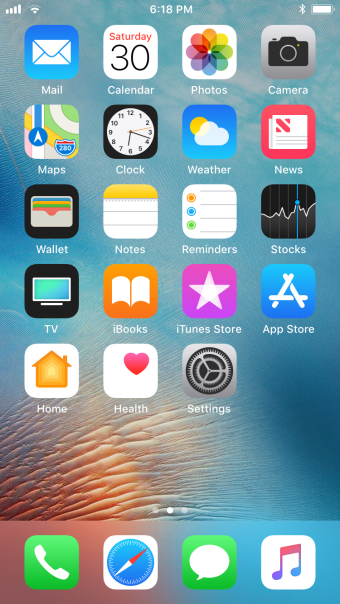
Your iPhone’s home screen is the screen that shows all of your apps. This is an iPhone home screen:
The following step-by-step instructions explain how you can change the background wallpaper on one or both of the home screen and the lock screen.
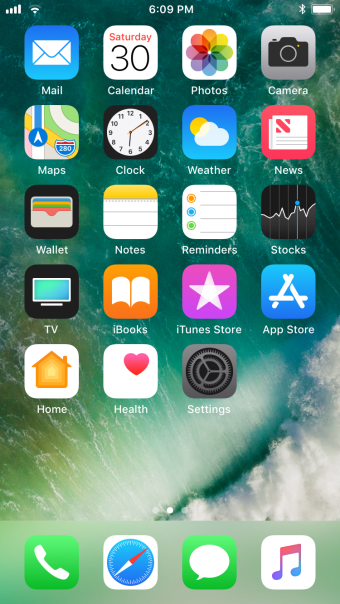
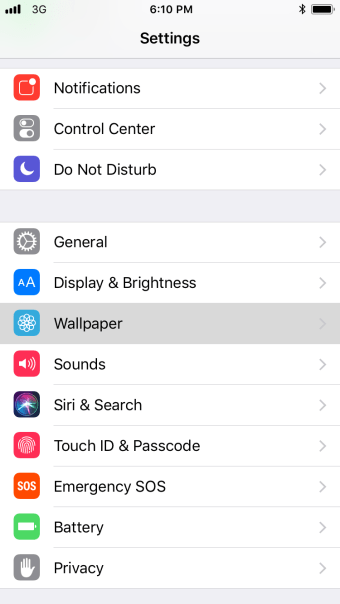
First, open the “Settings” app on your iPhone.
Next, tap “Wallpaper”.
Tap “Choose a New Wallpaper”. (If you just want to change the lock screen only, you can tap on the picture of lock screen–the picture on the left. Or, if you just want to change the home screen only, you can tap on the picture of the home screen–the picture on the right).
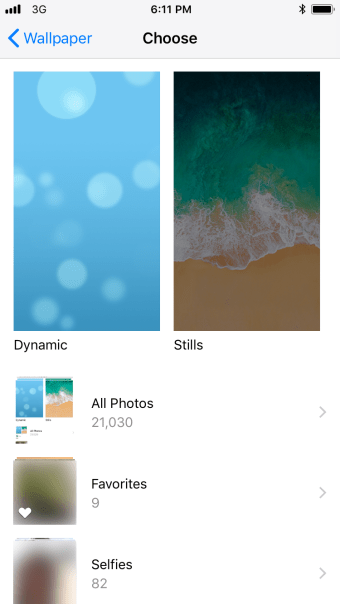
You will now have the option to choose your wallpaper. You can choose one of your iPhone’s default wallpapers, which are divided into dynamic wallpapers (which move) and stills (which are motion-free wallpapers). You can also choose from any of your own photos by selecting one of the photo albums underneath. (You can also find wallpaper on the internet and save it to your iPhone by following the instructions in our post about How To: Save a Picture to Your iPhone). For example purposes, I am going to choose one of Apple’s default stills by tapping on the photo above the word “Stills”.
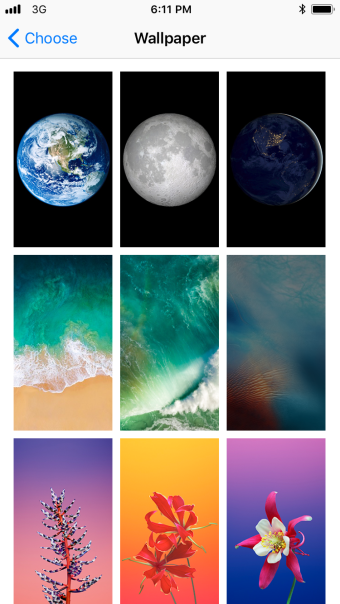
You can now select which wallpaper you want to use by tapping on it. I am going to choose the blue wallpaper in the second row down on the right side.
You now have the option to choose between “Still” and “Perspective” by tapping on those words. If you choose “Perspective” then the wallpaper will move very slightly behind text, app icons, and other elements on your iPhone when you tilt your iPhone–this gives the screen the appearance of depth. If you choose “Still”, then the wallpaper will not move in the background. I am going to choose “Still” for this example by tapping “Still” and then tapping “Set”.
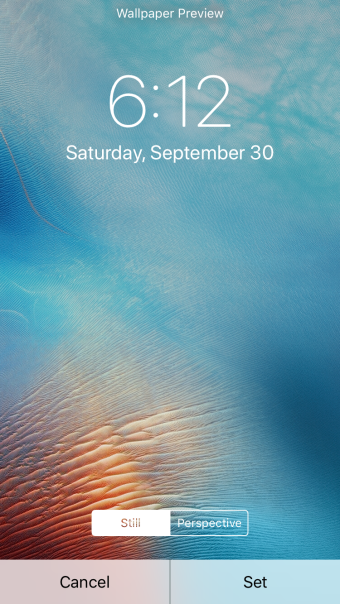
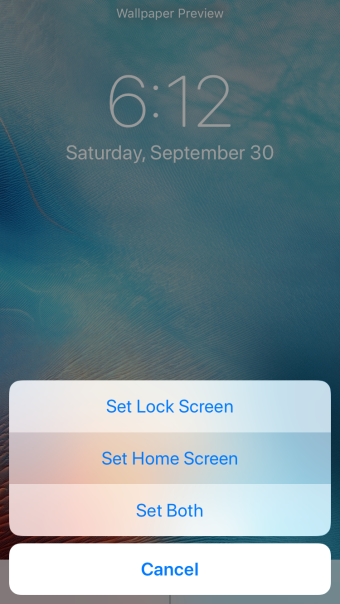
You will see an option to set the wallpaper you selected as the lock screen, the home screen, or both screens. Tap on whichever option you want. I am going to just change my home screen, so I will tap on “Set Home Screen”.
And that’s it! My iPhone’s home screen background wallpaper has been changed to the wallpaper that I selected.
Now go ahead and express yourself by personalizing your iPhone wallpaper!
Share this:

Tagged: background, homescreen, iOS 11, lockscreen, personalize, screen, wallpaper
 SimpleiPhone
This was life changing. Thank you Samster