
• Home
  • Blog
  • Ask
  • About
    • Looking For Writer

SimpleiPhone

Menu

  • Apps
  • Feature
  • How To
    • Intermediate
    • Novice
  • Misc
  • News
  • Quick Tip
Previous Next

Quick Tip: Turning Rotation Lock (Orientation Lock) On and Off

October 25, 2017 · by Sam

OrientationLockFeature

When turned on, rotation lock (sometimes referred to as “orientation lock”) keeps your screen from rotating when you move your iPhone–like when you rotate your iPhone to the left, right, or upside down. Rotation lock will lock the orientation of your iPhone’s display in portrait mode (portrait mode is where you hold your iPhone with the home button at the bottom). Note that rotation lock does not let you lock your iPhone in landscape mode (landscape mode is where you hold your iPhone with the home button on the right or left).

Turning rotation lock on and off on your iPhone is really easy, and this post explains how to do it.

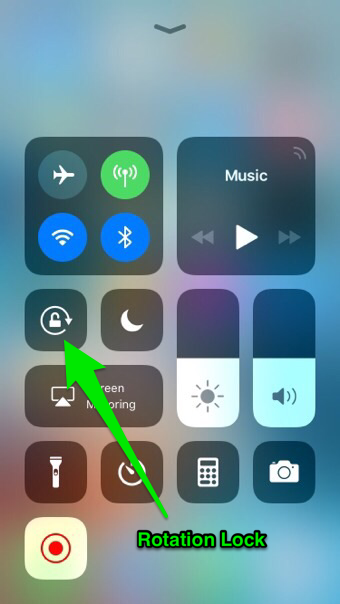
Simple Quick Instructions:[Swipe Up on Home Screen to Open Control Center –> Tap Orientation Lock Icon]

Simple Step-by-Step Instructions:

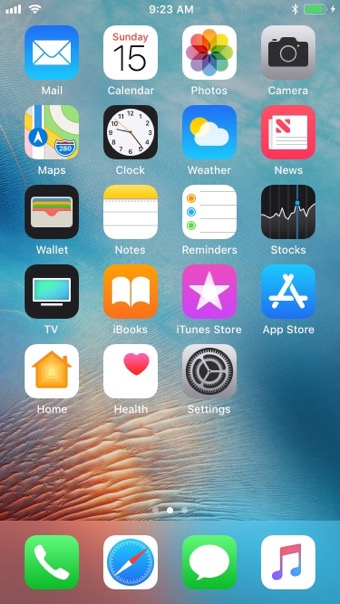
1. While on your home screen, swipe up from the bottom of the screen to bring up your iPhone’s “Control Center”, where you will find the “Rotation Lock” icon.
IMG_0038-2

From Skitch

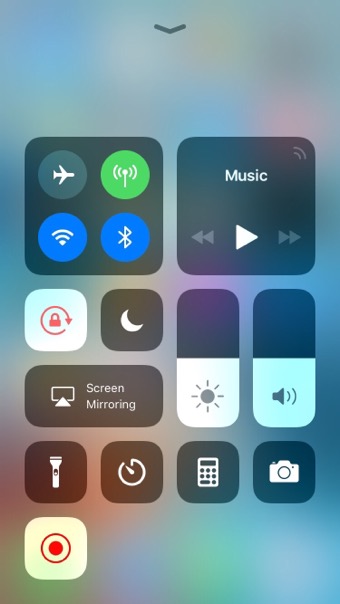
2. Now just tap the “Rotation Lock” icon to turn it on.
IMG_0041

That’s all there is to it! Now that rotation lock is turned on, your iPhone’s display will not automatically rotate when you rotate your phone left, right, or upside down. To turn rotation lock off, just follow the same steps as above and tap the “Rotation Lock” icon to turn it off.

Rate this:

Share this:

  • Tweet
  • Click to email a link to a friend (Opens in new window) Email
Like Loading...
Posted In: Feature, Misc, Novice, Quick Tip
Tagged: Auto-Rotate, iOS 11, lock, Orientation, Rotation, setting

Comments

Leave A Comment →

Leave a comment Cancel reply

  • Like us on Facebook!

    Like us on Facebook!
  • Enter your email address to follow this blog and receive notifications of new posts by email.

    Join 93 other subscribers
  • Writers

    • Tom's avatar Tom
      • How To: Speed Dial using Workflow on Your iPhone
      • How To: Quickly Free Up Space on Your iPhone
      • How To: Use Widgets In iOS 8
    • Sam's avatar Sam
      • How To: Turn on Auto-Update for Apps
      • Quick Tip: Turning Rotation Lock (Orientation Lock) On and Off
      • How To: Change the Wallpaper on Your iPhone’s Home Screen and/or Lock Screen
  • alert alerts App Apple apps App Store autocorrect battery life bookmarks Call Camera cloud comment Contacts create customize delete download easy emoji emoticons folders free friends gadgets homescreen how to icloud iOS iOS 6 iOS 11 iPhone iphone 4 iPhone 4S iPhone 5 keyboard location lock Lock Screen lost maps messages music organization Phone photo photos photostream picture remove rename save screen screenshot search setting Settings share shortcuts simple snapshot Speed Dial spotlight Starbucks stream technology text Texting timesaver tutorial typing Update upload useful webapp
  • Recent Posts

    • How To: Turn on Auto-Update for Apps
    • Quick Tip: Turning Rotation Lock (Orientation Lock) On and Off
    • How To: Speed Dial using Workflow on Your iPhone
    • How To: Change the Wallpaper on Your iPhone’s Home Screen and/or Lock Screen
    • How To: Quickly Free Up Space on Your iPhone
  • Like us on Facebook!

    Like us on Facebook!
  • Blog at WordPress.com.
  • Connect with us:
  • Twitter
  • Facebook
  • YouTube
  • RSS
Privacy & Cookies: This site uses cookies. By continuing to use this website, you agree to their use.
To find out more, including how to control cookies, see here: Cookie Policy
  • Comment
  • Reblog
  • Subscribe Subscribed
    • SimpleiPhone
    • Already have a WordPress.com account? Log in now.
    • SimpleiPhone
    • Subscribe Subscribed
    • Sign up
    • Log in
    • Copy shortlink
    • Report this content
    • View post in Reader
    • Manage subscriptions
    • Collapse this bar
 

Loading Comments...
 

    %d