
One big light bulb moment most iPhone users have is when they discover how to take screenshots of their iPhone’s screen. This can be very handy in some situations, like where you need to show somebody not physically next to you what is on your screen. I’ll first teach you how to do it and then some tips on when to use it.
Interested? I thought so!
As long as your iPhone is powered on, you can take a screenshot of what is currently displayed on your screen. Simply hold down the “sleep button” (this is the button located at the top-right of your iPhone), and while still pressing it down, press the “home button” (this is the main button on the front-bottom of your iPhone). Once you press the “home button” you will snap the photo and hear a camera shutter noise. Now let go of both buttons. You’ve done it! You just took a picture of your screen and it can be found in your “Photos” application.
So why do this? I will give some everyday examples that I’ve encountered where using this feature came in handy.
1. Sometimes I’m listening to a song on Pandora that I’ve never heard before. I know you can “bookmark” songs and artists on there but who ever follows through and actually uses that feature? Here’s what I do: I take a quick snapshot of the screen while the Pandora app is open and I instantly have full documentation of the song, artist and album! Pretty neat, huh?

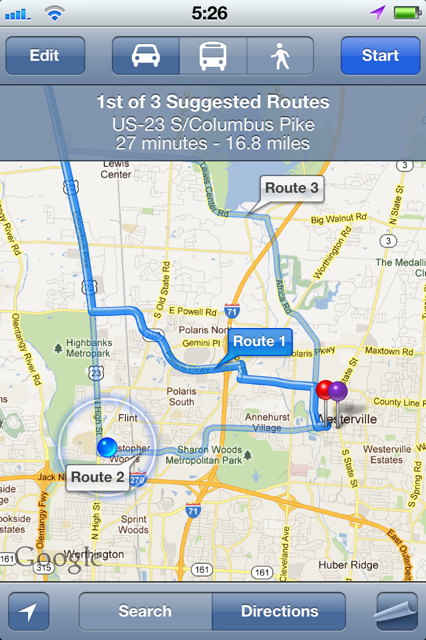
2. When your friend is picking you up from a location that you and your friend are both unfamiliar with, why not send him/her a snapshot of exactly where you are? Open up the “Maps” app on your iPhone, wait for it to find your location (hitting the button on the bottom-left corner with the arrow). Then, take a screenshot to capture your location. This will save a photo to your iPhone like the one below:
Next, go to your messages app to easily send him this snapshot for his/her reference. Click the “camera” button next to where you type your text messages, then locate and select the photo you just created. You’ll be seeing something like this:

Now your friend, and only your friend, can toggle back and forth from their iPhone’s “Maps” app and this photo you gave them to find your exact location. I have used this method myself before!
3. Sometimes I discover a great new app/game in the App Store that I feel like sharing with some of my friends. Now, you can take a quick snapshot and either email or message them the photo to give them the ideal reference in order for your friends to download the same thing for themselves. Like Scramble With Friends!

These are just three quick tips on how to use the simple screenshot feature on your iPhone. Now that you’ve learned how to do it, I’m sure you’ll find many more ways to utilize it in your everyday life.
Share in the comments section below some of the unique ways you have used this feature on your iPhone!

 SimpleiPhone
Thanks a bunch!!! Was able to screenshot a shot on Pandora within seconds thanks to your quick, easy instructions
I have an iPhone 4 and it won’t do this?? Is there any settings I need to adjust first??
Kim,
Shouldn’t be any settings to configure. Simply pressing the Home Button and the Sleep Button (button on the top-right of your device) simultaneously will take a snapshot of your screen.
If this is not working, trying turning off your iPhone (press and hold the sleep button until you get the ‘slide to turn off’ prompt) and turning it back on (sleep button). Then try it again.
Hope this helps! 🙂
Thanks! It’s working now! 🙂
I just got emoticons on my iPhone. Took me long enough 😄