
The largest storm of our generation is barreling towards the East Coast. Learn how to track every move of Hurricane Sandy right on your iPhone no matter where you are!
First thing to do is download (in our opinion) the best free weather app for your iPhone. You can do so by clicking right here. Or go to the App Store, search for and download “The Weather Channel” app.
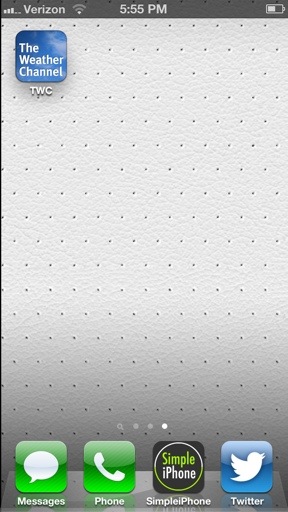 After you download the app, go ahead and open it. Allow the app to use your current location. This only ensures that you receive the weather updates that matter most to you. It may also ask if the app has permission to send you notifications. This is up to you. Nonetheless, you’ll see something similar to the image below.
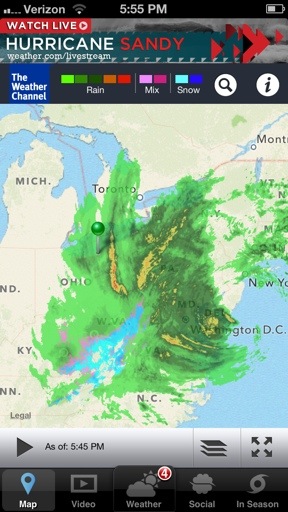 As I was typing this post, Hurricane Sandy was about to make landfall on the East coast. This app currently has a banner located at the top of the screen displaying a link to watch live coverage of the hurricane courtesy of The Weather Channel’s YouTube channel.
But in most cases, we’ll need to select In Season located at the very bottom right of the screen. This will take you to a page dedicated towards seasonal events such as hurricanes.
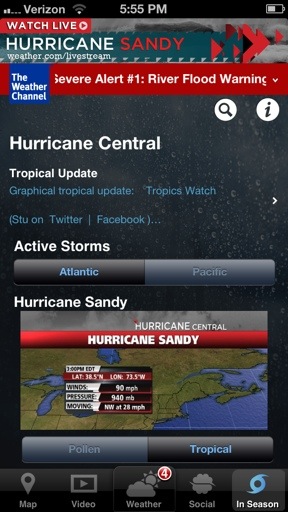 Here you can scroll through and take advantage of all the information and charts concerning the hurricane. If you wish to view live video coverage, select the top banner image labeled Watch Live Hurricane Sandy. This will open a page similar to the one below.
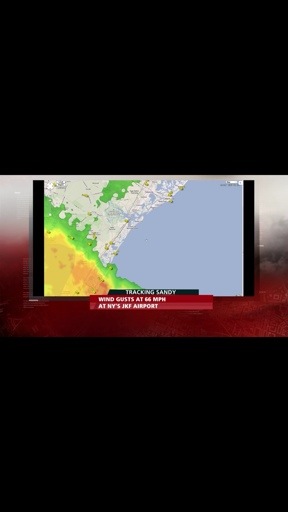
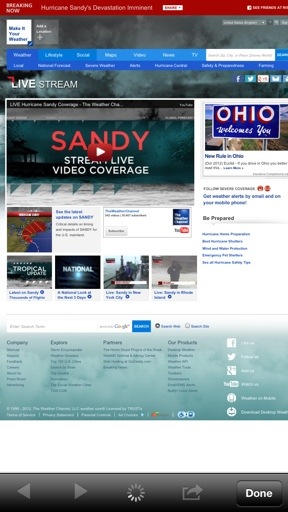 To actually view the live video coverage, click the play button you see in the video window within the page. The play button is the red rectangle with a white sideways triangle inside. This will begin a live video stream of hurricane coverage for you to view right on your iPhone.
 And that’s it! Now go be the well-informed individual you are and impress the people around you with your new tech savviness. 🙂
If you have any questions or tips, please leave them in the comments section below. Thanks for reading!

 SimpleiPhone
Comments