
 We all have those times when we just need to get away from the world and to not be so easily pulled away from a task we’re trying to accomplish. With iOS 6 we have an option on our iPhones to go into “Do Not Disturb” mode which will temporarily stop incoming calls and notifications. You can turn this on manually or schedule a reoccurring time.
First, let’s learn how to turn this on manually. Go into your Settings app. You’ll see something like this:
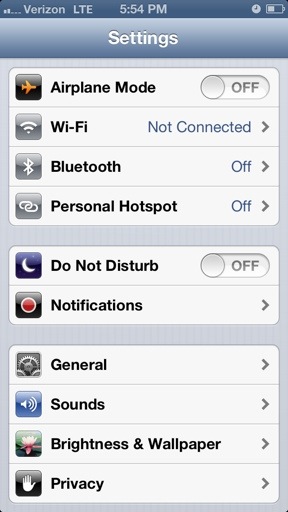
Here you can easily see that you can simply turn Do not Disturb on or off. Turning this ON will block incoming calls and notifications. Turning this OFF will return it to normal conditions in order to receive calls and notifications. I’ll turn it on here to see what happens.

Oh look! a crescent moon appeared in our Status Bar next to the clock at the top of our screen. When you see this moon here, it means your iPhone is in Do Not Disturb mode and you will not receive calls nor get notifications. ::sigh:: We are free from the world’s distractions.
So how can we schedule a reoccurring time for this to automatically be enabled? For example, from 1:00 AM to 5:00 AM? This would be handy if you’re a light sleeper! So let’s go back to the beginning of the Settings app.
This time, let’s go into Notifications.
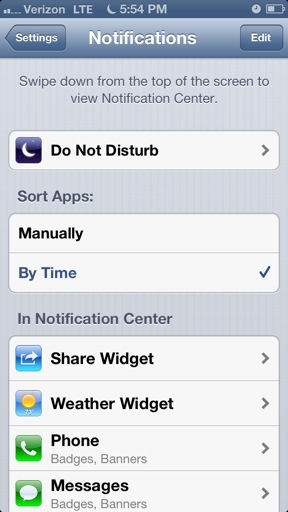
Here we see Do Not Disturb again. Let’s click it to see more.
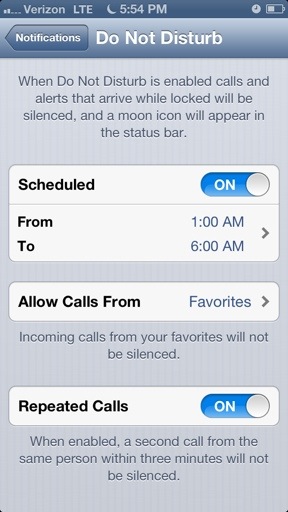 Ah! So here is how we schedule a reoccurring time for Do Not Disturb to be turned on. As you can see, I have this enabled for the middle of the night so my iPhone doesn’t wake me up.
But there is more here! We can also allow calls from our Favorites in case of emergency situations. We won’t want those calls to be blocked. And speaking of urgent, you can also allow Repeated Calls if you want those people who call back after the first failed attempt to be able to reach you. This is a nice feature.
And that’s it! No save button to hit or anything. Just make your selections and get out. 🙂
So now you are equipped with the skills to escape technology whenever you please. It’s a very useful feature when you have to focus on getting something done… like sleeping.

 SimpleiPhone
Comments