

One of the first features of cell phones was the ability to speed dial certain contacts. It saved us all lots of time. Can it be done on the iPhone? Yes!
(UPDATE: This is with an older version of iOS. If you have iOS 7 or later, the concepts in this post are still relevant despite the screenshots not matching exactly to your device.)
Old cell phones had the functionality to call a specific number simply by pressing and holding down a number on the number pad. Your iPhone, being much more functional than those old cell phones, requires an extra step or two to replicate the function of speed dialing. But don’t worry, it’s still pretty simple.
First off, your iPhone uses the word “Favorites” instead of speed dial, and to get to this Favorites list just simply go to your Phone app. You may see something similar to one of the images below depending on what feature you were previously using.
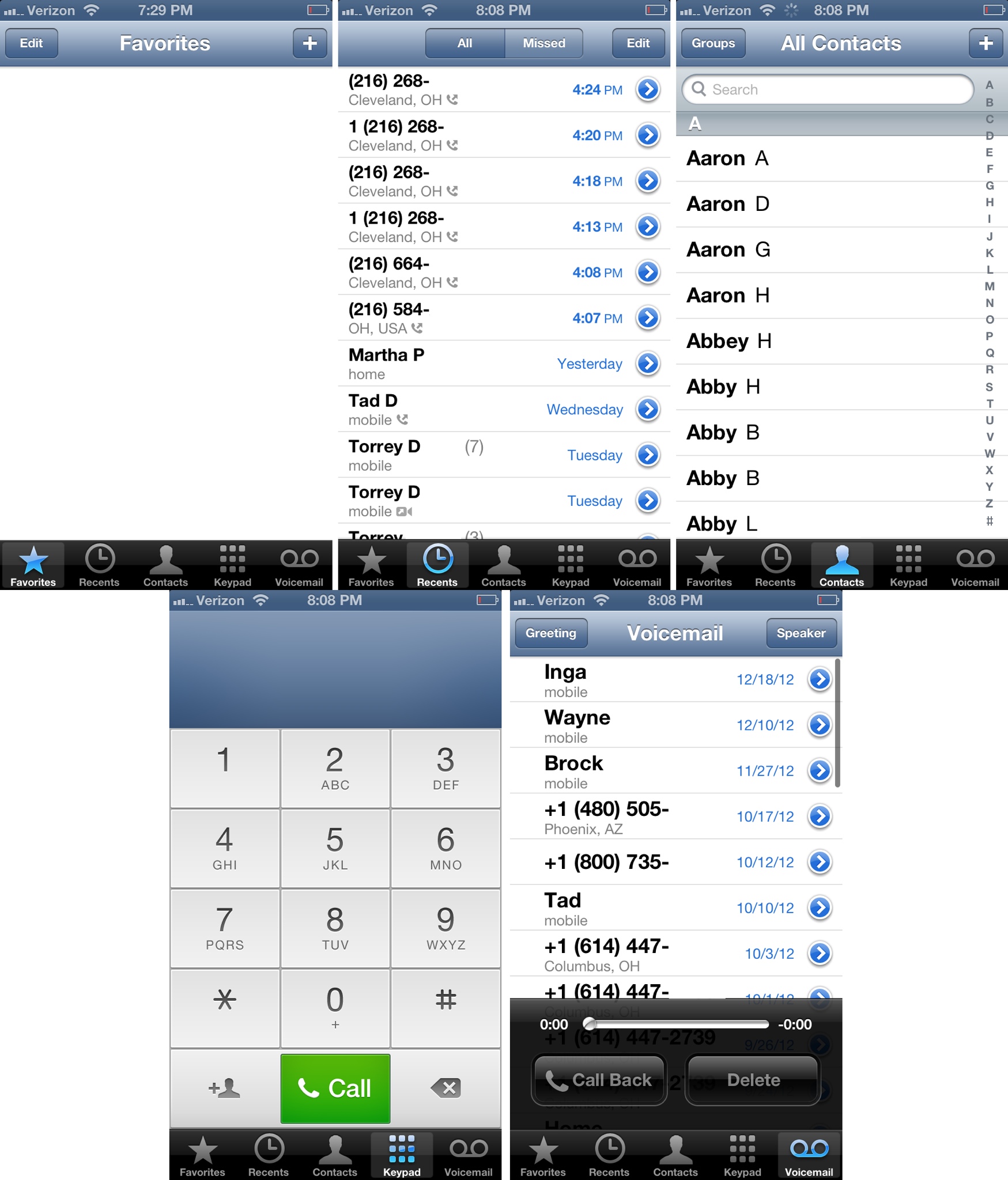
On the bottom-left of any of the images above, you’ll see Favorites. Go ahead and select it.
This area is where you can have a list of people to call simply by touching their name. There’s no need to skim through all your contacts or decide between their mobile or home telephone number. Just touching their name will initiate the call to the number you preselect to represent that person.
So, let’s add somebody to the list of Favorites. Locate and touch the Plus sign button at the top-right of your screen. This will bring up a list of all your contacts.

Now, select a name you wish to add to your Favorites list. If you select a name with multipe telephone numbers, you’ll be given a chance to select one from their details page.
And that’s it! You can go and add more if you’d like now. For example, you can add the same person twice to this list but one is their cell phone number and the other their home phone number.
Here’s how it could look like after a few are added:

From this point on, when you wish to call one of these people on your Favorites list, all you have to do is hit Phone, go to Favorites, and then touch the name you wish to call. This will initiate the phone call.
Another way for you to quickly call somebody is to simply ask Siri to do it. Press down and hold the Home button until Siri is prompted. Then ask her to call somebody. Done! If you don’t have a passcode enabled on your device, you could do this even without unlocking your screen!

 SimpleiPhone
I guess using Siri to make calls would be a better option. It’s nice and easy to use too.
Having switched from an Android Samsung to an IPhone not being able to Speed Dial is what I miss most. I had taken this for granted and had I known in advance that it was not present I would not have switched. It is such a basic function it is difficult to understand why it is not present and to answer you in advance, no the ” favourites” option is clumsy by comparison.
It is amazing! With all the fuss about Iphone, I too am about to go back to android.
Antonio,
Try utilizing Siri to make phone calls for you. She can also send/read text messages and even compose emails.
Thanks for reading.
The more I hear the more I wish id gone for an android phone.No speed dial apple youre having a laugh
Speed dial is a feature I use a LOT. So glad I got an Android rather than iPhone like my husband and kids!!! I would have been extremely disappointed to not have the speed dial function.
wow. So you have to press phone, favorites and the name, while on every old junk you can just press a number on the keypad and Android offers you any contact as a shortcut. Amazed that Apple left this vital function out.
Hi Nzugu,
You can always just hold down the home button and ask Siri to call somebody. That would only be one click.