
So you took some good photos of that trip to Niagara Falls. Now what? How about stitching some of them together to make a nice presentable masterpiece of the highlights? There are a few apps that can do this but the most popular is Pic Stitch.
With Pic Stitch, you can quickly combine your photos into one image. There are many options to spice it up and different patterns to choose from. In the end, you can easily upload the photo to your social networks or even order prints from Walgreens!
First off, let’s go download the app. It’s free! You can either click the link to the left or the image below.
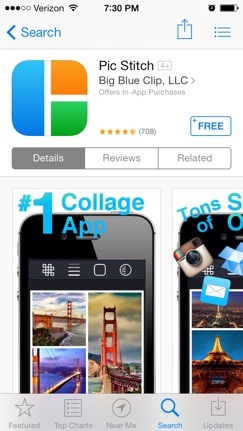 After it downloads, let’s open the app.

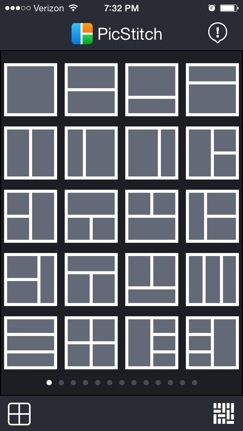
The first thing you’ll see is all the pattern options available for you to populate with your photos. You can scroll to even more options to the right. Keep in mind some of the fancier patterns require an in-app purchase. 😦
Let’s pick a pattern.
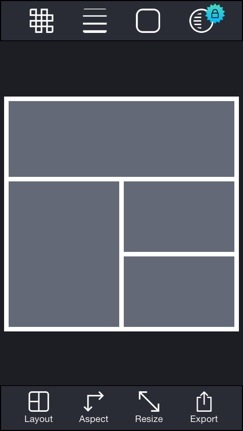
Here’s the pattern I chose. You’ll now see options on the top and bottom of your screen. You are free to explore all of these options to excercise your own creativity. Clicking “Layout” will take you back to all the patterns in the beginning.
But we need to add photos first! Simply touch one of the empty gray areas to add a photo.
This will bring up a prompt to decide where you want to grab the photo from. I’m going to select Photo Album. You could do photos from your Facebook!

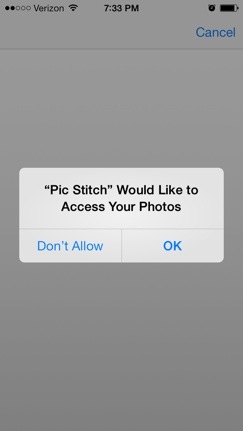
If you select Photo Album, it will ask you for permission to access your photos. Obviously, we should say “OK” or else we have nothing to work with.
Navigate to the photo you wish to use. Mine are in an album I created from my trip to Niagara Falls.
Choose a photo that would go well in the area you chose.

After choosing a photo, it will bring up the “Photo Editor” in case you wish to touch up the photo. Again, some options require an additonal purchase but you can get by without making any edits here.
Hit Done and the photo will now be added to that spot in the frame.
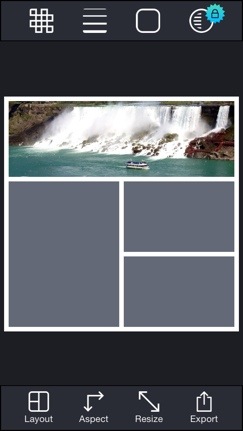
If the photo is not lined up quite right, you can touch and move the photo around within the area to make it just right.
Now go ahead and add photos to the other empty areas.

How cool! You can keep exploring all the editing options with the tool buttons along the top and bottom or you can finish your project by touching Export.
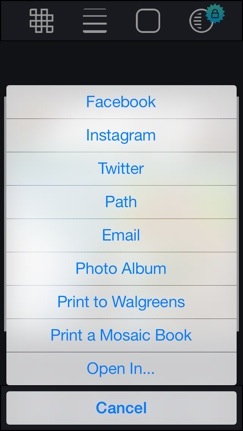
Look at all those options. To just save to your iPhone, select Photo Album. But as you can see, you can upload straight to Facebook, Instagram, and Twitter, or even order prints of this new photo at Walgreens for in-store pickup.
Here was the final product of my selections. Nice, right?

There are other alternatives available on the App Store and it should be noted that this app requires some in-app purchases to unlock some of the editing options. If you know you’ll want these options, I recommend a different app that isn’t free. It costs $0.99 to download: PicFrame. It costs money up front but it allows most of it’s editing options to be free and unlocked so it is definitely a cheaper route for those wanting them.
Now go share your artwork with your friends. 🙂

 SimpleiPhone
I know it is an old thread, but it is still applicable. Tons of collage apps that do the exact same things, but simply joining images in the order & size you wish is off limits. I used android for years and there was always free, simple apps for anything you can imagine. Some if the expensive ones for iphone might do what I need, but who is going to drop money just to find out it doesn’t?
You didn’t stitch photos together you made a collage, please learn to use accurate titles.
I apologize if you were looking to literally stitch photos together “…on your iPhone”.
It’s okay, it just seems that no one knows how to do that 😁 it’s crazy how over saturated the App Store is with college apps but the simple act of putting photos together is unheard of.
What is it that you’re trying to accomplish? What do you have in mind for your final product?
I have three pictures that I simply need to stack on top of each other and save at (idealy) the original resolution.
What do you mean stack? You wouldn’t see the other 2 unless you have them as different shapes or have the top 2 have some transparency. Or do you mean like how it’d look pinned up on a bulletin board with some of them overlapping each other?
Yes I guess stack would be an appropriate word sense I’m wanting to stitch them vertically. They are all the same shape, and I don’t want to do any cropping or overlapping. It’s three screen shots of a text article that I have cropped and now want to make into one continuous picture.
Would you like to email me so I can see what you’re dealing with? mrtomd@gmail.com
Solution:
Try using a more robust photo editing app called Pixelmator. It costs $5 right now. What you were ultimately looking for was an app that had “layer” support, where you can work with “layers” of photos overlaid each other with the ability to rearrange/edit each layer independently.
https://itunes.apple.com/us/app/pixelmator/id924695435?mt=8&ign-mpt=uo%3D4