• Home
  • Blog
  • Ask
  • About
    • Looking For Writer

SimpleiPhone

Menu

  • Apps
  • Feature
  • How To
    • Intermediate
    • Novice
  • Misc
  • News
  • Quick Tip
Previous Next

How To: Quickly Respond to Calls with a Text

January 9, 2014 · by Tom

20140103-170743.jpg

You get a phone call. You can’t really talk at the moment but you also don’t want to just ignore the call. But don’t worry! Your iPhone has the ability to quickly respond to the person via text message with a single touch.

There are 3 default quick responses set in place for you to use like “What’s up?” and “I’ll call you later.” If you don’t like these, don’t worry. I’ll also show you how to edit them to say whatever you’d like them to say.

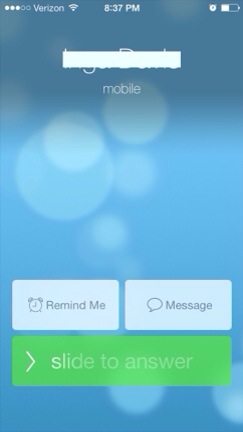
When you recieve a phone call, you are prompted with this screen.
20140102-210222.jpg

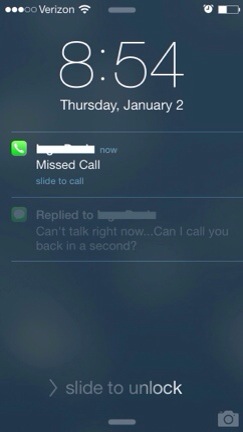
Here is when you will remember you can respond with a quick message (when you otherwise couldn’t simply answer the call of course). Simply touch the Message option and you’ll be prompted with 3 messages to choose from. Picking one of those 3 pre-set messages will automatically stop the phone call and send that person the text.
20140102-210234.jpg

That’s it! So instead of giving off the idea that you’re ignoring someone, you can shoot them a quick message to let them know you saw the call and will react accordingly shortly.

But what about customizing those 3 options that popped up? Let’s try that. Go into Settings.

20140102-174156.jpg

Next, go into Phone.

20140102-174139.jpg

See the Respond with Text option? Let’s go there.

20140102-210257.jpg

You’ll see the 3 default messages all set up.

20140102-210307.jpg

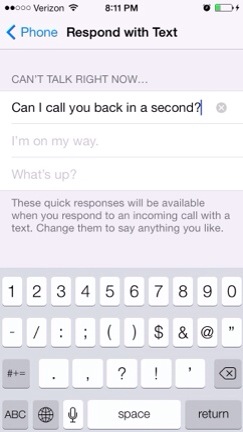
You can touch one to bring up your keyboard to type a new one. Note that they all will begin with “Can’t talk right now…” as a default beginning to the message. What you can customize is the text that follows. I’ll try it.
20140102-210313.jpg

There we go. And then I hit the Return key a couple of times on my keyboard to dismiss the keyboard.
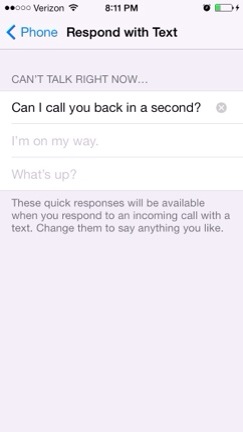
20140102-210319.jpg

And we’re done. Now that new option will appear as one of the 3 pre-set messages to quickly send a message to the owner of the incoming call. You may have to disable the Passcode Lock if you have that enabled. Having a lock on your device will not allow you to send messages like that without first unlocking your phone.

If you have any questions, let us know in the comments section. Thanks!

Rate this:

Share this:

  • Tweet
  • Click to email a link to a friend (Opens in new window) Email
Like Loading...
Posted In: How To, Intermediate
Tagged: customize, Lock Screen, message, Settings

Comments

Leave A Comment →

Leave a comment Cancel reply

  • Like us on Facebook!

    Like us on Facebook!
  • Enter your email address to follow this blog and receive notifications of new posts by email.

    Join 93 other subscribers
  • Writers

    • Tom's avatar Tom
      • How To: Speed Dial using Workflow on Your iPhone
      • How To: Quickly Free Up Space on Your iPhone
      • How To: Use Widgets In iOS 8
    • Sam's avatar Sam
      • How To: Turn on Auto-Update for Apps
      • Quick Tip: Turning Rotation Lock (Orientation Lock) On and Off
      • How To: Change the Wallpaper on Your iPhone’s Home Screen and/or Lock Screen
  • alert alerts App Apple apps App Store autocorrect battery life bookmarks Call Camera cloud comment Contacts create customize delete download easy emoji emoticons folders free friends gadgets homescreen how to icloud iOS iOS 6 iOS 11 iPhone iphone 4 iPhone 4S iPhone 5 keyboard location lock Lock Screen lost maps messages music organization Phone photo photos photostream picture remove rename save screen screenshot search setting Settings share shortcuts simple snapshot Speed Dial spotlight Starbucks stream technology text Texting timesaver tutorial typing Update upload useful webapp
  • Recent Posts

    • How To: Turn on Auto-Update for Apps
    • Quick Tip: Turning Rotation Lock (Orientation Lock) On and Off
    • How To: Speed Dial using Workflow on Your iPhone
    • How To: Change the Wallpaper on Your iPhone’s Home Screen and/or Lock Screen
    • How To: Quickly Free Up Space on Your iPhone
  • Like us on Facebook!

    Like us on Facebook!
  • Blog at WordPress.com.
  • Connect with us:
  • Twitter
  • Facebook
  • YouTube
  • RSS
Privacy & Cookies: This site uses cookies. By continuing to use this website, you agree to their use.
To find out more, including how to control cookies, see here: Cookie Policy
  • Comment
  • Reblog
  • Subscribe Subscribed
    • SimpleiPhone
    • Already have a WordPress.com account? Log in now.
    • SimpleiPhone
    • Subscribe Subscribed
    • Sign up
    • Log in
    • Copy shortlink
    • Report this content
    • View post in Reader
    • Manage subscriptions
    • Collapse this bar
 

Loading Comments...
 

    %d