• Home
  • Blog
  • Ask
  • About
    • Looking For Writer

SimpleiPhone

Menu

  • Apps
  • Feature
  • How To
    • Intermediate
    • Novice
  • Misc
  • News
  • Quick Tip
  • Like us on Facebook!

    Like us on Facebook!
  • Enter your email address to follow this blog and receive notifications of new posts by email.

    Join 93 other subscribers
    • Tom's avatar
    • Sam's avatar

Posts By Sam

I am a technology enthusiast.

How To: Update Your iPhone

March 9, 2012 · by Sam

It’s always good to keep your iPhone up-to-date. Keeping your iPhone updated ensures that your iPhone has the latest bug fixes, performance fixes, and has Apple’s latest and greatest features. In fact, Apple just released an iPhone update a few days ago on Wednesday, March 7, 2012.

Updating is super easy, and in this tutorial, I will show you how to do it.

Read More →

Share this:

  • Tweet
  • Click to email a link to a friend (Opens in new window) Email
Like Loading...

How To: Make Your iPhone Read Out Loud To You

March 6, 2012 · by Sam

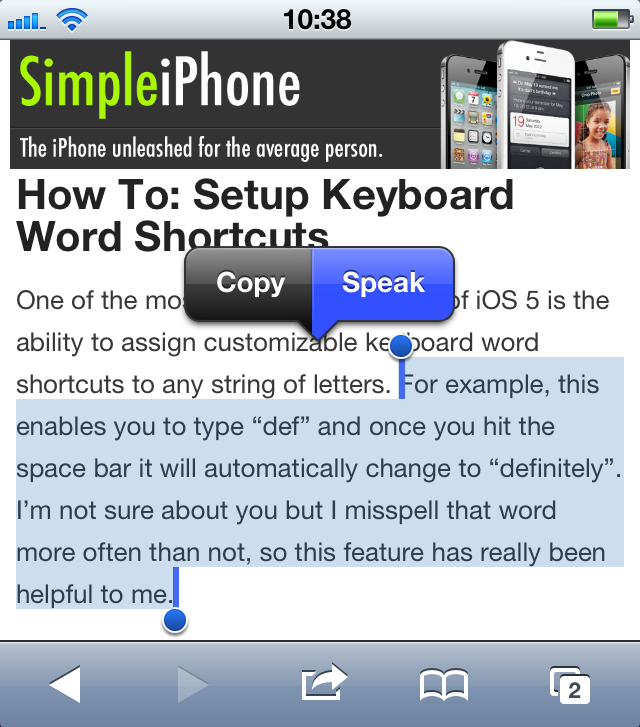
Have you ever been driving or doing some other activity when you received a long email. You probably wanted to know right away what the email said, but you didn’t want to (or couldn’t) take the time to read it. Speak Selection to the rescue!

With Speak Selection enabled, you can have your iPhone read to you any text that you highlight. This can come in handy when, for instance, you are driving and receive a long email that you want to read.

This tutorial will teach you how to enable and disable Speak Selection, as well as how to adjust the Speak Selection speaking rate.

Read More →

Share this:

  • Tweet
  • Click to email a link to a friend (Opens in new window) Email
Like Loading...

How To: Get Quick Access to Music Controls and the “Camera” App From the Lock Screen

March 1, 2012 · by Sam

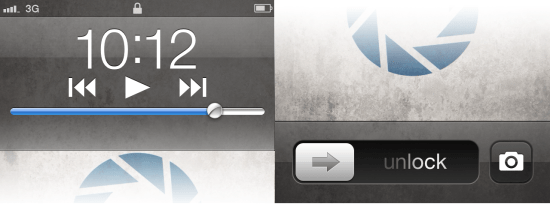
Have you ever been listening to music on your iPhone while jogging and a song that you didn’t like came on? You want to skip to the next track, but you don’t want to have to fiddle with your iPhone—having to unlock it, then having to navigate to the “Music” app, and then having to tap the “next track” button. If only there was a way to quickly skip to the next track!

Alternatively, have you ever seen something amazing happen and you wanted to take a quick snapshot of it, but the moment was gone by the time you got your iPhone out, unlocked it, opened the “Camera” app, and snapped the picture. If you could have just taken the picture a second earlier, you would have been able to capture an amazing picture. If only you could quickly access your iPhone’s “Camera” app without having to go through all of those steps.

You’re in luck! Both of these situations have a quick and easy remedy.

This brief tutorial will teach you how to quickly access (1) music controls and (2) your iPhone’s “Camera” app, all without having to unlock your iPhone and navigate to the respective app.

Read More →

Share this:

  • Tweet
  • Click to email a link to a friend (Opens in new window) Email
Like Loading...

How To: Use Spotlight Search

February 28, 2012 · by Sam

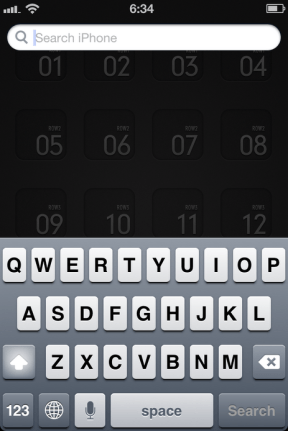
Spotlight Search is basically a “Google” for your iPhone. When you type in a search, Spotlight Search will scour your entire phone for whatever it is that you searched for. You can search for things like contacts, apps, music (including songs, albums, and artists), notes, events, podcasts, and more. This can be a real timesaver if you have a lot of music and want to quickly play a song or if you have downloaded a lot of apps and can’t seem to remember where the app is on your homescreen. All you have to do is start typing the name of the song or the app and Spotlight Search will bring it right to you!

This tutorial will teach you: (1) how to use Spotlight Search, and (2) how to customize your search results by excluding specific categories of items from the search results (like excluding music or contacts from your search results).

Read More →

Share this:

  • Tweet
  • Click to email a link to a friend (Opens in new window) Email
Like Loading...

How To: Enable and Disable Auto-Correction

February 26, 2012 · by Sam

Have you ever tried to type an email or text message to someone, and even though you know you spelled a word correctly, your iPhone automatically “corrects” the word to something that you had no intention of writing? That’s your iPhone’s auto-correction feature hard at work.

In this tutorial you will learn: (1) how to selectively enable and disable your iPhone’s auto-correction feature, and (2) the effect disabling auto-correction has on misspelled words.

Read More →

Share this:

  • Tweet
  • Click to email a link to a friend (Opens in new window) Email
Like Loading...

How To: Add Website Bookmarks To Your Homescreen

February 25, 2012 · by Sam

Have you ever wanted a quick way to access a favorite website from your iPhone’s homescreen? Now you can!

This tutorial will explain how to add a website bookmark to your iPhone’s homescreen. At the end of this tutorial you will be able to create an icon on your homescreen that, when tapped, will take you directly to a website of your choice.

Read More →

Share this:

  • Tweet
  • Click to email a link to a friend (Opens in new window) Email
Like Loading...

How To: Use Folders On Your iPhone

February 23, 2012 · by Sam


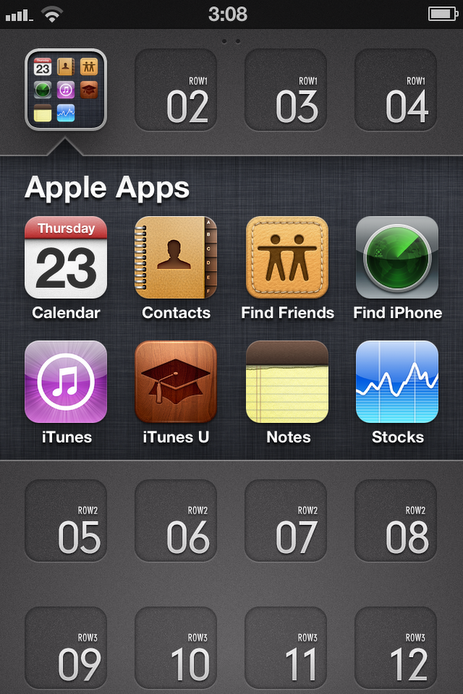
As you download apps and create homescreen bookmark icons, your homescreen may become rather cluttered. However, your iPhone comes with an amazingly simple organization feature to deal with the clutter, folders!

In this tutorial you will learn how to create folders; manage folders (including how to rename folders, add apps to folders, and remove apps from folders); and delete folders.

Read More →

Share this:

  • Tweet
  • Click to email a link to a friend (Opens in new window) Email
Like Loading...

How To: Add Emoji To Your iPhone’s Keyboard

February 21, 2012 · by Sam

Have you ever received an email or instant message that had one of those smiley faces in it? You know, the ones made using a colon, a dash, and an end parenthesis?

“:-)”

That’s an emoticon. “Emoticons”, short for “emotional icons” are textual or pictorial representations of facial expressions that are created by using punctuation, letters, and/or numbers. Traditionally the symbols were pretty simple and retained their text formatting on both the sending and receiving side of the message.

Read More →

Share this:

  • Tweet
  • Click to email a link to a friend (Opens in new window) Email
Like Loading...
Page 2 of 2 « Previous 1 2
  • Recent Posts

    • How To: Turn on Auto-Update for Apps
    • Quick Tip: Turning Rotation Lock (Orientation Lock) On and Off
    • How To: Speed Dial using Workflow on Your iPhone
    • How To: Change the Wallpaper on Your iPhone’s Home Screen and/or Lock Screen
    • How To: Quickly Free Up Space on Your iPhone
  • Like us on Facebook!

    Like us on Facebook!
  • Create a free website or blog at WordPress.com.
  • Connect with us:
  • Twitter
  • Facebook
  • YouTube
  • RSS
Privacy & Cookies: This site uses cookies. By continuing to use this website, you agree to their use.
To find out more, including how to control cookies, see here: Cookie Policy
  • Subscribe Subscribed
    • SimpleiPhone
    • Already have a WordPress.com account? Log in now.
    • SimpleiPhone
    • Subscribe Subscribed
    • Sign up
    • Log in
    • Report this content
    • View site in Reader
    • Manage subscriptions
    • Collapse this bar
 

Loading Comments...
 

    %d