• Home
  • Blog
  • Ask
  • About
    • Looking For Writer

SimpleiPhone

Menu

  • Apps
  • Feature
  • How To
    • Intermediate
    • Novice
  • Misc
  • News
  • Quick Tip
  • Like us on Facebook!

    Like us on Facebook!
  • Enter your email address to follow this blog and receive notifications of new posts by email.

    Join 93 other subscribers
    • Tom's avatar
    • Sam's avatar

Browsing Category Novice

How To: Turn on Auto-Update for Apps

November 3, 2017 · by Sam

AppUpdates

It is generally good to keep your iPhone apps updated–as app updates usually contain new features or bug fixes.

Apps are updated all of the time, and depending on how many apps you have downloaded on your iPhone, every day there could be a lot of apps to be updated. When you turn on automatic updates for apps, new versions of apps that you currently have on your iPhone will automatically download when updates for those apps become available.

This post will explain how to turn on auto-updates for apps–just note the tip at the end of the post about how to avoid using data from your iPhone’s cellular data plan when updating apps.

Read More →

Share this:

  • Tweet
  • Click to email a link to a friend (Opens in new window) Email
Like Loading...

Quick Tip: Turning Rotation Lock (Orientation Lock) On and Off

October 25, 2017 · by Sam

OrientationLockFeature

When turned on, rotation lock (sometimes referred to as “orientation lock”) keeps your screen from rotating when you move your iPhone–like when you rotate your iPhone to the left, right, or upside down. Rotation lock will lock the orientation of your iPhone’s display in portrait mode (portrait mode is where you hold your iPhone with the home button at the bottom). Note that rotation lock does not let you lock your iPhone in landscape mode (landscape mode is where you hold your iPhone with the home button on the right or left).

Turning rotation lock on and off on your iPhone is really easy, and this post explains how to do it.

Read More →

Share this:

  • Tweet
  • Click to email a link to a friend (Opens in new window) Email
Like Loading...

How To: Change the Wallpaper on Your iPhone’s Home Screen and/or Lock Screen

October 10, 2017 · by Sam

Wallpaper Feature Post

One of the ways you can personalize your iPhone is by changing the background wallpaper of your home screen and/or your lock screen to display the wallpaper that you choose (such as a photo of your family, your favorite sports team logo, etc.).

This post explains what your iPhone’s home screen and lock screen are and how you can change the background wallpaper on one or both of them.

Read More →

Share this:

  • Tweet
  • Click to email a link to a friend (Opens in new window) Email
Like Loading...

How To: Quickly Free Up Space on Your iPhone

October 4, 2017 · by Tom

si

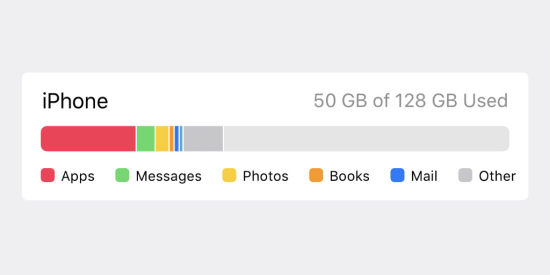
Over time, no matter the capacity of your iPhone, you will eventually need to free up space, and sometimes you’ll need to do so quickly. I’ll go over the best 3 ways to do so quickly and effectively.

Read More →

Share this:

  • Tweet
  • Click to email a link to a friend (Opens in new window) Email
Like Loading...

How To: Use Widgets In iOS 8

October 1, 2014 · by Tom

IMG_8591
With iOS 8 comes a whole new way to use your apps. Some third party apps (apps made by people other than Apple) now work with your notifications center, which means, you can quickly access more content from a wide variety of apps just by swiping down from the top-most part of your screen.

Read More →

Share this:

  • Tweet
  • Click to email a link to a friend (Opens in new window) Email
Like Loading...

How To: See When A Text Was Sent on iOS 7

January 22, 2014 · by Tom

clock

“Wait… when did I send that text? I forget when I sent it. I wish there was a way to see that.” There is! With iOS 7, you can easily see the timestamps of all the texts within a message thread.

Read More →

Share this:

  • Tweet
  • Click to email a link to a friend (Opens in new window) Email
Like Loading...

How To: Close Apps on iOS 7

January 16, 2014 · by Tom

20140109-211025.jpg

With the introduction of iOS 7 came lots of new features and changes. One change is the way in which you manually close an app.

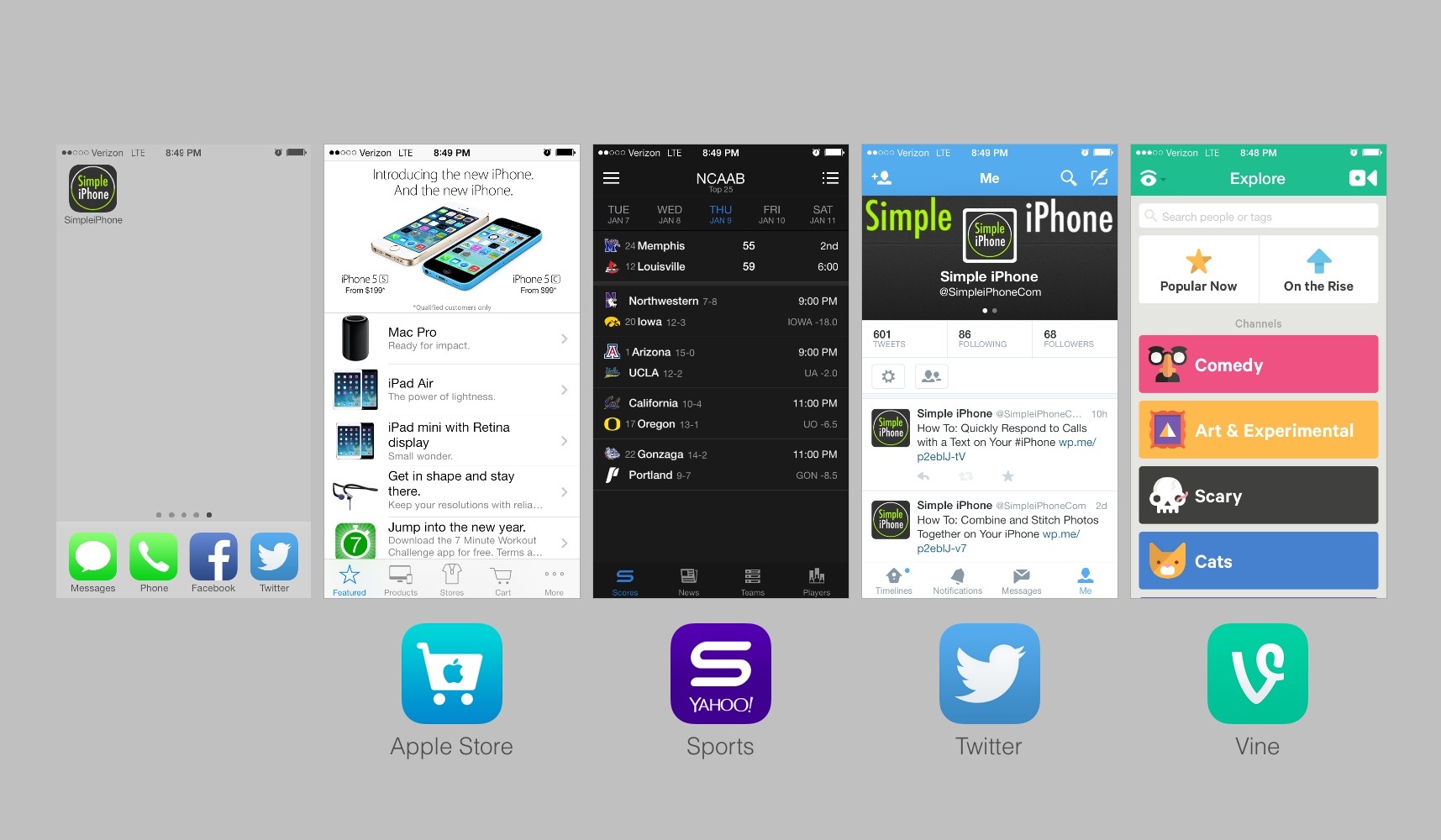
The old way was to bring up that “quick app switching” bar at the bottom, put it in “jiggle” mode, and then carefully touch that little red circle to close the app. The new way still involves the “quick app switching” feature but now it looks different. Once you get to the quick app switching view, simply swipe up on the screenshot of the app you wish to close. I can walk you through it below.

Read More →

Share this:

  • Tweet
  • Click to email a link to a friend (Opens in new window) Email
Like Loading...

How To: Share Photos, Videos, and Documents with AirDrop

January 14, 2014 · by Tom

airdrop

You’ve seen the commercials for other smartphones where they bump phones to share files, right? Well, Apple’s version of this doesn’t require you to “bump” anything. It’s called AirDrop and I’ll show you how to use it.

Sharing files with someone is always possible with email, but AirDrop makes it even easier with email out of the picture. If you’re next to the person (or people) you want to share with, you can utilize AirDrop to securely share your document or photo.

Read More →

Share this:

  • Tweet
  • Click to email a link to a friend (Opens in new window) Email
Like Loading...

How To: Combine and Stitch Photos Together on Your iPhone

January 7, 2014 · by Tom

20140106-211833.jpg

So you took some good photos of that trip to Niagara Falls. Now what? How about stitching some of them together to make a nice presentable masterpiece of the highlights? There are a few apps that can do this but the most popular is Pic Stitch.

With Pic Stitch, you can quickly combine your photos into one image. There are many options to spice it up and different patterns to choose from. In the end, you can easily upload the photo to your social networks or even order prints from Walgreens!

Read More →

Share this:

  • Tweet
  • Click to email a link to a friend (Opens in new window) Email
Like Loading...

How To: Block Someone

January 2, 2014 · by Tom

Twitter-Marketing-Should-Not-Be-Ignored2

Everyone has once in their life wanted to block somebody. Whether it’s that one annoying guy or that telemarketer that keeps calling, having the ability to block some people can be very handy.

When you block someone, you will not recieve phone calls, messages (texts), or FaceTime calls from them.

Read More →

Share this:

  • Tweet
  • Click to email a link to a friend (Opens in new window) Email
Like Loading...
Page 1 of 4 1 2 3 4 Next »
  • Recent Posts

    • How To: Turn on Auto-Update for Apps
    • Quick Tip: Turning Rotation Lock (Orientation Lock) On and Off
    • How To: Speed Dial using Workflow on Your iPhone
    • How To: Change the Wallpaper on Your iPhone’s Home Screen and/or Lock Screen
    • How To: Quickly Free Up Space on Your iPhone
  • Like us on Facebook!

    Like us on Facebook!
  • Blog at WordPress.com.
  • Connect with us:
  • Twitter
  • Facebook
  • YouTube
  • RSS
Privacy & Cookies: This site uses cookies. By continuing to use this website, you agree to their use.
To find out more, including how to control cookies, see here: Cookie Policy
  • Subscribe Subscribed
    • SimpleiPhone
    • Already have a WordPress.com account? Log in now.
    • SimpleiPhone
    • Subscribe Subscribed
    • Sign up
    • Log in
    • Report this content
    • View site in Reader
    • Manage subscriptions
    • Collapse this bar
 

Loading Comments...
 

    %d