
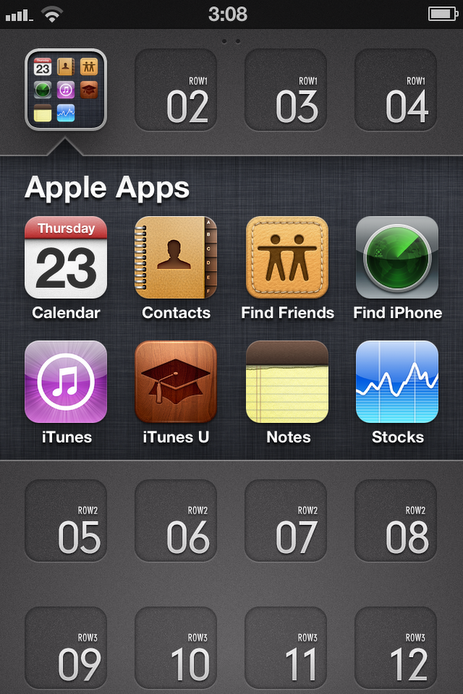
As you download apps and create homescreen bookmark icons, your homescreen may become rather cluttered. However, your iPhone comes with an amazingly simple organization feature to deal with the clutter, folders!
In this tutorial you will learn how to create folders; manage folders (including how to rename folders, add apps to folders, and remove apps from folders); and delete folders.
You can skip ahead to any section by clicking one of the following links: [Creating Folders], [Renaming Folders], [Adding Apps to Folders], [Removing Apps From Folders], and [Deleting Folders].
For starters, any of the icons (apps or bookmarks) you see on your homescreen can be placed within a folder–with the exception of the “Newsstand” “app”. (“Newsstand” is more of a folder than an app. It is meant to be a sort of folder for certain newspaper and magazine apps. However, there is a trick that allows you to put the “Newsstand” app in a folder. For more, check out this link: [Link].) Because you can put any app or bookmark in a folder with any other apps or bookmarks, folders allow you to organize around your own specific needs or desires. You may choose to organize by the type of app (such as “Music Apps”, “Productivity Apps” or “Photography Apps”); you may choose to organize by actions (such as “Reading”, “Communicating”, or “Gaming”); or you may choose some other way to organize your app (such as creating a folder for “Favorite Apps” or “Miscellaneous Apps”). The only limits on the use of folders is that you must have at least two apps to create a folder and, on the iPhone, you may only place nine apps in each folder you create.
Creating Folders
To create a folder, the first step is to tap and hold on any app, bookmark, or folder (if you already have one on your homescreen) until the apps on the screen begin to wiggle.
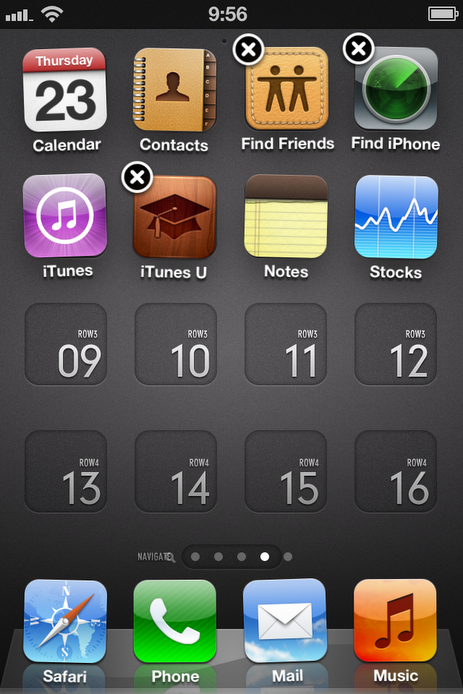
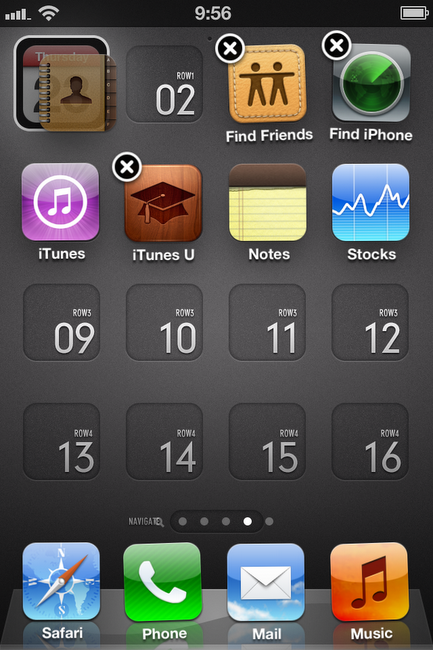
Next, drag an app or bookmark that you want to be in a folder on top of another app or bookmark that you would like to be in the same folder. You can either (1) continue to hold the first app or bookmark on top of the second app or bookmark until the folder interface opens up (as shown below); or
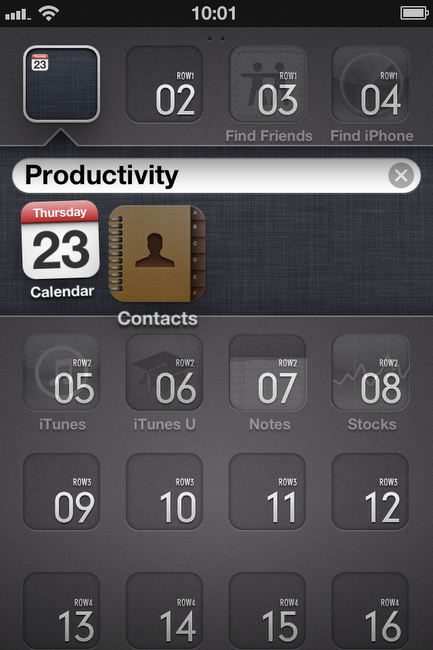
(2) release the first app or bookmark on top of the second app or bookmark as soon as a box forms around the second app or bookmark (as shown below).
You should now see the folder interface with two wiggling apps or bookmarks. Press your home button to stop the apps from wiggling. (Alternatively, you can tap anywhere outside of the folder interface and add more apps to this folder.)
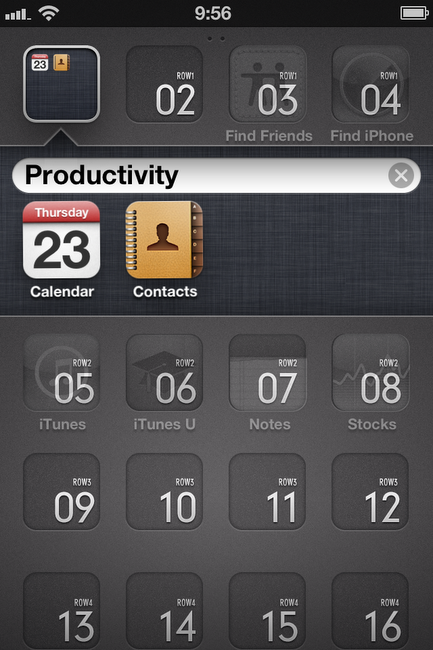
Congratulations! You just created a folder!
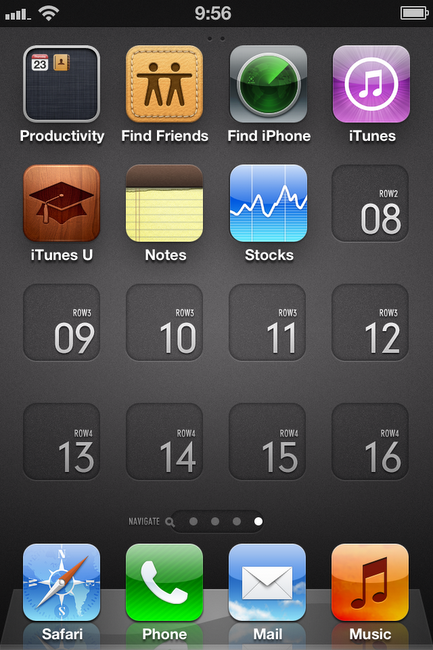
Managing Folders
Renaming Folders
If you followed the steps listed above to create a folder, you will notice that your folder has automatically been assigned a name. This name typically reflects a general categorical description of the apps within the folder. However, you may want to customize the name to something more of your liking. If so, you are in luck. The steps to rename the folder are even easier than creating the folder.
To change the name of the folder, first tap and hold on any icon or folder on your homescreen. Once again, you will see all of the apps begin to wiggle.
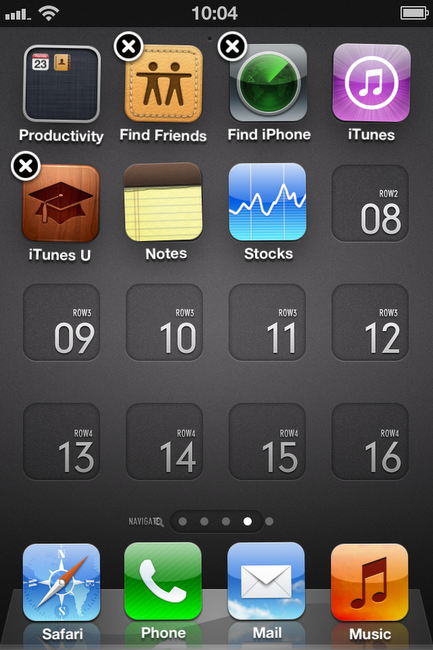
Next, tap on the folder of which you want to change the name.
The folder will open and you will see the title of the folder and the apps inside. Tap on the title of the folder.
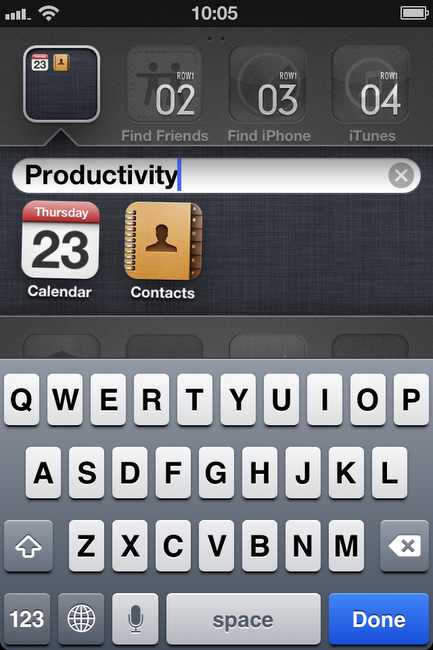
Type your new, customized name for the folder. When you are finished, tap the blue “Done” button at the bottom right of your screen.
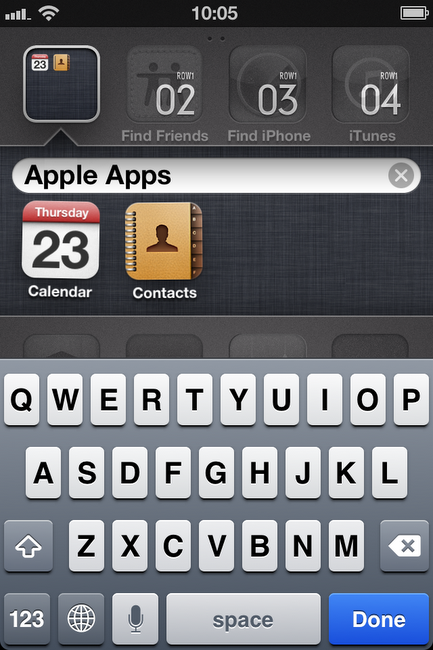
Finally, press your home button to stop the apps from wiggling.
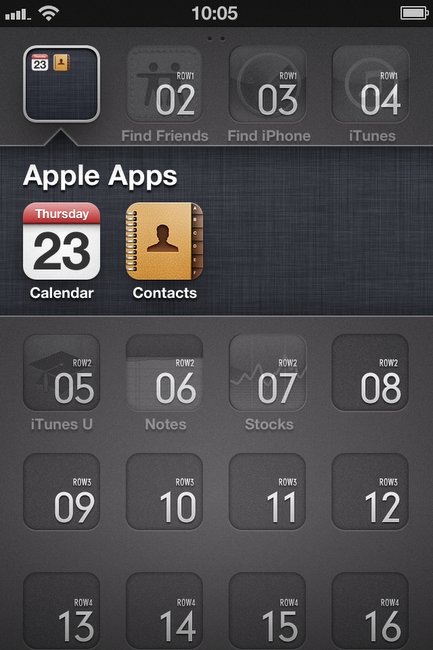
That is all there is to it. You have successfully changed the name of your folder.
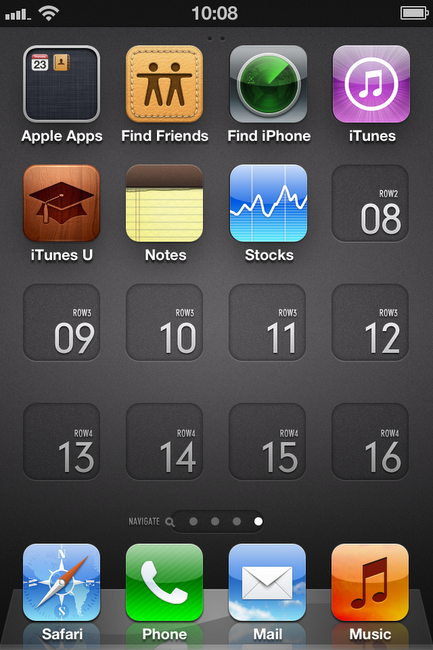
Adding Apps to Folders
To add an app to a folder, first tap and hold on any app or folder on your homescreen until your apps begin to wiggle.
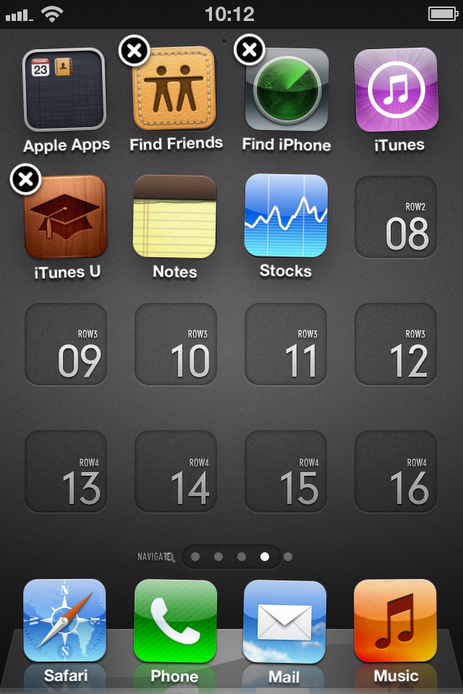
Next, drag the app that you want to add to the folder onto the top of the folder in which you want the app to be placed.
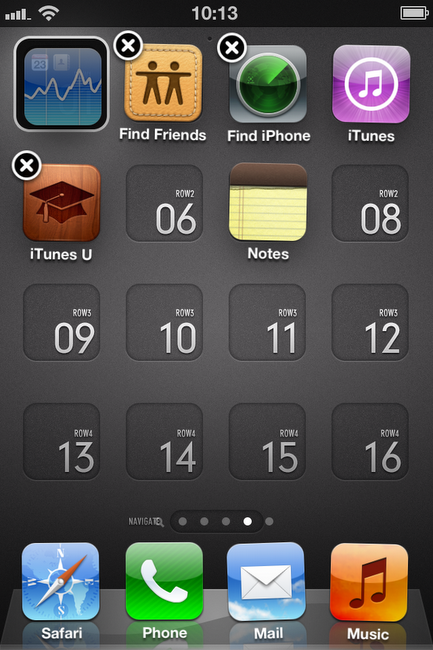
Once the folder opens up, drag the app to whichever spot you want the app to be in the folder.
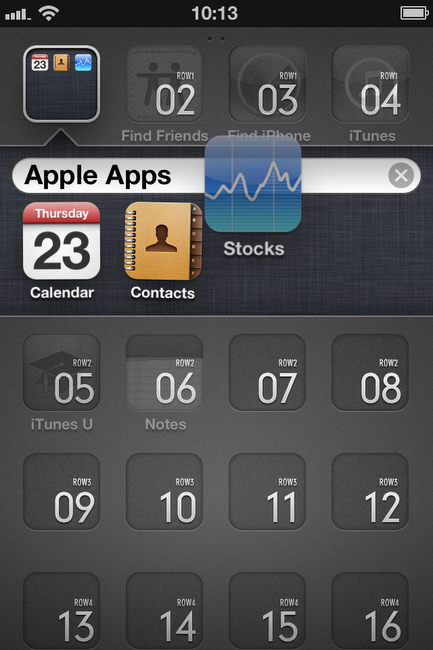
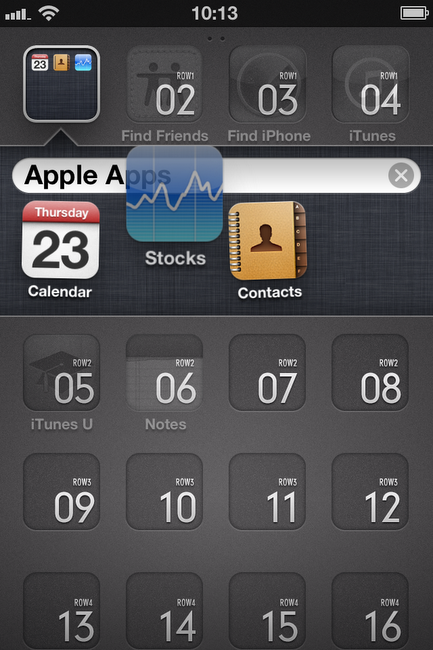
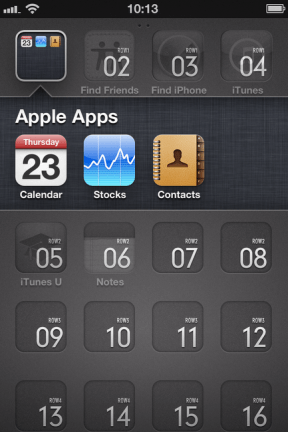
Continue these steps for each app you want to add to the folder.
Finally, press your home button to stop the apps from wiggling.
Removing Apps From Folders
To remove an app from a folder, first tap and hold on any app or folder on your homescreen until the apps begin to wiggle.
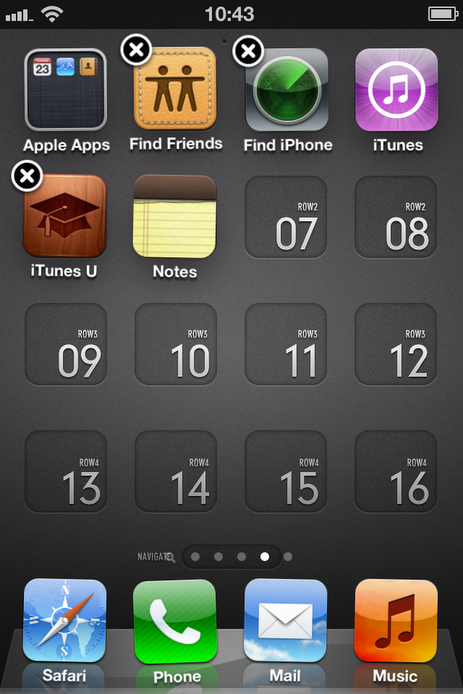
Next, tap on the folder which holds the app or apps you want to remove.
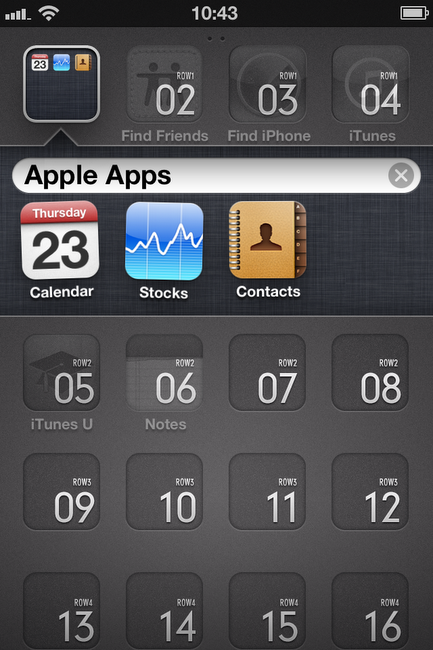
Tap and hold the app you want to remove and drag it to an area outside of the folder.
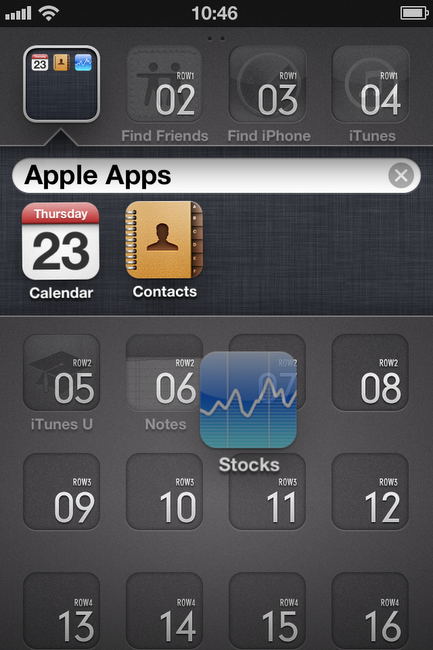
Place the app anywhere you want on the homescreen.

Repeat these steps for any additional apps you want to remove from the folder.
Finally, press your home button to stop the apps from wiggling.

Deleting Folders
Deleting a folder is simple. To delete a folder, all you must do is drag all of the apps out of the folder or delete all of the apps within the folder.
To drag the apps out of the folder, first tap and hold on any app or folder on your homescreen until the apps begin to wiggle.
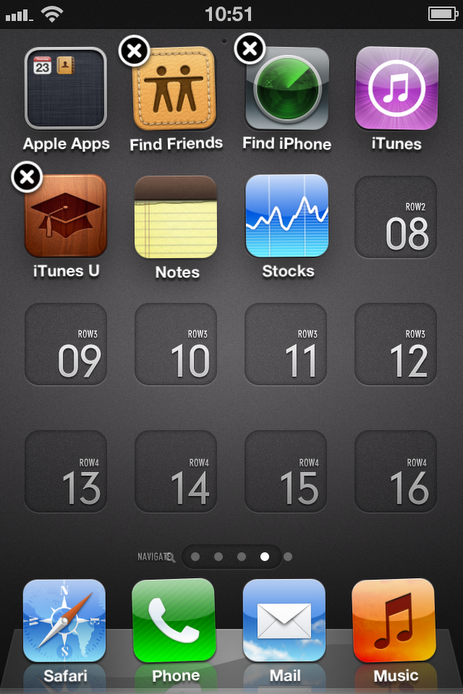
Next, open the folder that you wish to delete by tapping on it.
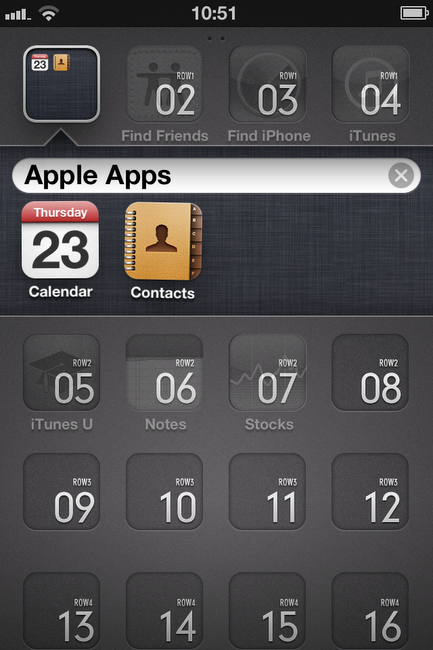
Tap an app and drag it to an area outside of the folder. Keep holding the app until the folder closes and you are back on your homescreen.
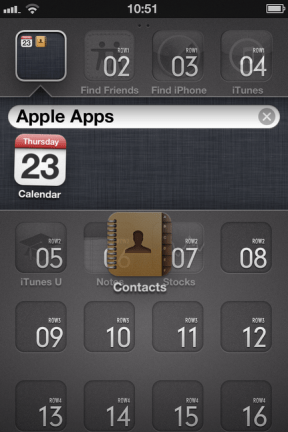
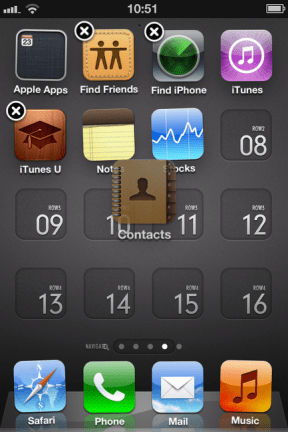
Place the app anywhere you want on the homescreen.
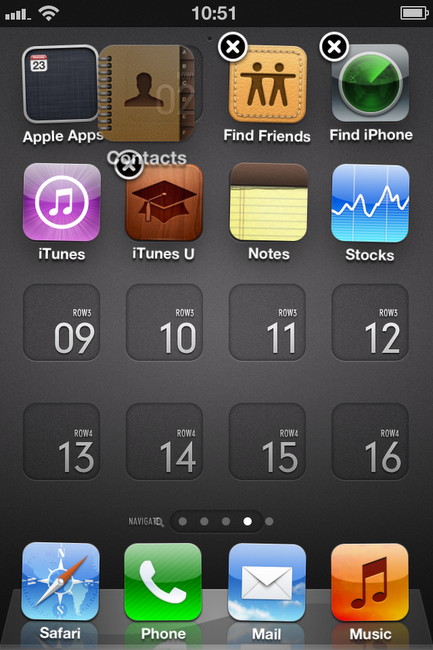
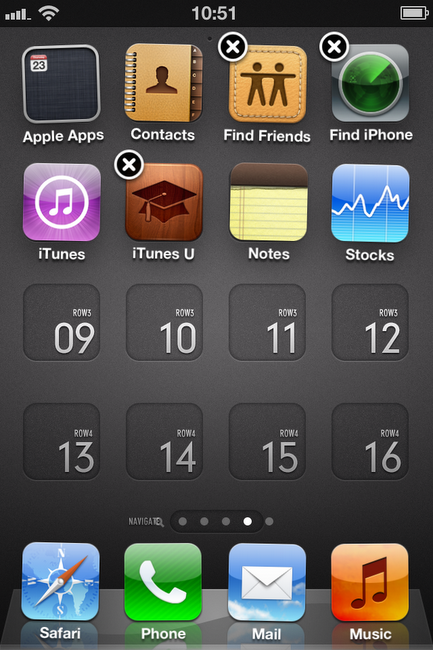
Continue these steps until all the apps are out of the folder. (Notice that you are able to have a single app in a folder so long as you remove or delete every app from the folder except for that one app.)
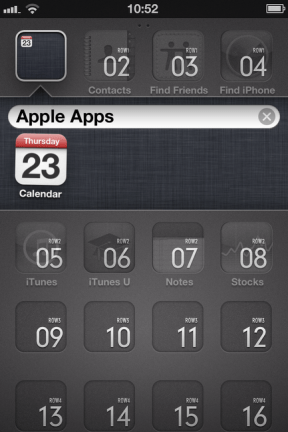
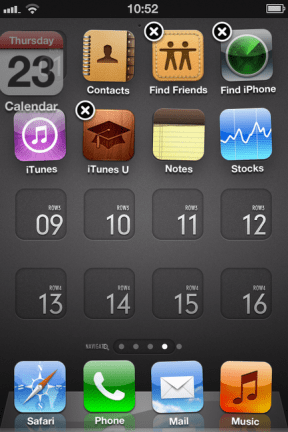
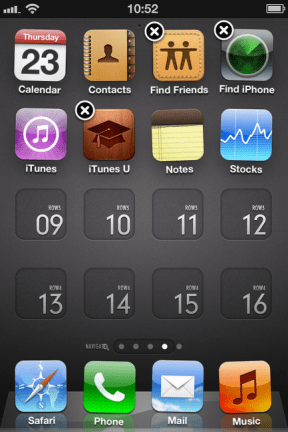
Finally, press your home button to stop the apps from wiggling. The folder will then disappear.

 SimpleiPhone
i have a requirement to place a “note” in the folder with some apps (i.e. login info etc) how can I do this? as I have a few different folders that I want to do this with so can’t just place a “note” app in the folder unless I can double up and place the same app in multiple folders?
Tracy, unfortunately you cannot place a single app in multiple folders. Regarding login info, check out the 1Password app. It is an awesome app for securely storing logins, secure notes, and more! Here is the app store link to 1Password: http://itunes.apple.com/us/app/1password-for-iphone/id285897618?mt=8
I feel so silly for not knowing how to do this before! Mind blown.