• Home
  • Blog
  • Ask
  • About
    • Looking For Writer

SimpleiPhone

Menu

  • Apps
  • Feature
  • How To
    • Intermediate
    • Novice
  • Misc
  • News
  • Quick Tip
  • Like us on Facebook!

    Like us on Facebook!
  • Enter your email address to follow this blog and receive notifications of new posts by email.

    Join 93 other subscribers
    • Tom's avatar
    • Sam's avatar

Posts By Sam

I am a technology enthusiast.

How To: Turn on Auto-Update for Apps

November 3, 2017 · by Sam

AppUpdates

It is generally good to keep your iPhone apps updated–as app updates usually contain new features or bug fixes.

Apps are updated all of the time, and depending on how many apps you have downloaded on your iPhone, every day there could be a lot of apps to be updated. When you turn on automatic updates for apps, new versions of apps that you currently have on your iPhone will automatically download when updates for those apps become available.

This post will explain how to turn on auto-updates for apps–just note the tip at the end of the post about how to avoid using data from your iPhone’s cellular data plan when updating apps.

Read More →

Share this:

  • Tweet
  • Click to email a link to a friend (Opens in new window) Email
Like Loading...

Quick Tip: Turning Rotation Lock (Orientation Lock) On and Off

October 25, 2017 · by Sam

OrientationLockFeature

When turned on, rotation lock (sometimes referred to as “orientation lock”) keeps your screen from rotating when you move your iPhone–like when you rotate your iPhone to the left, right, or upside down. Rotation lock will lock the orientation of your iPhone’s display in portrait mode (portrait mode is where you hold your iPhone with the home button at the bottom). Note that rotation lock does not let you lock your iPhone in landscape mode (landscape mode is where you hold your iPhone with the home button on the right or left).

Turning rotation lock on and off on your iPhone is really easy, and this post explains how to do it.

Read More →

Share this:

  • Tweet
  • Click to email a link to a friend (Opens in new window) Email
Like Loading...

How To: Change the Wallpaper on Your iPhone’s Home Screen and/or Lock Screen

October 10, 2017 · by Sam

Wallpaper Feature Post

One of the ways you can personalize your iPhone is by changing the background wallpaper of your home screen and/or your lock screen to display the wallpaper that you choose (such as a photo of your family, your favorite sports team logo, etc.).

This post explains what your iPhone’s home screen and lock screen are and how you can change the background wallpaper on one or both of them.

Read More →

Share this:

  • Tweet
  • Click to email a link to a friend (Opens in new window) Email
Like Loading...

Quick Tip: Turn Auto-Brightness Off/On in iOS 11

October 1, 2017 · by Sam

auto-brightness

“Auto-brightness” is a setting that is intended to save battery by automatically brightening or dimming your iPhone’s screen based on the ambient light where you are.

When the “auto-brightness” setting is turned on, if you are in a dark place then auto-brightness will automatically dim your iPhone’s screen (as you generally would not need your iPhone to be really bright in order to be able to read your iPhone in a dark place), and if you are in a bright place (like outside in sunlight) then auto-brightness will automatically brighten your iPhone’s screen so you are able to see the screen.

The “auto-brightness” setting is automatically turned on in iOS 11. However, if you are like me and prefer to have your screen brightness held constant all of the time, then “auto-brightness” can get pretty annoying. Luckily there is a way to turn it off, and here is how.

Read More →

Share this:

  • Tweet
  • Click to email a link to a friend (Opens in new window) Email
Like Loading...

How To: Use Caps Lock on Your iPhone

April 20, 2013 · by Sam

CapsLockFeature

Have you ever needed to type something on your iPhone in all capital letters, but every time you tapped the shift button you type one letter that’s capitalized but all the letters you type after that are lowercase letters? That can get pretty frustrating. However, there is a solution. Your iPhone has a Caps Lock feature, which works just like the Caps Lock on your computer. You can simply turn Caps Lock on and have all the letters you type be capitalized.

This quick tutorial will teach you how to enable the Caps Lock feature on your iPhone and then how to turn Caps Lock on and off when typing on your iPhone keyboard.

Read More →

Share this:

  • Tweet
  • Click to email a link to a friend (Opens in new window) Email
Like Loading...

How To: Use Shared Photo Streams

January 9, 2013 · by Sam

SharedPhotoStreams2 FeatureYou probably have some photos from the holidays on your iPhone. Some of your family and friends may also have some holiday photos on their iPhones. Wouldn’t it be great if there was a way to share your photos with your friends and family? Well, with shared photo streams, there is a way to share those photos. But that isn’t all. In addition to sharing the photos, you and your family and friends can also comment on the photos and “like” the photos–almost like it’s your own private social network.

Read More →

Share this:

  • Tweet
  • Click to email a link to a friend (Opens in new window) Email
Like Loading...

How To: Use Photo Stream

December 3, 2012 · by Sam

Wouldn’t it be great if all the pictures you took on your iPhone could be viewed on your other devices without having to mess around with cables and copying and pasting? Just imagine, you could take a photo on your iPhone and then view and edit the photo on a bigger screen–like an iPad–without having to sync to iTunes or having to constantly email pictures from one device to the next. With Photo Stream, you can do this and so much more!

A few months ago we explained how to create and manage photo albums using only your iPhone. You can find that article by clicking here. Now we are going to move on to how you can use Photo Stream (1) to back up your photos, (2) to view your photos on your other Apple devices, and (3) to share your photos with friends and family.

Photo Stream is an amazing feature that allows you to do several things. First, Photo Stream operates as a way to do a limited backup of your photos. I say “limited” because Photo Stream won’t permanently backup every photo you take forever. Rather, as stated by Apple: “[i]f you have Photo Stream enabled on your iOS device, every single photo you take appears in a special Photo Stream album that holds your last 1000 photos.”1 However, the length of time your photos are stored on iCloud is limited because “iCloud [only] stores new photos for 30 days.”2 Second, Photo Stream makes it easy to share photos between your iPhone, iPad, supported iPod, and Mac computer with iPhoto installed. Finally, Photo Stream makes it easy to share photos or photo stream albums privately with friends and family or publicly with everyone. All of these features make your life easier and cost nothing to use! Now let’s get into the “how-to”.

Read More →

Share this:

  • Tweet
  • Click to email a link to a friend (Opens in new window) Email
Like Loading...

How To: Take Panoramic Pictures

November 2, 2012 · by Sam

The new iOS operating system (iOS 6) brought with it a slew of new features. One feature that really stands out is the ability to take panoramic pictures with the Camera app. This feature makes it easy to quickly capture a whole scene in one seamless picture. There is an important limitation to note from the outset: only certain iPhones will be able to take advantage of this feature. Only the following iPhones will be able to use the panorama feature: iPhone 4S, iPhone 5, and whatever newer iPhone Apple comes out with after this article is published. This tutorial will teach you how to use the panoramic feature on your iPhone to take amazing wide, panoramic photos! Let’s get started.

Read More →

Share this:

  • Tweet
  • Click to email a link to a friend (Opens in new window) Email
Like Loading...

How To: Set an Alarm on Your iPhone

August 20, 2012 · by Sam

For many people, cellphones have replaced the alarm clock. Just about every mobile phone offers some sort of alarm clock feature, and the iPhone is no exception.

Here’s how you can set an alarm (or several alarms) on your iPhone.

Read More →

Share this:

  • Tweet
  • Click to email a link to a friend (Opens in new window) Email
Like Loading...

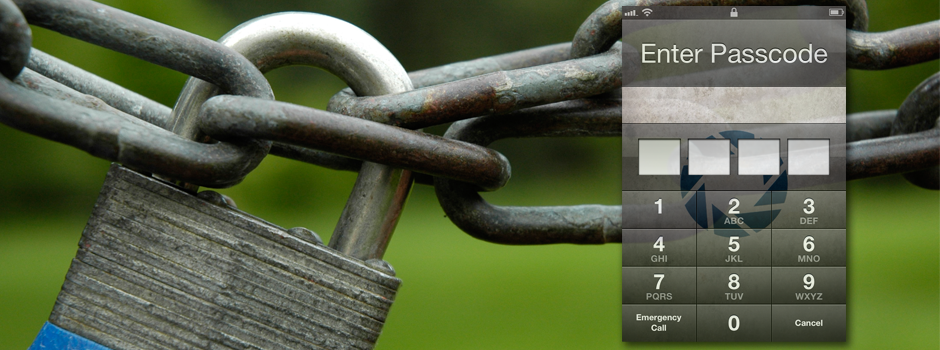
How To: Password Protect Your iPhone

March 26, 2012 · by Sam

Most people have a lot of personal information–like texts, contacts, pictures, and emails—on their iPhones. But what happens if someone gets ahold of your iPhone? They will have access to all of your personal/private information.

However, there is a simple way to protect all of your private information—set a passcode for your iPhone.

This tutorial will explain (1) how to set a passcode to protect your iPhone, and (2) how to adjust the passcode protection settings to fit your needs.

Read More →

Share this:

  • Tweet
  • Click to email a link to a friend (Opens in new window) Email
Like Loading...
Page 1 of 2 1 2 Next »
  • Recent Posts

    • How To: Turn on Auto-Update for Apps
    • Quick Tip: Turning Rotation Lock (Orientation Lock) On and Off
    • How To: Speed Dial using Workflow on Your iPhone
    • How To: Change the Wallpaper on Your iPhone’s Home Screen and/or Lock Screen
    • How To: Quickly Free Up Space on Your iPhone
  • Like us on Facebook!

    Like us on Facebook!
  • Create a free website or blog at WordPress.com.
  • Connect with us:
  • Twitter
  • Facebook
  • YouTube
  • RSS
Privacy & Cookies: This site uses cookies. By continuing to use this website, you agree to their use.
To find out more, including how to control cookies, see here: Cookie Policy
  • Subscribe Subscribed
    • SimpleiPhone
    • Already have a WordPress.com account? Log in now.
    • SimpleiPhone
    • Subscribe Subscribed
    • Sign up
    • Log in
    • Report this content
    • View site in Reader
    • Manage subscriptions
    • Collapse this bar
 

Loading Comments...
 

    %d