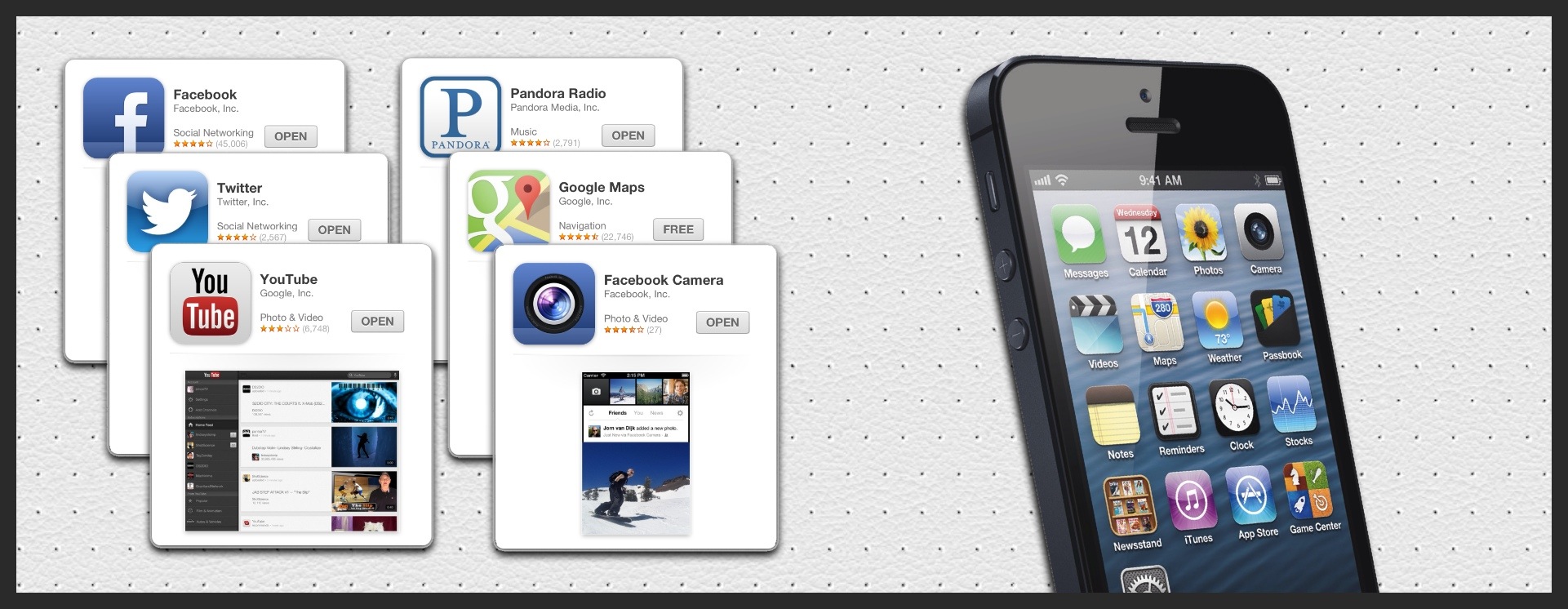
So you just got your first iPhone. Now what? Well, one thing that makes the iPhone great is the great ecosystem of apps available to download instantly. One of the first things you should do with your new iPhone is download some of the best free apps that are out on the App Store right now.
Browsing Category Feature
How To: Use Photo Stream
Wouldn’t it be great if all the pictures you took on your iPhone could be viewed on your other devices without having to mess around with cables and copying and pasting? Just imagine, you could take a photo on your iPhone and then view and edit the photo on a bigger screen–like an iPad–without having to sync to iTunes or having to constantly email pictures from one device to the next. With Photo Stream, you can do this and so much more!
A few months ago we explained how to create and manage photo albums using only your iPhone. You can find that article by clicking here. Now we are going to move on to how you can use Photo Stream (1) to back up your photos, (2) to view your photos on your other Apple devices, and (3) to share your photos with friends and family.
Photo Stream is an amazing feature that allows you to do several things. First, Photo Stream operates as a way to do a limited backup of your photos. I say “limited” because Photo Stream won’t permanently backup every photo you take forever. Rather, as stated by Apple: “[i]f you have Photo Stream enabled on your iOS device, every single photo you take appears in a special Photo Stream album that holds your last 1000 photos.”1 However, the length of time your photos are stored on iCloud is limited because “iCloud [only] stores new photos for 30 days.”2 Second, Photo Stream makes it easy to share photos between your iPhone, iPad, supported iPod, and Mac computer with iPhoto installed. Finally, Photo Stream makes it easy to share photos or photo stream albums privately with friends and family or publicly with everyone. All of these features make your life easier and cost nothing to use! Now let’s get into the “how-to”.
How To: Take Panoramic Pictures
The new iOS operating system (iOS 6) brought with it a slew of new features. One feature that really stands out is the ability to take panoramic pictures with the Camera app. This feature makes it easy to quickly capture a whole scene in one seamless picture. There is an important limitation to note from the outset: only certain iPhones will be able to take advantage of this feature. Only the following iPhones will be able to use the panorama feature: iPhone 4S, iPhone 5, and whatever newer iPhone Apple comes out with after this article is published. This tutorial will teach you how to use the panoramic feature on your iPhone to take amazing wide, panoramic photos! Let’s get started.
How To: Get Directions to Anywhere from Anywhere
It’s a dark windy morning and you have no idea where you are. Read More →
How To: Watch Live Sports on Your iPhone
This feature is a glimpse of what the future will be like. No more big cable subscriptions just to get the few channels you actually watch. You can watch practically anything you want, when you want, on the internet. Sports are no exception.
ESPN has an iPhone app that allows customers of qualified cable providers to watch their ESPN network of channels all right from their iPhones! But yes, there’s a catch. If you read carefully, you would have noticed I said “customers of qualified cable subscribers.” We figure there is some contractual agreement between ESPN and the cable providers that inhibit ESPN from offering this for free. Here’s to hoping someday it all changes for the better!
How To: Create and Send Awesome Cards to Anybody in the World
How To: Create Customized Ringtones For iPhone For Free
The first thing many people do when they get a new phone is customize the ringtone. Having that perfect ringtone to represent them when others hear their phone ring is a great feeling. But how do you do this on the iPhone? Many people have asked this question and we are hear to provide the answer.
We will give you a simple 5-step process on how to finally make that perfect ringtone for your new iPhone. Read on!
How To: Create and Manage Photo Albums All on Your iPhone

I don’t know about you but I take a LOT of pictures with my iPhone. They say the best camera is the one you have with you, and that is definitely the case for me. One thing I loved about the iPhone is the ability to take high quality photos coupled with the ease of editing right on the device with the plethora of photography apps found on the App Store.
Before, all your photos were basically tossed together into one huge photo album on your device unless you went through the pains of organizing them on your computer first. But if you’re like me, you never did. But this has changed!
Now you can create and manage photo albums all on your iPhone. I’ll show you how!
How To: Take Snapshots of Your iPhone Screen
One big light bulb moment most iPhone users have is when they discover how to take screenshots of their iPhone’s screen. This can be very handy in some situations, like where you need to show somebody not physically next to you what is on your screen. I’ll first teach you how to do it and then some tips on when to use it.
Interested? I thought so!